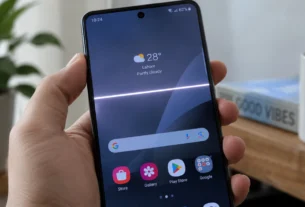
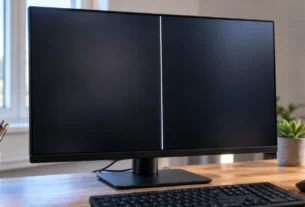
A black screen and white line on a Windows laptop can mean the display signal is stuck. Press Win + Ctrl + Shift + B at the same time. Listen for a beep or watch for a flicker. This refreshes the display output. It cannot fix a damaged cable or panel.
I have seen this exact screen many times, and I know how scary it looks. A laptop screen black with white line feels like a dead machine. Often, it is not. Microsoft lists this shortcut as a first step for blank screens in its official Windows support guide.
If the shortcut does nothing, do not panic. I will walk you through the fixes in order, from the easiest and safest resets to tests that show whether the problem is software or hardware. You will always know what to try next, and when it is time to call for repair.
Diagnosis: Which “White Line” Do You Have?
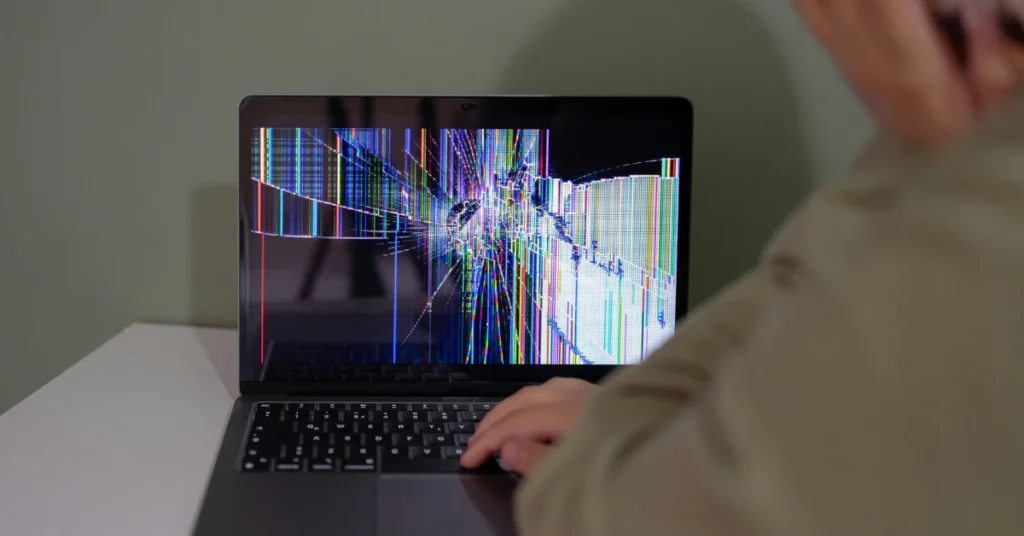
Two very different problems share the same name. I have seen people treat one like the other, and it wastes hours. A quick look at your screen tells you which path to follow.
Scenario A: A Small Line or Blinking Cursor in the Corner
Check the top-left corner. You may see a short white line or a cursor that blinks. The rest of the screen stays black. Often, no logo appears and Windows never loads.
This is often not a broken screen. Microsoft says a blank screen with a blinking cursor means the UEFI (or BIOS) cannot find a boot device. In plain words, the startup software cannot find the drive that holds Windows. Some people report a line that stays still instead of blinking. I treat both as the same startup clue.
If you searched for a black screen blinking cursor, this is likely your case. The screen is doing its job, because it is showing something.
Scenario B: A Solid Line Across the Picture
Now look at the whole display. Do you see a thin horizontal white line on your laptop, or a vertical one, running across the picture? That points to hardware. The usual suspects are the cable inside the laptop, the screen panel, or the graphics hardware that creates the image.
Tests later in this guide show which part is at fault, so do not guess yet.
| What you see | Likely meaning | Where to start |
| Short line or blinking cursor in a corner | Startup problem (no boot device found) | Boot checks |
| Long line across the picture | Hardware problem | Display tests |
My advice is simple. Spend thirty seconds on this check before you touch anything else. It keeps you from chasing the wrong fix, like buying a new screen for a startup problem.
The Quick Keyboard Resets (Safest Fixes)

These fixes need no tools and put no strain on your hardware. I always try them first, in this order.
Step 1: Refresh the Display Output (Windows)
Press Win + Ctrl + Shift + B at the same time. Save any open work first, since the screen may blank briefly. Your screen may flicker or go dark for a second. You may also hear a beep. Both mean the shortcut worked.
Here is what it does in plain words. It refreshes the display output, which is the picture signal your laptop sends to the screen. Microsoft describes it as a graphics driver reset. Other sources say it works a bit differently and does not restart the driver. Because the experts disagree, I stick with “refresh.”
This shortcut works on Windows only. It will not fix a loose cable, a damaged panel, or other hardware faults. MSI says the same. If a solid white line stays put, move on to the next step.
Step 2: Do a Hard Reset
A quick tap of the power button is not enough here. You have to hold it down. The right time depends on the brand:
- Apple Mac: Hold up to 10 seconds. On a laptop with Touch ID, press the button down firmly instead of touching it lightly.
- HP: Hold 15 seconds.
- Microsoft’s general Windows guide: Hold 20 seconds.
- MSI: Hold 25 seconds.
Use the time for your brand. If yours is not listed, Microsoft’s 20 seconds is the general guide for Windows laptops. Let go of the button, and then turn the laptop on again. Apple’s hold time is for Macs only, so the Windows shortcut above does not apply to them.
HP’s number comes from HP support staff replies, so check your model’s support page if you can.
I know the long hold feels drastic. In my experience, it does not erase your files. It cuts power, much like unplugging a desktop, and it is not a factory reset. The only real risk is unsaved work, which may be lost.
If the line is still there after both steps, the next level shows how to test for the cause.
Built-in Display Tests (No Windows Needed)
Before I call any screen broken, I run the test that is already built into it. These tests skip Windows and drivers completely. They show the raw screen on its own, so you learn whether the hardware or the software is at fault. I run one before I ever order a replacement part.
Dell Laptops: The LCD Built-In Self-Test
This test is for Dell laptops only. Dell says it does not work on Dell desktop monitors. For lines on a monitor, use the test in the monitor’s own menu.
- Shut the laptop down fully.
- Unplug external monitors, USB devices, and docks. Plug in the charger.
- Press and hold the D key, then press the power button.
- Keep holding D until colors appear, then let go.
Your screen cycles through solid black, white, red, green, and blue. Watch every color for lines, dots, or dark patches. To stop the test, press Esc or hold the power button for 10 seconds.
Here is how to read the result:
- Lines show up: Dell says the screen may need service. Contact Dell support.
- Everything looks clean: The screen hardware is fine. Dell points you to your graphics driver, Windows display settings, and Windows updates.
TVs: Samsung and LG
For vertical lines on a TV screen, both brands built a test into the menu.
- Samsung: Use Picture Test. The path changes by model year. For 2026 TVs, Samsung lists Settings > Support > Device Care > Self Diagnosis > Picture Test. That is Samsung’s Australian page, so check your local one.
- LG: Use Screen Self-Diagnosis under Support. Steps vary by TV software version. It shows whether the TV or a connected device, like a set-top box, is the problem.
LG adds one warning. If a connected device does not support HDMI Deep Color, you may see lines, flicker, or color problems. So if the TV passes its test, check the device next.
I trust these tests because they take two minutes and cost nothing.
Booting into Safe Mode (Software Fixes)

Here is the problem with most online guides. They say “hold Shift and click Restart.” That works only if you can see and click something. On a black screen, you can’t. So I use a different route, and Microsoft documents it.
Windows 10 and 11: The Blind Route
Safe Mode is a stripped-down version of Windows. It loads only the basics, which helps when a bad graphics driver is causing trouble. This route is for Windows 10 and 11 only.
- Hold the power button for 10 seconds to force a shutdown.
- Turn the laptop on again.
- Repeat the force shutdown two or three times, until Windows opens Recovery mode.
- Go to Troubleshoot, then Advanced Options, then Startup Settings, then Restart.
- Press F5 to start Safe Mode with Networking.
Once You Are in Safe Mode
Now you can fix the likely cause: the graphics driver.
- Open Device Manager.
- Open Display adapters and right-click your graphics card.
- Pick Update driver.
- If the problem started right after an update, pick Roll back driver instead.
Microsoft also lists System Restore as a next step if the problem began recently. Restart normally when you are done and check the screen.
Keep one limit in mind. Safe Mode can fix a driver problem, but it cannot fix a damaged cable or panel. If the white line is still there in Safe Mode, the cause is probably hardware. That is useful to know.
Mac Users
A Mac uses a different path. Apple says to hold the power button for up to 10 seconds, then try starting up from macOS Recovery. From there, repair the startup disk with Disk Utility. If the blank screen stays, reinstall macOS from Recovery.
Advanced Firmware Fixes (Mac Revive & HP BIOS)
Sometimes a laptop looks truly dead. The standard fixes fail and the screen stays black. Before I give up on a device, I try one more thing: a firmware fix. Firmware is the small built-in software that starts the hardware.
Mac Revive and Restore (Apple Silicon and T2 Macs)
Apple says a Mac with Apple silicon or the T2 security chip may need its firmware revived or restored by another Mac. This can happen if it turns on but stays on a blank screen, and the earlier blank-screen fixes did not work. Other Mac models do not use this method.
You need:
- A second Mac running macOS 14 or later.
- A USB-C cable that carries data and charge. Apple says not to use a Thunderbolt 3 cable.
- About 32 GB of free space on the second Mac, plus an internet connection.
Older forum posts say the helper Mac needs macOS 15. Apple’s current page says macOS 14 or later, so go by that.
Important warning: Always try Revive first. It does not erase your Mac. Restore erases the Mac and returns it to factory settings. Choose Restore only if Revive fails, and expect to lose anything not backed up.
HP BIOS Recovery
Some HP laptops have a BIOS recovery shortcut. HP support staff describe it like this:
- Turn the laptop off and connect the charger.
- Hold Windows + B on the laptop keyboard.
- Press and hold the power button for 2 to 3 seconds.
- Keep holding Windows + B until you hear beeps or see the BIOS recovery screen.
It works on some HP models only, so check your model’s HP support page.
I have seen these tools bring back machines that looked permanently broken. They are worth a try before anyone calls a device dead.
Physical Hardware & Warnings (Riskiest)

If every earlier step failed, the cause is probably inside the device. I want you to read this section carefully before you touch anything.
The Angle Test
Slowly tilt the laptop lid back and forth. Do the lines fade or vanish when the screen sits near 45 degrees? Some Apple and Dell forum users report exactly that. It hints at a loose or worn cable inside the hinge area. Treat it as a clue, not proof. Move the lid gently. Never press on the glass or force the hinge.
Safety Warning
Warning: Opening a monitor or TV is dangerous. Parts inside, called bulk capacitors, can hold an electrical charge even after the device is unplugged. That charge can cause a shock. Do not open a monitor or TV unless you are trained to work on electronics.
Dell gives a similar caution for laptops. It says using methods other than the ones in its guide may lead to shock, electrical, or mechanical hazards. Laptops hold risks too, like the battery and static damage to parts.
Check Your Warranty First
Before any repair, find out what coverage you have. Mac owners can check AppleCare. Dell owners can check Dell Support. Dell says physical screen damage typically is not covered under a standard warranty. Support can still explain your repair options based on your coverage. I cannot say that opening the device will void your warranty, because I did not find a manufacturer page that says so. It may affect your coverage, so read your warranty terms first.
My Honest Advice
These jobs are for professionals:
- Reseating the display cable.
- Replacing a timing control (T-con) board, a small circuit board that sends signals to the screen.
- Swapping the screen panel.
If you are not comfortable with electronics, please do not try them. A repair shop or the manufacturer can test the parts safely. I have seen small DIY mistakes turn a fixable screen into a dead one.
FAQ’s
Why is there a black screen with a white line?
Two causes are common. A short line or cursor in a corner usually means the computer cannot find its startup drive, according to Microsoft. A long line across the picture points to a cable, panel, or graphics problem.
Is a black screen and white line the same as a black screen with a white line?
Yes. It is the same problem in different words. What matters is whether you see a corner cursor or a line across the picture.
Can a black screen with a white line be fixed without replacing the screen?
Often, yes, if software is the cause. On Windows, try the display shortcut, Safe Mode, or a driver rollback. On a Mac, try Recovery. If Dell’s built-in test shows lines, the screen may need service.
Is a white line on a black screen a hardware or software problem?
Run a test to find out. Dell says a clean built-in test points to drivers or settings. Tests are the best way to tell the two apart.
What causes a horizontal white line on a black screen on a laptop?
Repair guides and forum helpers most often name a damaged cable, a damaged panel, or a graphics fault. No manufacturer page I checked blames just one.
How do I tell if the white line is from the cable or the panel?
You cannot be sure without opening the device. The angle test gives a hint, so let a pro confirm.
How much does it cost to fix a black screen with a white line?
It depends on your warranty, AppleCare coverage, the age of the device, and whether the fault is a cable or a full panel. Dell says standard warranties typically do not cover physical damage. Ask support for a quote.
Conclusion
Start with the easy fixes and work upward. Refresh the display, try a hard reset, run a built-in test, then use Safe Mode or Recovery. A line that survives all of that usually points to hardware, so check your warranty and call a pro. Most screens give clear clues, and now you know how to read them.