
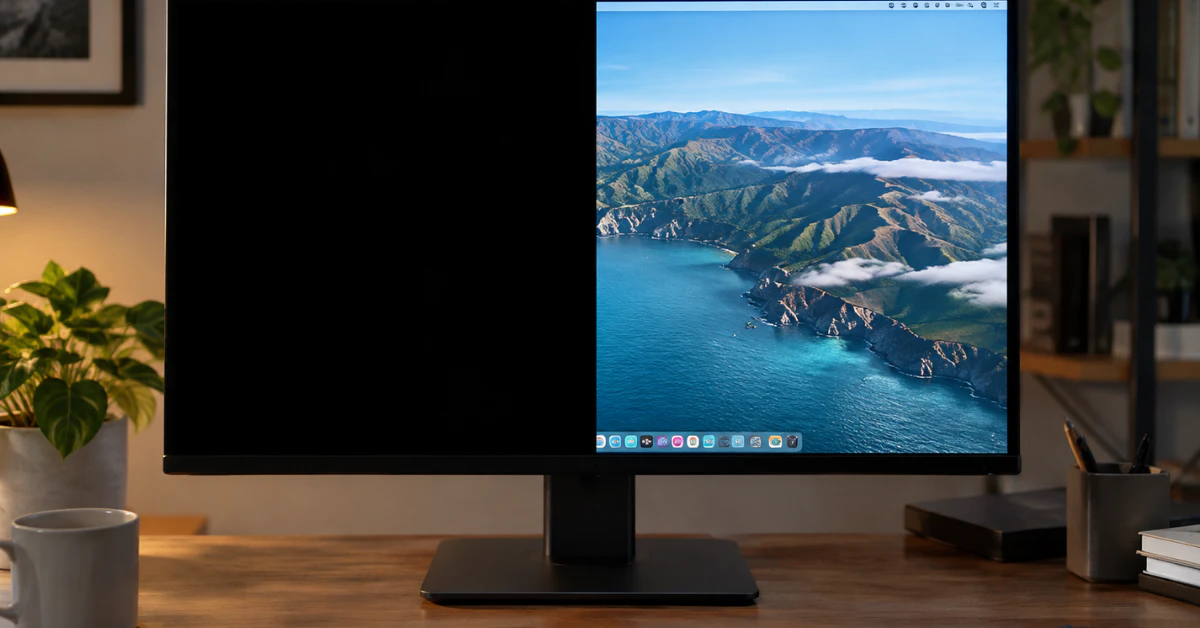
Half your screen just went black, and you need it fixed now. Here is the fastest thing to try first.
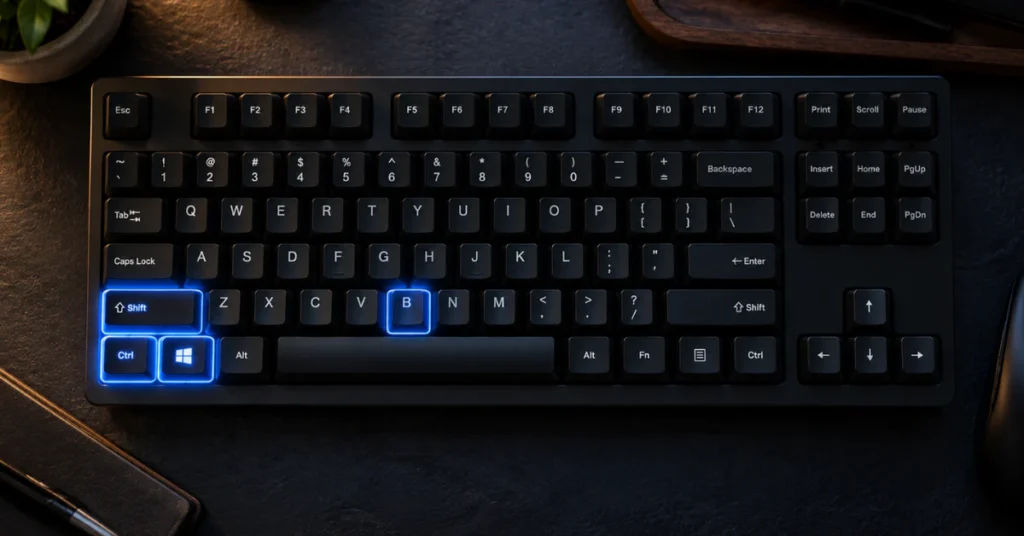
On a Windows computer, press Win + Ctrl + Shift + B all at the same time. Your screen will flash or go dark for a second, and you might hear a beep. This restarts your graphics driver without shutting down your computer or losing your work.
This is not a random internet trick. MSI, a major monitor and PC maker, officially tells users to try this exact shortcut when a screen goes black after waking from sleep mode.
If your screen comes back to life, great. Problem solved. If it does not, don’t worry. Below, we will figure out whether this is a quick software fix or a real hardware problem, and walk you through exactly what to do next.
Isolate Software vs. Hardware
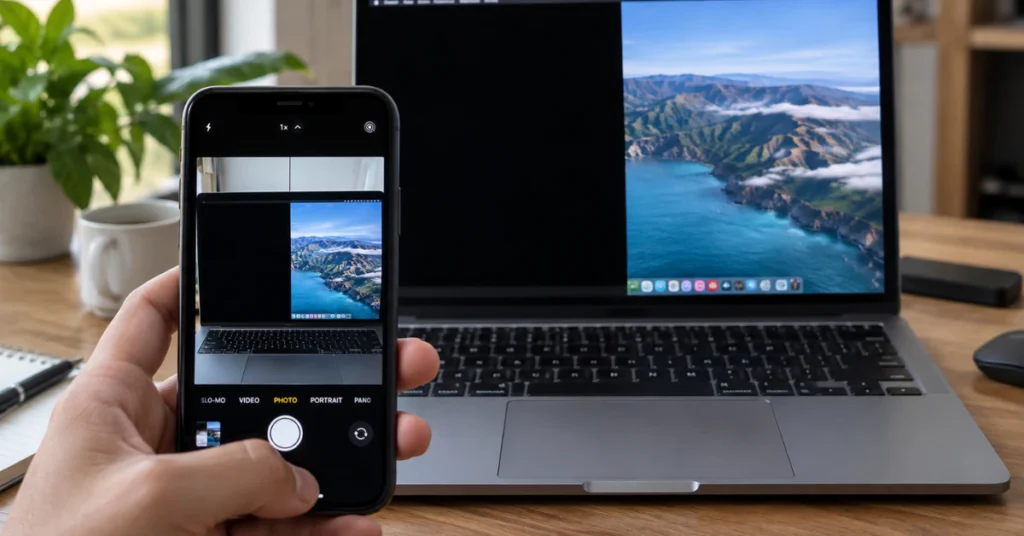
Before you touch any cables or panic about buying a new monitor, run two quick tests. They take less than five minutes and will tell you exactly what kind of problem you have.
Check your display settings
If you use Windows 11, right click on your desktop and pick Display settings. Look for the section called Scale & layout. Find Display resolution and make sure it is set to the option marked “(Recommended).” A wrong resolution can make part of your screen look cut off or black, even though nothing is actually broken.
The screenshot test
Take a screenshot of your screen. On Windows, press Win + Print Screen. On a Mac, press Cmd + Shift + 3. Now open that screenshot on a different device, like your phone.
You can also connect your computer to a TV or a second monitor using an HDMI cable.
Here is what the results mean:
- If the screenshot or the second screen shows a full, normal picture with no black half, your graphics card and software are working fine. The problem is inside your monitor or laptop screen itself. This points to a hardware issue.
- If the black half shows up in the screenshot too, your monitor is not the problem. Something in your computer, like a graphics driver or a setting, is causing it.
Microsoft’s own official guide for fixing blank screens in Windows lays out this exact kind of testing before you move on to driver updates or deeper fixes. Following this order saves you time and stops you from opening up a monitor that did not need to be touched at all.
Software Fixes for Windows, MSI, and Acer Monitors
If the screenshot test pointed to your computer and not the physical screen, here are the fixes to try, starting with the fastest.
Reset your graphics driver again
Press Win + Ctrl + Shift + B one more time if you have not already. This forces your graphics driver to restart without a full reboot. MSI lists this exact shortcut in its own support documentation (FAQ-11337) as a fix for screens that go black after waking from sleep mode.
Turn off Fast Startup
Fast Startup is a Windows feature that helps your PC boot faster, but it can sometimes cause display glitches after sleep. Here is how to turn it off:
- Open Control Panel and click Power Options.
- Click Choose what the power buttons do.
- Click Change settings that are currently unavailable.
- Uncheck the box next to Turn on fast startup.
- Click Save changes and restart your computer.
This fix works for some users but not everyone. Think of it as worth trying, not a guaranteed cure.
If you have an Acer monitor, know this
Acer owners, especially with monitors like the Nitro XV275U, have reported a specific and frustrating bug. The screen shows only half the picture after waking from sleep, and it seems tied to AMD graphics cards using FreeSync, a feature that syncs your monitor’s refresh rate to your graphics card.
Here is the honest truth. Users on Acer’s own community forum have tried updated drivers, new cables, and different power settings, with no permanent fix found yet. This appears to be an unresolved software interaction between some AMD drivers, Windows sleep mode, and certain Acer monitors.
Right now, the best workaround is simple. Turn the monitor off and back on, or unplug it for a few seconds. This restores the picture until the next time your PC sleeps.
It is not a real fix, but it works every time, and there is no need to buy anything or open your monitor for this specific issue.
The Android Exception: When Multi-Window Goes Black
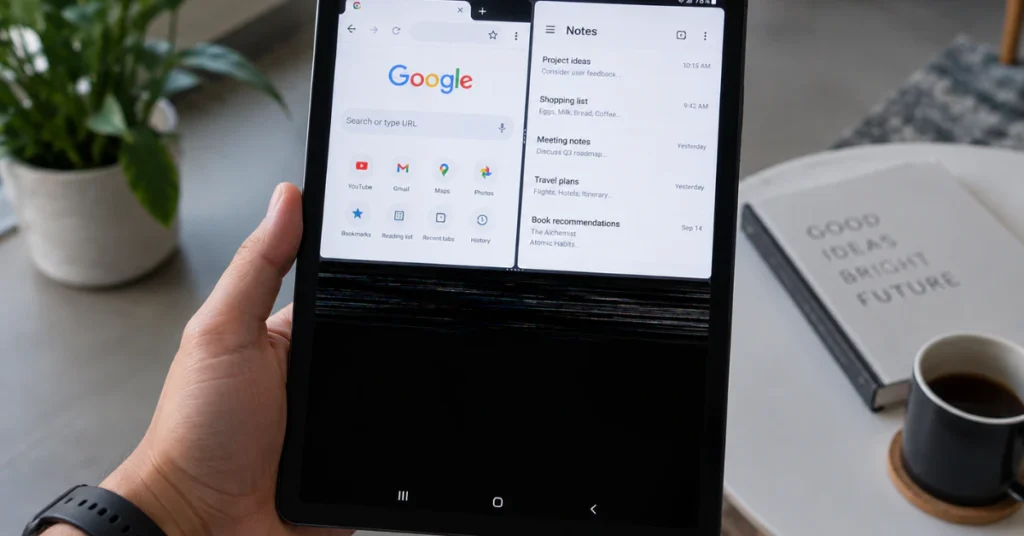
If you are reading this on your phone or tablet, stop scrolling through monitor cable fixes. Your problem is likely something totally different.
On Android phones and tablets, a half-black screen almost never means a broken screen. It usually points to a software bug in split-screen mode, also called multi-window mode. This is the feature that lets you run two apps at once, one on the top half of your screen and one on the bottom.
Reports from Hexnode, a company that manages business devices, describe this exact issue. When split-screen mode turns on, one half of the screen can suddenly go black. This has also shown up as a known bug in the Unity software used to build many apps and games, logged under issue UUM-67558.
The good news is that this is an easy fix. Try these steps in order:
- Drag the black bar or divider line between the two apps all the way to the top or bottom of the screen. This exits split-screen mode.
- If that does not work, force-close the app that is showing the black screen. Go to your recent apps list and swipe it away.
- Still stuck? Restart your phone or tablet. This clears out most temporary display glitches.
Your screen itself is almost certainly fine. This is an app or software hiccup, not a hardware failure, so there is no need to worry about repair costs or opening your device.
Diagnosing Hardware: Laptops vs. External Displays
Once you know the problem is real hardware and not software, the next question is what kind of hardware. Laptops and external monitors fail in different ways, so they need different tests.
For laptops: try the hinge test
Slowly open and close your laptop lid while watching the dark part of the screen. Move it just a few inches at a time.
Does the black or dim area shrink, grow, or flicker as you move the hinge? If yes, this points to a damaged flex cable, the thin ribbon that carries the picture from your motherboard up through the hinge to the screen. Every time you open and close a laptop, this cable bends a tiny bit, and over years of use, it can wear out or crack.
Not all dark screens are the same
Here is something many people get wrong. A clean, hard line where one half is solid black and the other half works fine is different from a screen that looks dim, gray, or shaded on one side without a sharp cutoff.
That shaded, gradient look often points to something else entirely. According to reports on iFixit, a repair help community, this kind of uneven dimming is frequently linked to pressure on the screen near the hinge or bezel edge, like from a drop or a hard bump, rather than a complete break in the signal.
It can also point to a partial backlight failure. Older LCD and LED screens use small strips of LED lights behind the actual picture layer to light it up. If some of those lights fail, that area looks dim instead of fully black.
One important note if you have a newer laptop or monitor. OLED screens do not use a separate backlight at all. Each pixel lights up on its own. So if you have an OLED display, backlight failure is not a fix that applies to you. The problem would more likely be in the panel itself or its driver circuit.
Hardware Causes (T-Con, Cables) & Safety Warnings
Stop here before you grab a screwdriver.
Opening a monitor exposes internal capacitors that can hold a dangerous, potentially lethal electric charge even after the device is unplugged. This comes straight from official Philips LCD service documentation, which warns that this repair work should only be done by trained technicians. Opening your device may also void your warranty. If your monitor or laptop is still under warranty, contact the manufacturer first, before you open anything.
With that said, here is what is likely happening inside your screen, explained in plain terms.
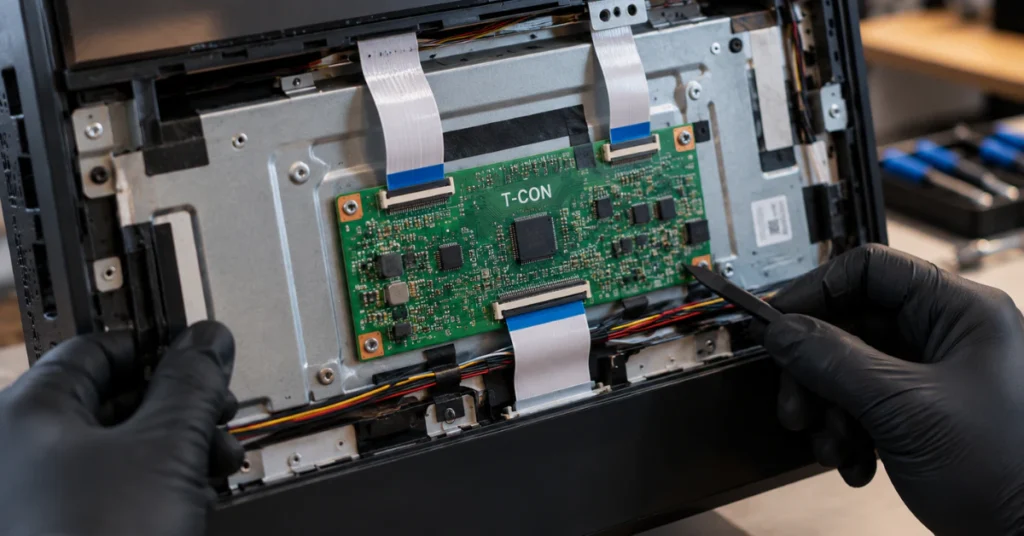
The T-con board
Think of the T-con board as a traffic controller for your screen’s picture. Its full name is the timing controller board. It takes the image signal from your computer and splits it into two paths, one for each half of the screen.
This is exactly why a broken T-con board causes such a clean, sharp line down the middle or across the screen. One of its two output paths simply stops working, so that whole half goes dark while the other half keeps running normally.
Damaged ribbon cables
Inside your monitor or laptop, thin flat cables called ribbon cables carry the picture signal to different parts of the screen. If one of these gets loose, bent, or damaged, it can cut off the signal to just one section of the display.
A dying panel
Sometimes the problem is in the screen panel itself, not the parts feeding it. This is usually permanent and does not come and go like a loose cable might.
What repairs actually cost
If you decide to get this repaired instead of replaced, here is what to expect. A replacement T-con board typically costs between $25 and $80. That price only covers the part, and it must be an exact match for your specific monitor model. T-con boards are not universal, so a board from one brand or size will not work in another.
Given the risks involved and the cost of parts alone, many people find it makes more sense to have a professional handle this repair, or to simply replace an older monitor rather than fix it. If your device is fairly new or expensive, a repair might be worth it. If it is older or the repair cost creeps close to the price of a new monitor, replacing it is usually the smarter and safer choice.
The Universal vs. Device-Specific Fix Matrix
Not every fix works on every device. Trying a Windows shortcut on your Android tablet just wastes your time. Use this table to jump straight to what actually applies to you.
| Fix | Works On |
| Swap the video cable or try a different port | Universal (any device with a cable) |
| Connect to an external monitor or TV to test | Universal (laptops, desktops) |
| Press Win + Ctrl + Shift + B to reset graphics | Windows only |
| Turn off Fast Startup | Windows only |
| Update drivers through Device Manager | Windows only |
| Check for macOS software updates | Mac only |
| Exit split-screen or force-close the app | Android only |
| Restart the device | Universal (any device) |
A quick note on opening the device. This is not a “one size fits all” task. Opening a desktop monitor usually means removing a few screws from a plastic back panel, which is simple by comparison.
A thin laptop is a different story. Many modern laptop screens have bezels that are glued in place, not screwed. Prying one open without the right tools and experience can crack the screen or snap tiny plastic clips that are not easy to replace.
Because of this real difference in risk and skill level, treat any laptop screen disassembly as a job for a professional, unless you already have experience with that exact model.
Frequently Asked Questions
How do I fix my half black screen?
Start with the free fixes first. Press Win + Ctrl + Shift + B to reset your graphics driver, and check that your display resolution is set to “(Recommended)” in Windows Settings. If those do not work, run the screenshot test to see if the problem is your computer or your actual screen. That tells you whether to keep troubleshooting software or start looking at hardware repair.
How do I restore my half screen to full size?
This usually is not a broken screen at all. It is almost always a resolution or scaling mismatch in Windows. Go to Settings, then System, then Display, then Scale & layout, and make sure your resolution shows “(Recommended)” next to it. This single fix solves most “half size” screen complaints without touching any hardware.
Why is half of my monitor darker?
This is different from a screen that is fully black on one side. A darker, shaded half usually points to one of two things. It could be a partial backlight failure, where some of the small lights behind an LCD or LED screen have stopped working. It could also be pressure damage near the hinge or edge of the screen, especially if the screen was dropped or bumped recently. Try gently pressing near the dim area. If the picture briefly improves, that points to a loose connection rather than a dead backlight.
Neither of these darker-screen issues applies to OLED screens, since OLED does not use a separate backlight at all.