
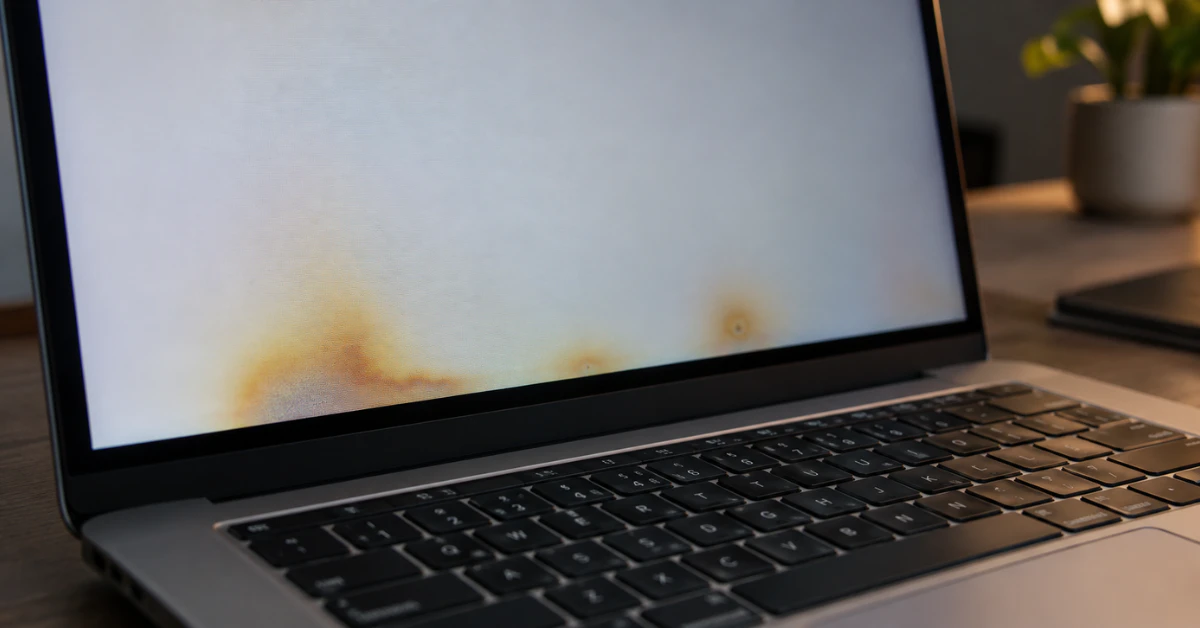
Heat damage on a MacBook Pro screen usually shows up as yellow blotches, dark smudges, or faint vertical lines that won’t wipe off. In most cases, this damage is permanent once the LCD layer or T-CON board gets cooked from the inside. A cracked screen you can fix. A heat-damaged one, you usually can’t.
I’ve spent years opening up MacBook Pros on the repair bench, and heat damage is one of the trickiest issues to explain to owners. That’s because not every weird mark means your screen is ruined. Sometimes it’s just image retention, a temporary “ghost” of whatever was on screen too long. Other times, it’s true, permanent heat damage macbook pro screen owners can’t reverse.
So how do you know which one you’re dealing with?
That’s exactly what this guide walks you through. As someone who diagnoses these screens for a living, I’ll show you the real signs to check for, why the damage happens in the first place, and what steps actually make sense next, before you spend money on a repair you may not need.
How to Spot True Heat Damage on a MacBook Pro Screen
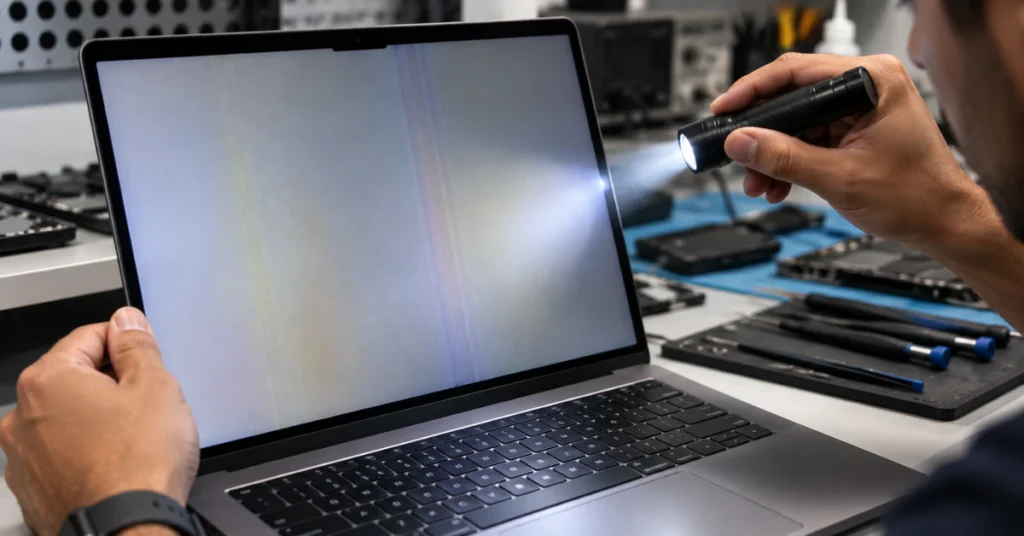
When someone brings me a MacBook Pro with a suspicious mark on the screen, I check for a specific pattern before I say anything. Real heat damage doesn’t show up randomly. It follows the path the hot air actually travels inside the laptop.
Here’s what to look for:
- Yellow or brown blotches near the bottom edge, close to the hinge
- Faint vertical lines running up from the bottom of the screen
- Ghosting or image retention, where an old image (like a menu bar) stays faintly visible even after you switch apps
- A warped or slightly bulging bezel right above the keyboard
There’s a reason almost every case follows this same bottom-edge pattern. The T-CON board, which controls the timing and clarity of everything on your screen, sits right behind the lower bezel, close to the exhaust vents. When your MacBook Pro runs hot for long stretches, that hot air blows straight past this board and the bottom of the LCD panel. Over time, it can warp the polarizer film or cook the components underneath, and that’s when you get permanent yellowing or lines.
This is different from a few other issues people often confuse it with:
- Flexgate is a display cable problem on older models. It usually causes stuck backlight or dimming at the bottom, not yellowing.
- Software glitches cause flickering or color shifts that disappear after a restart. Heat damage doesn’t go away with a restart.
- Physical cracks come from impact, not temperature, and look like spiderweb lines instead of soft blotches.
If you search around online, this pattern comes up a lot. Plenty of people describe the same thing in heat damage macbook pro screen reddit threads, usually after long video exports, 3D rendering, or gaming sessions with the laptop propped on a soft surface. The story is almost always the same: heavy workload, poor airflow, then a yellow patch a few days later.
What Causes the Screen to Overheat?
Heat damage doesn’t happen on its own. It builds up when hot air has nowhere to go, and that heat ends up baking the screen instead of escaping through the vents like it’s supposed to.
Three habits cause most of the cases I see on the repair bench:
- Blocked vents. Using the laptop on a bed, couch, or pillow blocks the intake and exhaust vents underneath. Heat gets trapped instead of flowing out.
- Heavy CPU or GPU tasks. Long video exports, 3D rendering, or gaming push internal temperatures higher and keep them there for hours at a time.
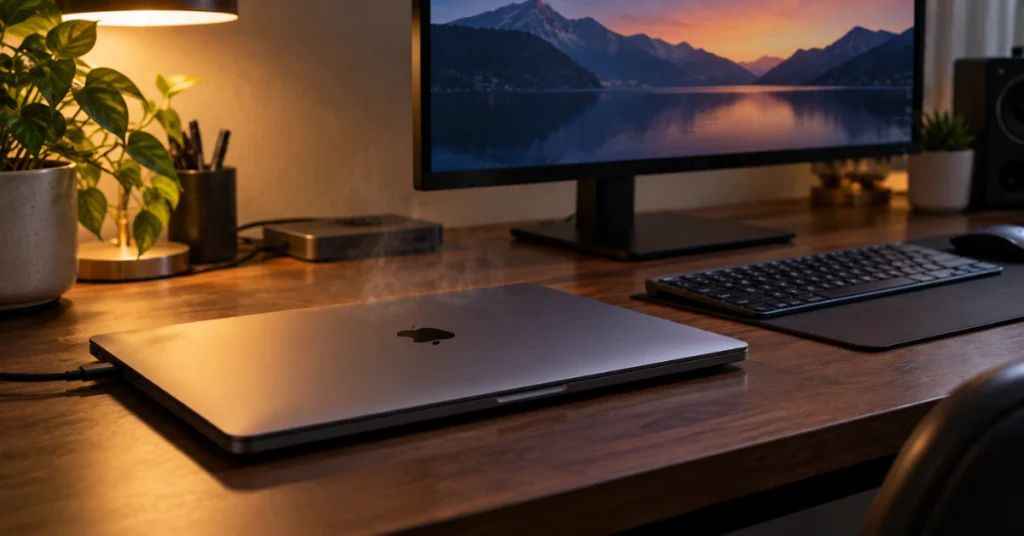
- Clamshell mode. This is the biggest one. Closing the lid and running the MacBook Pro through an external monitor stops heat from escaping through the keyboard area. Instead, it gets pressed against the closed screen, right where the delicate polarizer film sits.
Here’s how the risk breaks down across different models:
| Model Type | Heat Output | Main Risk Factor |
| Intel MacBook Pro (2015-2020) | High | Runs hot naturally, especially under load |
| M1/M2 MacBook Pro (2021+) | Lower | Cooler chip, but extremely thin screen panel |
| Any model in Clamshell Mode | Very High | Trapped heat with no keyboard-side airflow |
Now, about the keyword “heat damage macbook pro screen 2021” specifically. Apple Silicon changed a lot. The M1 and M2 chips run noticeably cooler than the old Intel processors, so you’d think screen damage would be rare on these newer machines. But here’s the catch: the 2021+ screens are some of the thinnest panels Apple has ever built.
That thinness is great for weight and design, but it also means there’s less material buffering the LCD layer from outside heat. So even though the chip itself runs cooler, leaving a 2021 MacBook Pro in a hot car, near a heater, or in a poorly ventilated bag can still warp or discolor the panel. The heat source is just more likely external than internal on these models.
Heat Damage vs. Temporary Glitches: Is It Permanent?
I’ll give it to you straight, the way I would to anyone sitting across from me at the repair counter. If the liquid crystals or the polarizer film have actually been baked by heat, that damage is permanent. No restart, no software update, no calibration trick will bring the screen back. Once the polarizer yellows or the crystal layer warps, you’re looking at a screen replacement, not a fix.
That said, not everything that looks scary is permanent. Real image retention, sometimes called ghosting, happens when the same image sits on screen for hours. You might see a faint outline of your menu bar or a browser window even after switching tasks. This is temporary. It’s caused by the liquid crystals holding their position a little too long, not by heat cooking the panel itself.
So how do you tell the two apart? Here’s a safe check I recommend before assuming the worst:
- Shut the MacBook down completely
- Leave the lid fully open in a cool, ventilated room for about an hour
- Turn it back on and look at the same area under different backgrounds
If the mark or line has faded or disappeared, you were dealing with temporary retention. If it looks exactly the same, especially yellowing or discoloration near the bottom edge, that’s a physical sign the panel itself has been damaged, and it won’t reverse on its own.
This one test saves a lot of people from panicking over nothing, and just as often, it confirms what they were already worried about.
How to Fix Heat Damage MacBook Pro Screen Issues
Let’s clear something up before anything else. If you’re looking for how to fix heat damage macbook pro screen issues once the panel is truly baked, there’s no home remedy, cleaning trick, or software fix that reverses it. A yellowed or warped LCD panel is a physical change in the material. The only real fix is a screen replacement. Anyone who tells you otherwise is trying to sell you something that won’t work.
What you can do is stop things from getting worse and protect the screen you have left. Here’s where to focus:
1. Stop running in clamshell mode if your Mac runs hot
If you’re using an external monitor with the lid closed, and your MacBook Pro tends to heat up during long work sessions, switch to using it lid-open instead. This lets heat escape through the keyboard area instead of pressing against the screen.
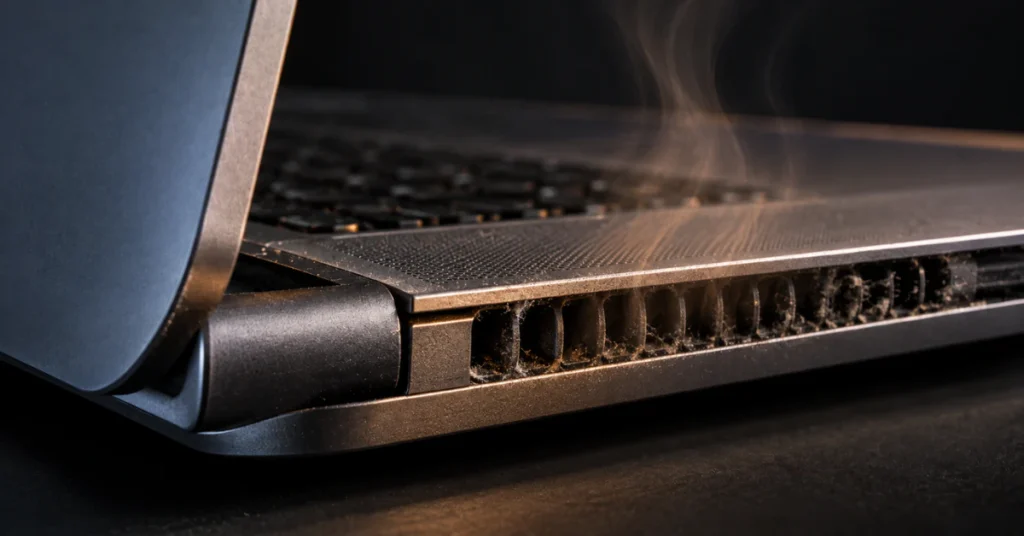
2. Clean out the exhaust vents near the hinge
Dust buildup blocks airflow and forces heat to linger longer than it should. Use a can of compressed air along the vent lines near the hinge every few months, especially if you work in a dusty space.
3. Use fan control software
Apps like Macs Fan Control or TG Pro let you set your fans to kick in earlier and run more aggressively during heavy tasks. This keeps internal temperatures lower before they reach the danger zone for the screen.
4. Reset the SMC on older Intel MacBook Pros
If your fans seem sluggish or barely spin up under load, the System Management Controller might need a reset. This is a common fix for fan behavior issues on Intel-based models. Apple has a straightforward official SMC reset guide that walks through the exact steps for your specific model.
5. Elevate your laptop during heavy tasks
A simple stand or even a stack of books keeps air flowing underneath, instead of trapping heat against a desk or soft surface.
None of these steps will undo damage that’s already happened. But they will stop a small heat mark from spreading into a bigger, more expensive problem.
Screen Replacement: What Are Your Options and Costs?
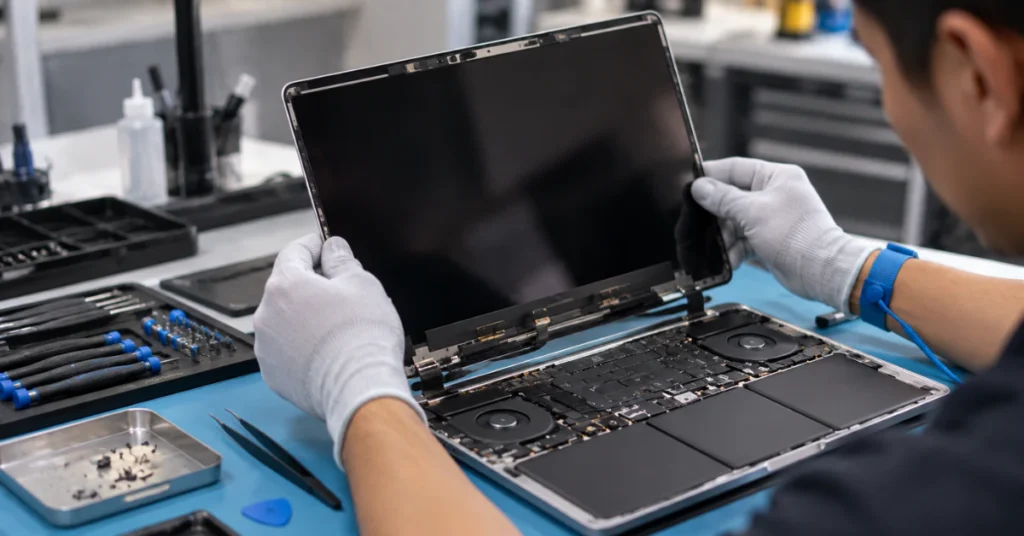
Once you’ve confirmed the damage is permanent, the next question is always the same: how much is this going to cost? The honest answer depends heavily on whether you have coverage.
If you have AppleCare+
This is the best-case scenario. AppleCare+ typically covers screen issues, including hardware failure and accidental damage, for a flat $99 fee per repair. Compared to the alternative, that’s a fraction of the real cost of a MacBook Pro display. You can check your coverage status and repair options directly on Apple’s official AppleCare+ page before booking anything.
If you’re out of warranty
Without coverage, screen replacement gets expensive fast. Here’s roughly what to expect:
| Screen Size | Estimated Cost |
| 13-inch MacBook Pro | $400 – $600 |
| 14-inch MacBook Pro | $500 – $700 |
| 16-inch MacBook Pro | $600 – $800+ |
Prices swing based on whether you go through Apple directly, an authorized service provider, or a third-party repair shop. Third-party shops are usually cheaper, but make sure they specialize in MacBook panel work specifically, not general electronics repair.
Back up your data now, not later
Here’s something I tell every customer with heat damage, even if the screen still mostly works: back up your files immediately. Heat that’s already affected the display can also be a sign of stress on nearby components. Screens with active discoloration sometimes fail completely without much warning. Don’t wait until the display goes fully black to move your photos, documents, and projects somewhere safe.
Frequently Asked Questions
Is it okay if my MacBook Pro gets really hot?
Short bursts of heat during heavy tasks are normal and won’t hurt anything. But sustained high temperatures over hours, especially in clamshell mode or on a soft surface, can gradually damage the screen and other internal parts. If your Mac feels hot to the touch regularly, it’s worth checking your airflow habits.
Can a damaged MacBook screen be fixed?
If the damage is true heat burn, meaning yellowing or warping in the panel itself, no repair or software fix reverses it. The only real solution is replacing the screen. Temporary issues like image retention, on the other hand, often fade on their own once the screen cools.
How much does it cost to replace the screen of a MacBook Pro?
With AppleCare+, screen repairs usually cost a flat $99 fee. Without coverage, expect anywhere from $400 to $800 or more, depending on your model and screen size.
Can heat break a MacBook?
Yes. Heat can damage the screen’s polarizer and LCD layer, and in severe cases, it can also stress the battery or logic board. Consistent overheating shortens the lifespan of several components, not just the display.
How to fix MacBook Pro heat problem?
Start by cleaning the vents near the hinge, avoiding clamshell mode during heavy tasks, and using fan control software to keep temperatures lower. For older Intel models, an SMC reset can also help fix sluggish fan behavior.
If your screen shows any yellowing, warping, or lines that don’t fade after cooling down, don’t wait it out. Get it looked at by a professional repair tech before the damage spreads or the display fails completely.