
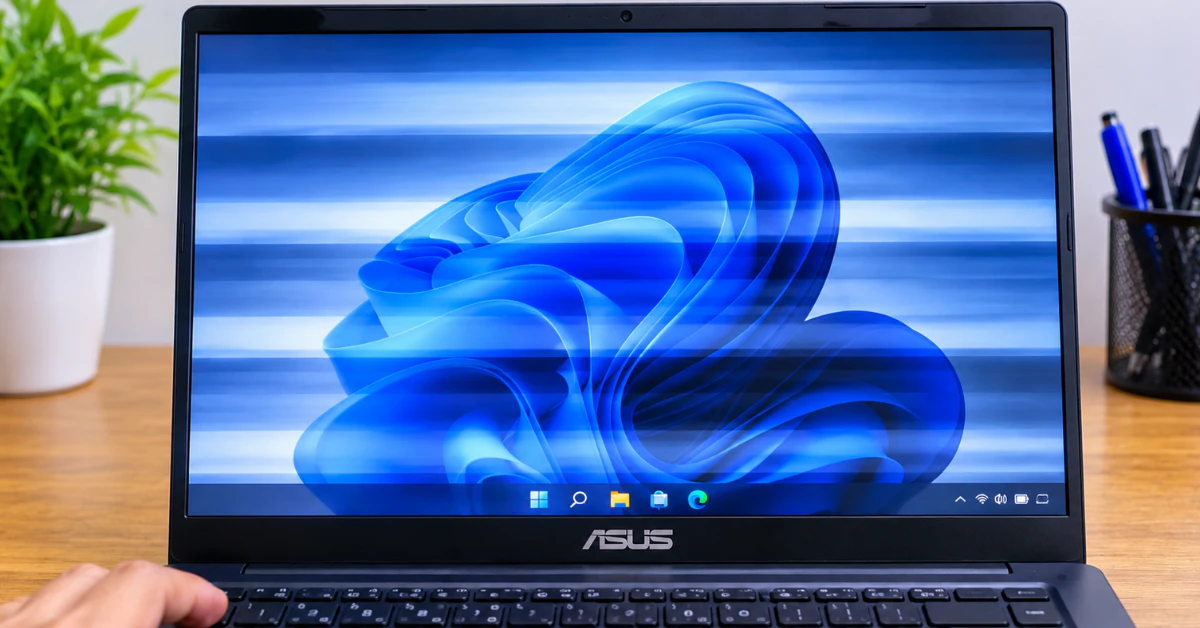
If your ASUS laptop screen is blinking right now, press Win + Ctrl + Shift + B together. This restarts the graphics driver without restarting your laptop. The screen may go dark for a second and beep. It is the first thing I try. Still blinking? Jump to the triage table below.
What Kind of Blinking Are You Seeing? (Symptom Triage)
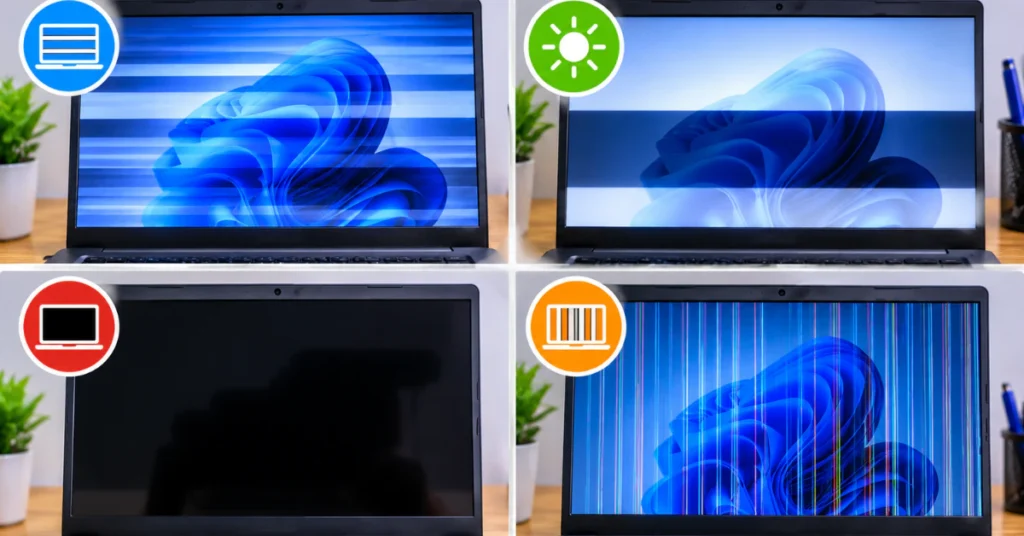
“Blinking” is a catch-all word. Some people say ASUS screen flashing, others say blinking or flickering. But a screen that flashes on battery has a different cause than one that flickers at low brightness. Finding your exact trigger saves hours of guessing.
Your ASUS model matters too. Many Vivobook and Zenbook screens are OLED. TUF and ROG gaming laptops often have fast 144 Hz screens and extra ASUS software. These lines behave very differently, so check your model name first.
| What you see | Likely cause | Where it shows up most |
| Flash or black blink when you plug in or unplug the charger, or only on battery | Screen changes its refresh rate to save power, or an Intel power-saving feature (user-reported) | Gaming laptops and Intel graphics models |
| Flicker only at low brightness | Screen dimming method (called PWM) | OLED Vivobook and Zenbook models |
| Started after a Windows update | Often a driver or app problem. One Vivobook Pro 16X OLED owner reported it after Windows 11 22H2 | Any model |
| Lines or flicker on a fast gaming screen | The 144 Hz refresh rate setting (user-reported) | TUF and ROG models |
| Short white or blue flash after the lock screen or waking from sleep | Normal Windows behavior, says ASUS | Any model |
Find your row, then follow the matching fix in the sections ahead. If two rows fit, start with the one that happens most often. If the last row is yours, you can relax. That one is normal. Don’t worry if you are not sure. Pick the closest match and keep going.
The 10-Second Test: Software vs. Hardware
This is my favorite quick check, and few ASUS guides explain it. It takes about ten seconds and needs no tools.
- While the screen is blinking, press Ctrl + Shift + Esc to open Task Manager. Microsoft’s page starts with Ctrl + Alt + Delete, then Task Manager.
- Watch the Task Manager window and the rest of the screen at the same time.
What you see tells you where to look:
| What flickers | What it points to |
| Task Manager flickers along with everything else | A display driver problem |
| Task Manager stays steady, but the screen behind it flickers | An incompatible app |
Why this works: if the driver is the problem, every window feels it, even Task Manager. If a single app is the problem, Task Manager stays calm.
That is Microsoft’s own test. If Task Manager flickers, driver fixes come next. If it stays steady, think about apps you added or updated recently.
One honest limit: this test splits drivers from apps. It cannot prove a broken screen. A separate check handles hardware.
Tip: if the blinking is too fast to judge, record a short video with your phone and watch it back.
The “It Only Happens When…” Fixes (Model-Specific Settings)
Does the blinking happen only on battery, only at low brightness, or only on a fast gaming screen? Then a settings change may fix it with no repair. These fixes depend on your graphics chip and screen type, so find your group below. If you see ASUS screen flicker on battery, check the first two.
Intel Laptops: Turn Off Panel Self Refresh
Panel Self Refresh is an Intel power saver. The screen holds the last picture on its own so the graphics chip can rest. On some laptops this causes flashing. ASUS lists turning it off as a fix for flicker on a white background, on notebooks with Intel graphics. One user’s screen flashed white only on battery, and the flashes stopped after they turned it off.
- Search the Start menu for Intel Graphics Command Center and open it.
- Click System, then Power.
- Set Panel Self Refresh to Off.
Intel says this option only exists for panels that use embedded DisplayPort 1.3 (eDP 1.3), so you may not see it. One Vivobook 14X OLED owner said the screen still went black when plugging in the charger, even with it off. See ASUS’s Panel Self Refresh page for its steps.
ROG and TUF Gamers: Stop the Plug-In Flash
Gaming laptops often drop to a lower refresh rate on battery to save power. Refresh rate is how many times per second the screen redraws. The switch can cause a quick flash when you plug in or unplug. This comes from ROG forum users, not an ASUS support page.
On ROG and TUF models, one user fixed it this way:
- Open Armoury Crate.
- Find System Configuration under the GPU Mode settings.
- Turn off Panel Power Saver.
Another user said it turned itself back on at every startup, so check it after a restart.
Fast screens add another trap. Some TUF users say black-line flicker at 144 Hz stopped at 120 Hz or 60 Hz. Others saw no change at 60 Hz and suspected hardware. Lower the rate in Settings > System > Display > Advanced display. A few users report a black screen right after a refresh rate change, so change one setting at a time.
OLED Vivobook and Zenbook: Fix Low-Brightness Flicker
OLED screens can dim by flashing very fast. This is called PWM. Most people never notice it. At low brightness, some people see or feel it, and a few get headaches. A new panel may not help: one owner had theirs replaced and the flicker stayed.
ASUS offers OLED Flicker-Free Dimming in MyASUS. An ASUS staff reply lists these rules: it works on OLED models only, needs MyASUS 3.1.3.0 or newer, works only when system brightness is above 60%, and does not work with Windows HDR on. Some users say it stops working and must be set again. Others still felt PWM at 60% brightness with it set to 80%. If that is you, contact ASUS support.
How to Fix Driver Issues (Even if You Can’t See the Screen)

A blinking screen makes every fix harder, so start with Safe Mode. It loads Windows with a limited set of drivers and files, and Microsoft suggests it when the screen is hard to see.
A driver is the small program that tells Windows how to run your screen. When it breaks or gets a bad update, blinking is a common result.
Get into Safe Mode
- At the sign-in screen, hold Shift and choose Power, then Restart. If you can reach Settings instead, go to Start > Settings > Recovery > Restart now.
- Choose Troubleshoot > Advanced options > Startup Settings > Restart.
- Press F4.
If the blinking stops in Safe Mode, a recently added app may be the cause, not the driver.
One side effect: an iFixit user said Safe Mode reset the display to 60 Hz, but their HDMI port stopped working. Restart normally when you finish.
Roll back the driver first
If the blinking began after an update, this is the best first move. Microsoft says to roll back if Windows Update recently changed your driver.
- Search for Device Manager and open it.
- Expand Display adapters, right-click your adapter, and choose Properties.
- Open the Driver tab, choose Roll Back Driver, then Yes.
- Restart.
If the button is unavailable, Windows has no older driver to go back to. You also need an administrator account.
If rollback is not possible
To update your display driver, use only the driver ASUS publishes for your exact model, or MyASUS System Update. ASUS warns that some newer drivers from chip makers fail its compatibility tests.
If the problem began right after a driver update, ASUS says to uninstall that driver first, then install the ASUS one.
Two graphics chips? Some laptops pair Intel graphics with NVIDIA. Both show under Display adapters, and ASUS says to check and update both.
The Ultimate Hardware Tests: BIOS and External Displays

These two tests help you tell a software glitch from a physical problem. Neither one opens the laptop.
Test 1: Use an external screen
- Connect a monitor or TV with an HDMI or USB-C cable.
- Press Win + P.
- Choose Duplicate or Extend.
If the external screen stays steady while the laptop screen blinks, the trouble points to the laptop’s own screen or its connection. If both blink, look at the graphics driver and Windows first.
Test 2: Check the BIOS
The BIOS is a small setup screen that appears before Windows loads. Windows and its drivers are not running yet.
- Shut the laptop down completely.
- Hold the F2 key.
- While holding F2, press the power button. Keep holding F2 until the BIOS screen appears.
On gaming handhelds, hold Volume (-) and then press the power button.
Watch the screen for a while, but change nothing.
| What you see | What it means |
| BIOS screen blinks too | Likely a hardware problem. ASUS says to visit an authorized repair center |
| BIOS screen is steady | Software is likely to blame, such as Windows, a driver, or a setting |
If a test points to hardware, stop there. Power off, unplug the charger, and do not open the laptop yourself. Check your ASUS warranty terms before any repair outside ASUS or an authorized center.
One last thing: a short white or blue flash right after waking from sleep or the lock screen is normal Windows behavior, says ASUS. White appears in light mode and blue in dark mode. You can ignore it.
Deep System Resets (When All Else Fails)
Still blinking? These are the biggest software moves, so take them in order.
Step 1: Do an EC reset
The EC, or Embedded Controller, is a small chip on the motherboard that manages power and other hardware. A reset puts that hardware back to its default state. It does not open the laptop.
- Unplug accessories such as drives, printers, memory cards, and dongles.
- Save your work and shut down.
- Connect the charger.
- Hold the power button for 40 seconds. Some models use a 20-second design: hold for 15 seconds. The power light then flashes fast for 3 to 5 seconds. Let go when it stops.
- Turn the laptop on.
Keep the charger connected throughout. ASUS notes this is required for the TP420IA and UX425IA.
Step 2: Test the ASUS software (rare)
These are user-reported tests only. One Vivobook Pro OLED owner said flicker stopped after stopping ASUS Optimization Service. An iFixit user said turning off Wi-Fi stopped it, pointing to the Wi-Fi driver. Stopping the service costs you ASUS hotkeys and Splendid color tools, and ASUS doesn’t document the steps, so I won’t list them.
Step 3: System Restore, then Windows Reset
An ASUS system restore rolls Windows back to a saved restore point from before the problem. It works only if the blinking started recently and a restore point exists. It leaves personal files alone but may remove recently installed apps and drivers.
Windows Reset is the last resort. Search for Reset this PC, open it, choose Reset PC, then pick Keep my files or Remove everything, followed by Local reinstall.
Warning: Back up your files before any restore or reset. Keep the charger plugged in and never force a shutdown during a reset. The screen may stay black for a long time, and a reset can take from 30 minutes to several hours.
Repair vs. Replace (and Critical Safety Warnings)
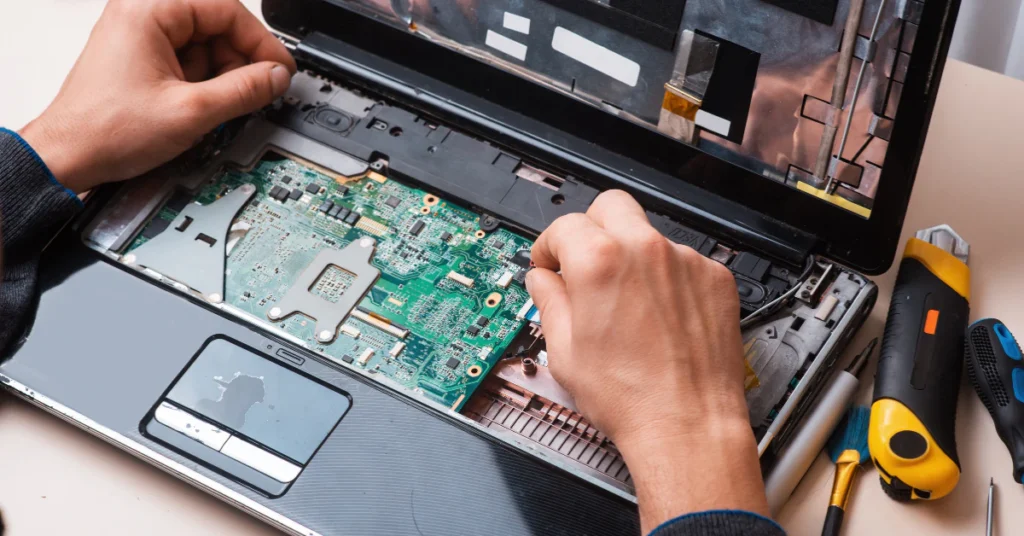
Warning: Do not open your laptop to check cables or RAM unless you have anti-static gloves, a non-conductive pry tool, and know how to disconnect the battery cable first. If you are unsure, stop. Power off, unplug the charger, and contact ASUS or an authorized repair center.
If the BIOS screen blinked, the problem is likely hardware, so paid repair makes sense.
Laptop screen replacement cost is usually about $100 to $300, says Asurion. One Florida repair shop lists $135 to $250 for most Windows laptops. These are estimates. OLED and high-refresh panels can cost more.
Get a diagnosis before you pay for a new panel. One OLED owner had the screen replaced and the flicker stayed, so the panel was not the cause.
Check your ASUS warranty terms first. Repairs outside ASUS may affect coverage, and I could not confirm the current wording, so read it or ask ASUS.
Frequently Asked Questions
Why does my ASUS laptop screen flicker when plugged in?
Often it comes down to power. Asurion points to the charger, the charging cable, or power settings, so try a different charger first. Some users also see a flash when the screen switches refresh rates as the charger is plugged or unplugged. On Intel models, turning off Panel Self Refresh may help.
Can a virus cause my ASUS laptop screen to flicker?
It is rarely the main cause. Microsoft says screen flicker is usually a display driver or an incompatible app. Asurion notes some malware can interfere with display settings, so a scan with Windows Defender or another trusted antivirus is easy to try. Do the Task Manager test first.
How do I fix ASUS laptop screen flickering in Chrome?
Run the Task Manager test first. If only Chrome flickers, try turning off hardware acceleration: open Chrome Settings, go to System, switch off the hardware (or graphics) acceleration option, and relaunch Chrome. The wording changes by Chrome version. If Task Manager flickers too, the cause is the driver, not Chrome.
Should I replace my ASUS laptop screen if it keeps flickering?
Not yet. Run the external monitor and BIOS tests first. If the BIOS screen blinks too, ASUS says the screen hardware may be defective and suggests an authorized repair center. Get a diagnosis before paying, because one OLED owner’s new panel did not stop the flicker.
How much does it cost to repair an ASUS laptop screen?
Asurion says $100 to $300, and one Florida shop lists $135 to $250 for most Windows laptops. These are estimates. OLED and high-refresh panels can cost more, so get a quote for your exact model and check your warranty first.
Why does my ASUS OLED screen flicker at low brightness?
OLED screens can dim by flashing very fast, called PWM, and some people notice it at low brightness. ASUS offers OLED Flicker-Free Dimming in MyASUS. An ASUS staff reply says it needs MyASUS 3.1.3.0 or newer and system brightness above 60%, and it does not work with Windows HDR on.
Conclusion
Most ASUS screen blinking comes down to a driver, a power-saving setting, or the screen type. Start with Win + Ctrl + Shift + B, match your trigger, then use the Task Manager and BIOS tests to split software from hardware. Stop before opening the laptop. If you are still on Windows 10, Microsoft ended support on October 14, 2025, so plan a move to Windows 11. Work through the steps in order and you may never need the repair shop.


