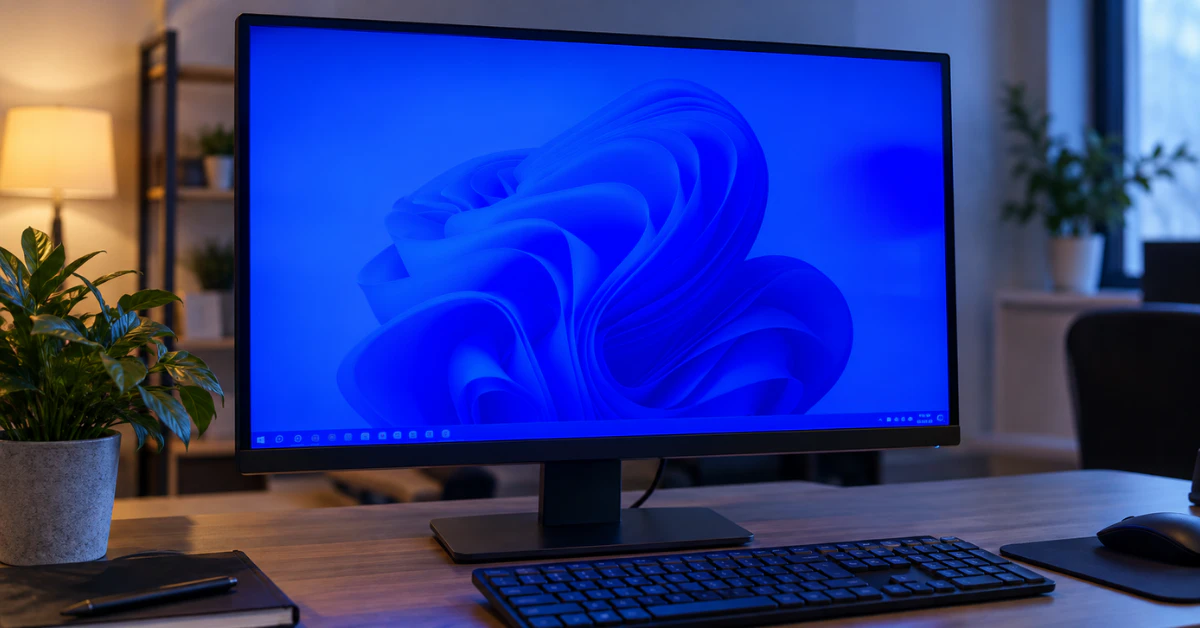
Most monitor blue color problems come from settings, not a dying screen. First, reseat or swap your video cable. Next, check Settings → System → Display → Night light to see if it’s stuck on. Then switch Nvidia or AMD’s HDMI color format back to Full RGB. Still blue? Reset your ICC color profile or run an unplugged monitor self-test to find out if it’s software or hardware.
Is Your Screen Broken or Just Misconfigured? (Cause vs. Fix Comparison Table)
A blue screen doesn’t always mean a broken monitor. Most of the time, it’s a setting that flipped without you noticing. A silent Windows Update, a GPU mode that reset after your PC went to sleep, or a cable that shifted are the usual suspects. None of these need a repair shop.
The smart move is to check the cheap, safe fixes before the expensive ones. Here’s how the common causes stack up:
| Cause | Fix Type | Risk Level |
| Loose or damaged cable | Hardware | Zero risk |
| Night Light stuck on | Settings | Zero risk |
| GPU set to YCbCr or Limited RGB | Settings | Zero risk |
| Corrupted ICC profile after a Windows Update | Software | Zero risk |
| TN panel viewing angle | Diagnostic only | Not a fault |
| Wrong OSD color preset | Settings | Zero risk |
| Aging backlight or internal panel fault | Hardware | High risk if opened |
Most of these fixes work on any Windows PC. A few only apply in certain setups. The GPU color format fix is specific to HDMI and DisplayPort connections, and the exact menu differs between Nvidia and AMD.
Quick Pre-Check: Viewing Angles (TN Panels) and Dual-Monitor Setups
Before you touch any settings, do two quick visual checks. They take ten seconds and can save you a lot of wasted time.
First, look straight at your screen at eye level. Some budget monitors use something called a TN panel, which is a cheaper type of screen. According to RTINGS display testing, TN panels naturally wash out or turn cool and blue when you view them from even a slight angle, sometimes as small as 10 to 35 degrees off center. If the blue fades away once you’re looking straight on, your screen is fine. This is just how TN panels behave. IPS and VA panels don’t do this.
Second, if you use two monitors and only one looks blue while the other looks normal, don’t touch your Windows settings yet. A system-wide setting would affect both screens equally. Since it doesn’t, the problem is stuck to that one monitor, its cable, or the GPU port it’s plugged into. Start your troubleshooting there instead.
Reseat or Swap Your HDMI, DisplayPort, or VGA Cable
This check takes about a minute and fixes more blue tint problems than people expect.
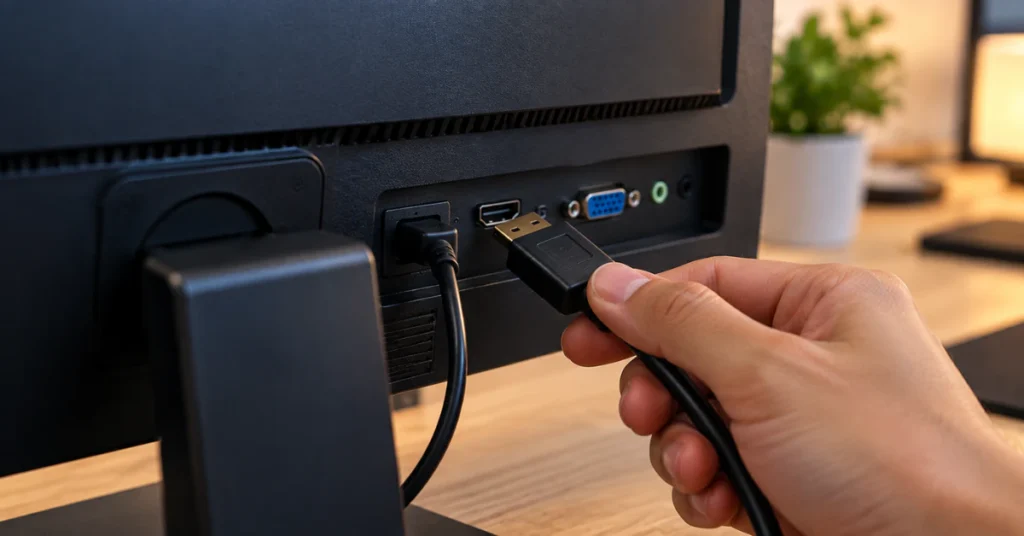
Unplug both ends of your video cable, whether it’s HDMI, DisplayPort, or the older VGA type. Push each end back in firmly until it clicks or feels snug. If you have two monitors, swap the cables or the ports between them. This tells you fast whether the problem follows the cable, the port, or the monitor itself.
VGA cables need a closer look. HDMI and DisplayPort send color as one digital signal, but VGA is older and analog. It uses separate metal pins just for the red, green, and blue parts of the picture. According to Computer Hope, if even one pin gets bent, loose, or goes missing, that color channel drops out. The result is a screen that turns blue, green, or purple instead of showing normal colors.
Hold both ends of the VGA cable up to a light and check the row of pins. Look for anything bent sideways, pushed in, or missing entirely. If you spot damage, the cable needs replacing before you try anything else.
Check Windows 10 and 11 Night Light (and Fix a Stuck or Greyed-Out Toggle)
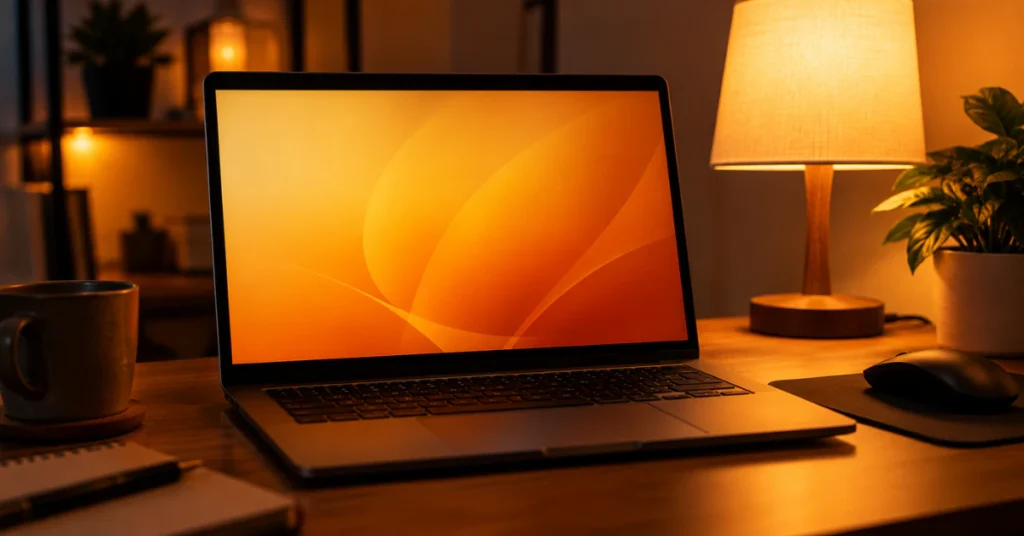
If your screen looks colder or bluer than usual, Windows Night Light is one of the first things worth checking. On both Windows 10 and Windows 11, go to Settings → System → Display → Night light. This feature warms up your screen’s colors, but it can also glitch and leave your colors stuck the wrong way.
Night Light relies on a background process called the Connected Devices Platform Service. Sometimes this hiccups during a schedule change or when your PC wakes up from sleep. When that happens, your screen can snap to a cool blue cast, or Night Light can fail to turn off the way it’s supposed to, even after closing a fullscreen game or app.
Turn Night Light off, wait a moment, then turn it back on to see if that resets things.
Sometimes the Night Light toggle itself is greyed out and won’t respond at all. A few things cause this. If you have an Nvidia graphics card and the Override to Reference Mode box is checked in the Nvidia Control Panel, it can block Windows from adjusting your screen’s color. The same goes for a DisplayLink USB docking station driver, or if your PC is running on the fallback Microsoft Basic Display Adapter driver instead of your graphics card’s real driver. Any of these can stop Night Light cold, no matter how many times you click it.
Switch Your GPU Output Color Format to Full RGB (Nvidia & AMD)
Here’s something most people never think to check. Your PC’s graphics card sometimes thinks your monitor is a TV instead of a computer screen. When that happens, it sends a compressed color signal meant for HDTVs instead of the full signal your monitor is built for. This can create a washed-out or bluish cast, and it tends to come back right after your PC wakes up from sleep, even if you fixed it before.
If you have an Nvidia graphics card, here’s how to check it, based on Nvidia’s own Control Panel help documentation:
- Open Nvidia Control Panel.
- Go to Display → Change resolution.
- Scroll down to Apply the following settings.
- Check the box for Use NVIDIA color settings.
- Set Output Color Format to RGB.
- Set Output Dynamic Range to Full (0-255).
If you have an AMD graphics card, the steps are a bit different, based on AMD’s official support documentation:
- Open AMD Radeon Software.
- Click the gear icon for Settings.
- Go to Display.
- Find Pixel Format.
- Switch it from YCbCr 4:2:2 or 4:2:0 to RGB 4:4:4 Pixel Format PC Standard (Full RGB).
This fix applies to HDMI and DisplayPort connections. It doesn’t apply to older analog VGA cables, since those don’t use this kind of digital color signal.
Reset a Bad ICC Color Profile After a Windows Update (or Calibrate Display)
If your screen was fine before a Windows Update and turned blue right after, this fix is worth trying. It also explains a strange pattern some people notice: the desktop looks normal, but an app like Adobe Photoshop looks blue.
Behind the scenes, Windows uses something called an ICC color profile. Think of it as an instruction sheet that tells your PC how to show colors correctly on your specific monitor. According to an Adobe Community Expert, a Windows Update can quietly install a bad or wrong color profile for your monitor, and that throws off the color balance, sometimes just in color-managed apps like Photoshop.
The fix is to set your profile back to a standard one called sRGB.
On Windows 11 (24H2), go to Settings → System → Display → Color profile → Add profile, and choose the sRGB IEC61966-2.1 profile.
On Windows 10, or earlier versions of Windows 11, press Win + R, type colorcpl.exe, and press Enter. Check the box for Use my settings for this device, then set sRGB as the default.
You can also run Windows’ built-in calibration tool. Go to Settings → System → Display → Color profile → Calibrate display, or type dccw.exe into Run. It walks you through gamma and RGB sliders, then saves a fresh .icc profile to C:\Windows\System32\spool\drivers\color.
Factory Reset Your Monitor’s On-Screen Display (OSD) Menu
If none of the software fixes worked, your monitor’s own picture settings might be the problem. Someone (maybe even a past you) could have switched it to a Cool or Blue preset by accident.
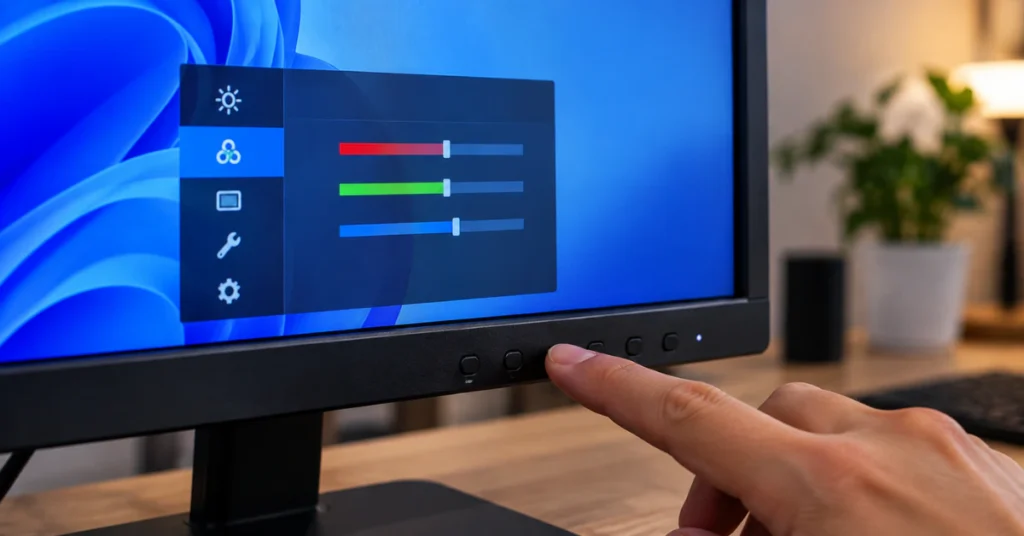
Most monitors let you reset these settings using physical buttons on the monitor itself. On Dell monitors, according to Dell’s official support site, this is done through the OSD menu under Other Settings → Factory Reset. This resets color temperature, RGB gain, brightness, and contrast back to default, without changing your OSD language.
If you have an LG, Samsung, ASUS, or Acer monitor, the exact button and menu names will look different. Check your model’s user manual to find the right path for a factory reset.
Roll Back or Clean-Update Your Graphics Driver
If you already updated your drivers and nothing changed, that makes sense. Driver fixes only help in two specific cases.
First, if the blue tint started right after a driver update, go to Device Manager → Display adapters, open your GPU’s Driver tab, and click Roll Back Driver.
Second, check if Windows is running the generic Microsoft Basic Display Adapter instead of your real Nvidia, AMD, or Intel driver. This generic driver blocks color profiles and Night Light from working properly, so installing the correct one matters more than just updating.
Run the Unplugged Monitor Self-Test (And When to Stop DIY)
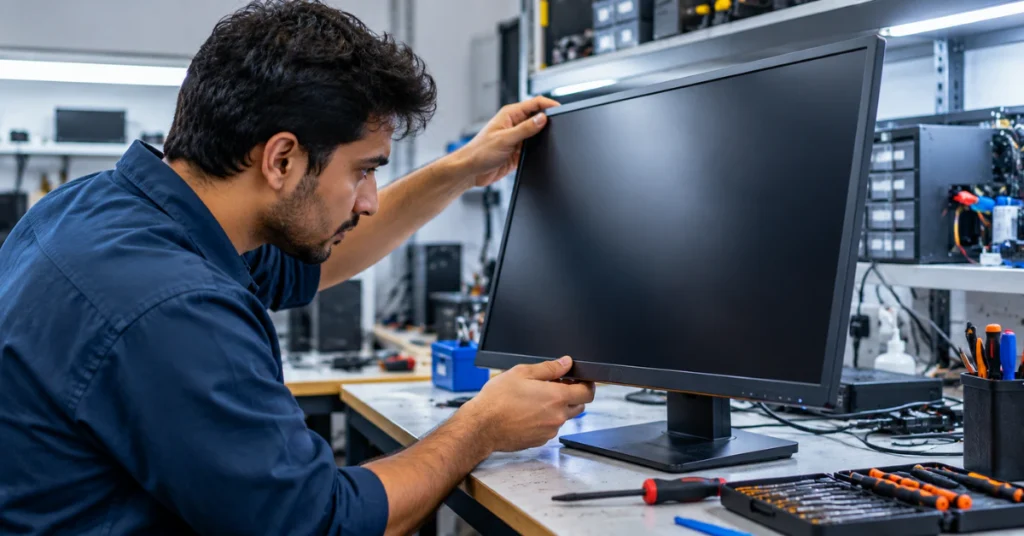
There’s one test that gives you a clear answer. Turn off your PC, then unplug the video cable (HDMI, DisplayPort, or VGA) from the back of the monitor. Leave the monitor’s power cord plugged in and turn the monitor on.
A floating box should appear on screen, usually saying something like “No Cable” or showing a self-test pattern. If that box itself looks blue-tinted, the fault is inside the monitor. This often points to an aging LED backlight shifting color on LCD/LED screens. OLED monitors don’t have a backlight at all, so this specific cause doesn’t apply to them.
Stop DIY here if the self-test looks blue.
Never enter a monitor’s hidden “Factory” or “Service” OSD menu. Dell Support has stated these menus are reserved for repair technicians, and changing values inside voids your manufacturer warranty.
Never open the monitor’s plastic casing. Internal capacitors can hold a dangerous electrical charge even after the power cord is unplugged, and opening the housing voids your warranty. Contact the manufacturer for a warranty repair or replacement instead.
Frequently Asked Questions
How to fix monitor blue color?
Work through the steps in order: reseat or swap your cable, check Windows Night Light, set Nvidia or AMD’s HDMI output to Full RGB, reset your ICC profile to sRGB using colorcpl.exe, and run an OSD Factory Reset on the monitor itself.
Why does my screen have a blue tinge?
The most common causes are Night Light glitches, a loose cable or bent VGA pin, GPU color settings defaulting to YCbCr over HDMI, a corrupted ICC profile after a Windows Update, or normal TN-panel viewing angle shift.
How to fix a blue screen in a monitor?
A blue-tinted picture is different from a solid blue “no signal” screen. The second one usually means the wrong input source is selected, the cable is unplugged, or the PC isn’t sending video at all.
Conclusion
A blue-tinted screen almost never means your monitor is dying. Most cases trace back to a simple setting, like Night Light, a GPU color format, or a loose cable, not a hardware failure. Work through the fixes in order, from the fastest and safest to the more involved ones. If the unplugged self-test still shows blue, that’s your sign to contact the manufacturer for a repair or replacement instead of opening the monitor yourself.