
A green tint on your Mac screen almost always comes from one of two places. The first is a software setting, often harmless and easy to turn off, like True Tone or the new “Tinted” Liquid Glass look in macOS Tahoe 26.1. The second is a hardware problem inside the display itself. If the green tint sticks around no matter what you change, gets worse when the laptop is cold, or shows up with thin horizontal lines, you’re likely looking at a hardware fault, not a setting you can fix in a menu.
The Core Diagnostic Test: Software vs. Hardware

You don’t need to guess what’s wrong. A two-part test will tell you almost exactly where the problem lives, before you touch a single setting.
Step 1: Boot into Safe Mode
Safe Mode starts your Mac with only the bare essentials running, skipping extra software and login items that might be causing a glitch.
- Shut your Mac down completely.
- Turn it back on and hold the key combination your Mac uses for Safe Mode (this differs slightly between Apple Silicon and Intel Macs, so check Apple’s own instructions if you’re not sure which you have).
- Look at the screen once it loads.
If the green tint disappears in Safe Mode, something in your regular software setup is the cause. If it’s still there, software isn’t the problem.
Step 2: Connect an external monitor
This step separates the screen itself from everything else inside your Mac.
- Plug in any external monitor or TV.
- Drag a window onto it.
- Compare the two screens side by side.
Here’s what each result means:
- External screen is clean, built-in screen is green: The problem is physical. Your MacBook’s display panel or its internal cable is likely failing.
- Both screens show the green tint: This points to a software or logic board issue, not the screen panel itself.
Software & Settings: The Easiest Fixes First
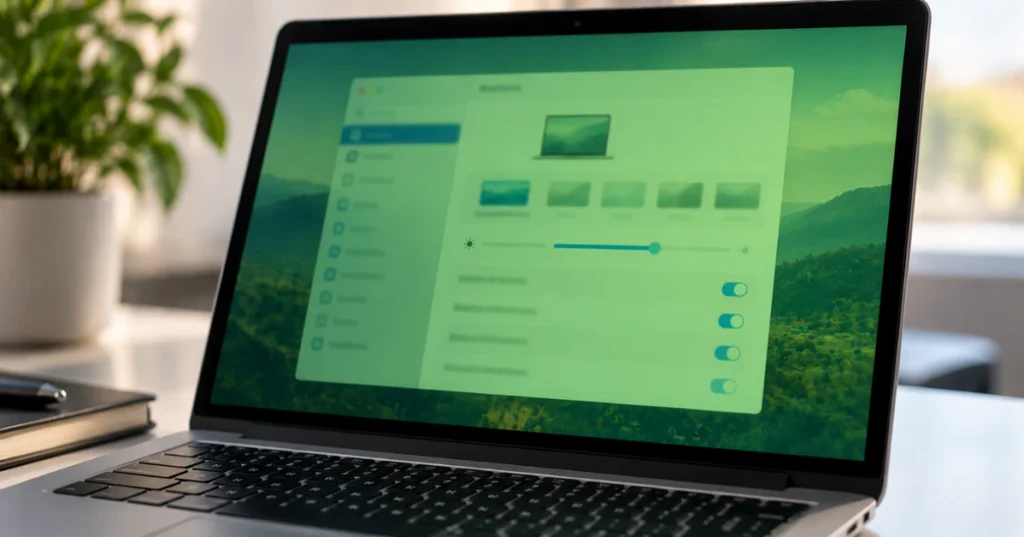
Before you worry about repair costs, rule out your settings. Most of these take less than a minute to check.
Check for macOS Tahoe’s Tinted Liquid Glass
If you updated to macOS Tahoe 26.1, Apple added a new display option called “Tinted” Liquid Glass. It increases the opacity of menus, sidebars, and other interface elements, and on some screens it can look like a color cast rather than a design choice. Go to System Settings, then Appearance, and switch it back to Clear to see if that solves it.
Safari can also throw you off. It automatically tints its window and tab bar to match the dominant color of whatever website you’re viewing. If you’re on a site with heavy green branding, your browser window (not your whole screen) may shift green. Close Safari and see if the tint follows you to the desktop. If it doesn’t, Safari was the culprit, not your display.
Turn off True Tone and Night Shift
True Tone adjusts your screen’s color to match the light in the room, which can sometimes give whites a slightly warm or off cast. Night Shift does something similar at night, shifting the display toward yellow tones to reduce blue light. Both live in System Settings under Displays. Turn them off one at a time and watch for any change.
Skip the NVRAM reset if you have an Apple Silicon Mac
A lot of old advice online tells you to reset NVRAM or PRAM using a key combo at startup. This no longer applies the same way if your Mac has an M1, M2, M3, or M4 chip. These Macs reset this memory automatically on their own, so the manual key combo won’t do anything useful.
If you have an Intel Mac, you can still try it: shut down, then turn the Mac back on and immediately hold Command, Option, P, and R together until you hear the startup sound twice, then let go.
Fixing External Monitor Green Tint (HDMI & Hubs)
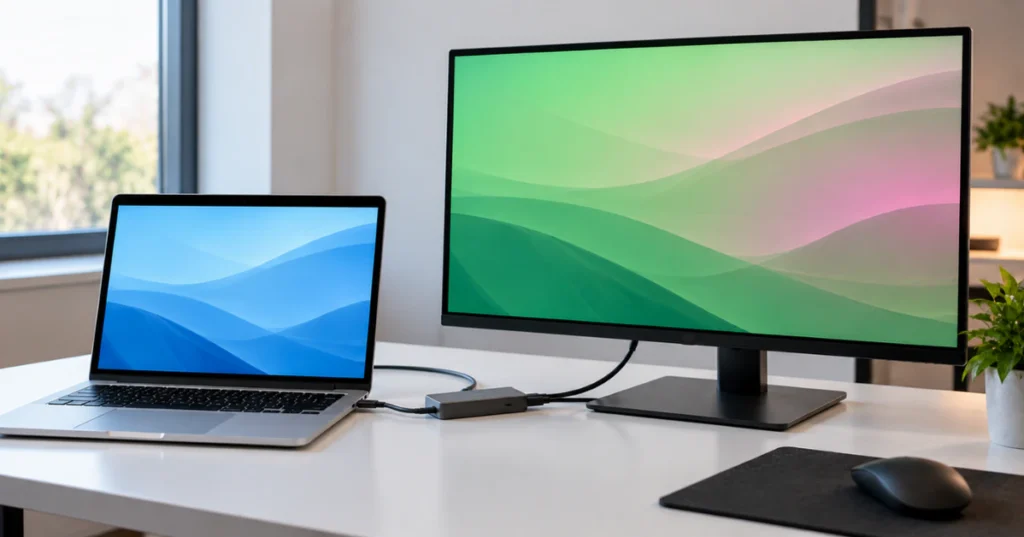
If your MacBook’s own screen looks totally normal but your external monitor or TV has a green or pink tint, your logic board almost certainly isn’t the problem. This is one of the most misdiagnosed issues out there, and the real cause is usually simpler than people expect.
The real cause: a color format mismatch
When your Mac sends video over HDMI, it has to agree with the display on how to encode color. Sometimes this handshake defaults to something called YCbCr, a way of compressing color data that was originally built for TV broadcasts. Many monitors and HDMI inputs display YCbCr poorly, which shows up as a green, pink, or washed-out tint. What you actually want is full RGB color, usually labeled RGB 4:4:4, which sends color information without that compression.
This mismatch is especially common with:
- Budget USB-C to HDMI adapters or docks
- Older TVs being used as a second monitor
- Monitors that don’t clearly label their color format options
How to fix it
- Check your monitor’s own on-screen menu (using its physical buttons) for a color format or color space setting. Switch it from YCbCr to RGB or RGB 4:4:4 if that option exists.
- If your monitor doesn’t offer that choice, try a different HDMI cable. Cheap or damaged cables can affect how this handshake happens.
- If you’re using a USB-C hub or dock, try a different one if you have access to it. Some budget hubs don’t handle this handshake correctly.
- Restart your Mac after making any change, since a fresh handshake sometimes clears the issue entirely.
If none of this helps, the monitor itself may have a hardware fault, which is worth confirming by testing it with a different computer if you can.
Physical Causes: The “After Cleaning” Risk
If your green tint showed up right after you wiped down your screen, there’s a hard truth worth knowing. This is one of the few causes on this list that is often permanent, so it’s worth understanding what happened before you try anything else.
Why cleaning can cause a green tint
Ammonia-based glass cleaners, like Windex, are too harsh for a MacBook screen. They can break down the screen’s coating, and if any liquid gets past the edges into the display assembly itself, it causes lasting damage. This isn’t limited to harsh chemicals either. Even plain water can cause the same problem if enough of it works its way inside.
Once liquid reaches the internal layers of the display, it often shows up as a color shift, like a green or odd tint, and it does not go away on its own. At that point, you’re looking at hardware damage, not a setting to adjust.
If you suspect liquid got inside
Stop using the device right away, especially if the edges of the screen feel damp. Continuing to use it risks letting moisture spread further and reach other internal components, like the logic board.
At this stage, a full screen replacement is typically the only fix.
How to clean a MacBook screen safely
To avoid this in the future, use a soft, lint-free cloth that is only barely damp. Never spray any liquid directly onto the screen. Apply a small amount of moisture to the cloth itself, not the display, and wipe gently.
Hardware Failures & The Flexgate Context
If your Mac screen has a green tint that never fully goes away, especially if it gets worse when the laptop is cold and fades once it warms up, you’re most likely dealing with a hardware failure inside the display itself.
What’s actually failing
Two parts are usually behind this kind of problem. The first is the T-CON board, a small circuit board that controls how color and image data gets sent to the screen. The second is the backlight flex cable, a thin ribbon cable that carries power and signal to the display and bends every time you open and close the lid. Over time, that constant bending can wear it out or crack it.
Both of these problems tend to cause a tint that sticks around no matter what software fix you try, sometimes alongside faint horizontal lines on the screen.
Important safety warning
Do not try to open your MacBook and fix this yourself.
Opening a MacBook yourself can void any remaining Apple warranty or AppleCare coverage. The display panel is a high-voltage component when powered, so working inside it, especially near the backlight circuitry, carries a real risk of shock or injury. Repairing a T-CON board or backlight cable also requires micro-soldering skill that most people simply don’t have. If you suspect a hardware fault, take your Mac to Apple or an Apple Authorized Service Provider instead of attempting a repair at home.
A note on older MacBook Pro models
If you have a 2016 or 2017 MacBook Pro, you may have read about “Flexgate,” a known backlight cable issue affecting certain 13-inch models from that era. Apple did run an official Backlight Service Program for eligible units, offering free repairs for specific symptoms.
As of this writing, that program has ended. If you come across older forum posts mentioning a free repair, don’t count on that still being available. Contact Apple directly to confirm your current repair options and costs.
Frequently Asked Questions
Why is my screen suddenly tinted green?
It’s usually one of a few things. A display setting like True Tone, Night Shift, or the new Tinted Liquid Glass option in macOS Tahoe 26.1 can shift the colors you see. An HDMI color format mismatch can cause it on external monitors. If none of those apply and the tint stays no matter what, it’s likely a hardware issue inside the display.
How to fix green screen of death on Mac?
This question is based on a mix-up worth clearing up. There is no official “Green Screen of Death” on Mac. That term actually belongs to Windows Insider builds, the Xbox One, and the PlayStation 5, not macOS. If your Mac shows a full-screen crash, that’s a different problem entirely, usually a kernel panic or a gray startup screen, and it needs its own troubleshooting steps, not the fixes in this guide for a simple color tint.
How to fix green screen on Mac?
Start with the diagnostic test earlier in this guide. Check Safe Mode and an external display to figure out if it’s software or hardware. From there, work through the settings fixes first, then move to the external monitor or hardware sections depending on what you find.
Conclusion
A green tint on your Mac screen feels alarming, but most causes are far less scary than they seem at first. Run through the software checks first, since those cost nothing and take just a few minutes. If the problem follows your external monitor, it’s likely a simple cable or format fix. The only real cause for concern is a tint that showed up right after cleaning with the wrong product, or one that’s clearly tied to a failing internal part. In either of those cases, skip the DIY attempts and let Apple or an authorized repair provider take a look. You’ll save yourself time, and avoid turning a fixable problem into a bigger one.


