
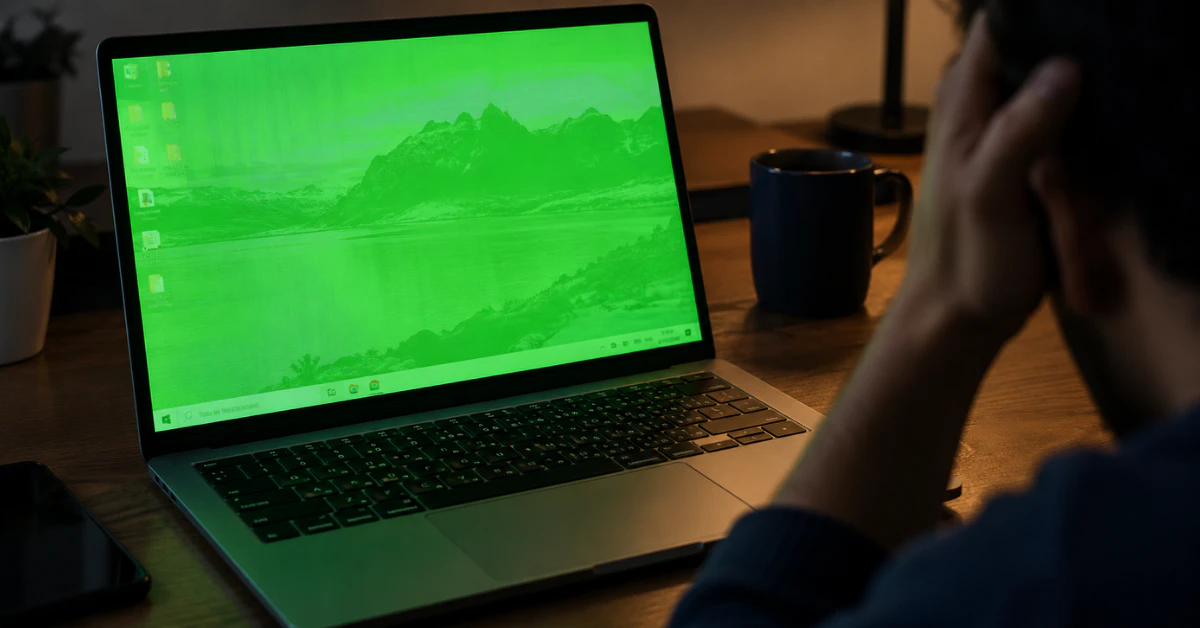
A green tint across your whole screen is usually caused by your graphics driver, and it’s the easiest problem to fix. Green lines or patches that shift when you tilt the screen point to a loose display cable instead, which is a hardware issue. A screen that’s solid green from the moment you turn the laptop on usually means the screen itself has a problem.
Start with this fix: open Device Manager, expand Display adapters, right-click your graphics device, and choose Uninstall device. Restart your laptop. Windows will reinstall a fresh driver on its own.
Wait, Are You Seeing the “Green Screen of Death”?
The term “green screen of death” gets used a lot, but it actually means something specific. It is not just any green screen. It is a crash screen that only shows up on Windows Insider Preview builds, which are early test versions of Windows that regular users don’t run.
Microsoft made this screen green so it could tell testers apart from everyday users when a crash happens. Since 2017, it has worked exactly like the Blue Screen of Death. Same error codes, same restart, just a different color.
So here’s the key question: are you looking at a crash screen with an error message, or are you looking at your normal desktop with a green tint over everything? If it’s the second one, you don’t have a green screen of death. You have a display problem, and the fixes in this guide will help you.
Symptom Matcher: What Your Green Screen Actually Means
Every image on your screen is built from tiny red, green, and blue dots called subpixels. Your laptop mixes these three colors to create every picture, video, and app window you see. When something goes wrong with how that color data is sent or displayed, one color can take over. That is why a broken screen often turns green or pink instead of showing normal colors.
Use this table to match what you’re seeing to a likely cause:
| Symptom | Likely Cause | First Thing to Try |
| Green tint over everything, or flickering during videos | Graphics driver | Reinstall the driver in Device Manager |
| Green lines or patches that shift when you tilt the screen | Loose display cable | Gently test by tilting the screen while watching the color |
| Screen turns green and pink, or shows pink afterimages | Cable or screen hardware | Check if it happens in BIOS, before Windows loads |
| Solid green screen from power-on, even before Windows loads | Screen or its driver board | This is hardware, not something a driver fix will solve |
Once you find your row, jump to the matching fix below.
Fix 1: The Video-Only Green Screen (Browser Settings)
If your screen only turns green while playing a video, and you can still hear the audio just fine, your whole computer is not broken. This is a browser setting problem, and it’s the easiest fix on this list.
Here’s how to turn off hardware acceleration in Chrome, based on Google’s own support instructions:
- Click the three dots in the top right corner of Chrome.
- Select Settings.
- Click Advanced, then System.
- Turn off “Use hardware acceleration when available.”
- Restart Chrome and try the video again.
If you use a different browser, look for a similar hardware acceleration setting in its settings menu. If turning this off doesn’t fix it, update your graphics driver next. This fix targets video playback specifically, so it won’t help if your whole desktop looks green, not just the video window.
Fix 2: Reinstalling Your Display Driver (Windows 10 & 11)
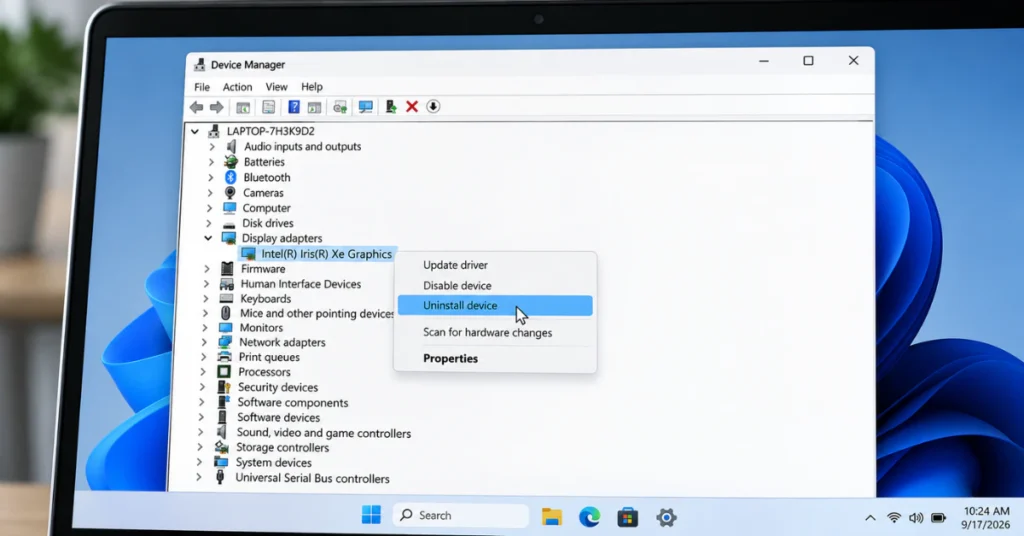
This fix works the same way whether you’re wondering how to fix green tint on a laptop screen in Windows 11 or how to fix green tint on a laptop screen in Windows 10. The steps below are identical on both, and they work no matter which brand of laptop you own.
Here’s what to do:
- Right-click the Start button.
- Select Device Manager from the list.
- Find and click Display adapters to expand it. This shows your graphics card.
- Right-click your graphics device.
- Select Uninstall device.
- A box may pop up asking if you want to delete the driver software too. Leave that box unchecked.
- Click Uninstall to confirm.
- Restart your laptop.
When your laptop turns back on, Windows will automatically find and reinstall a fresh copy of the driver. You don’t need to download anything yourself for this step.
If the green tint or flicker was caused by a corrupted or buggy driver, this clears it right away. Many people see the problem disappear the moment their desktop loads back up.
If the tint only showed up in one specific app, like a video editor or a game, you might also want to check that app’s own settings for a hardware acceleration option, similar to the browser fix above.
If you followed every step here and the green is still there, your problem is likely hardware, not software. Keep reading for what to check next.
Fix 3: The External Monitor Test (And Its Hidden Trap)
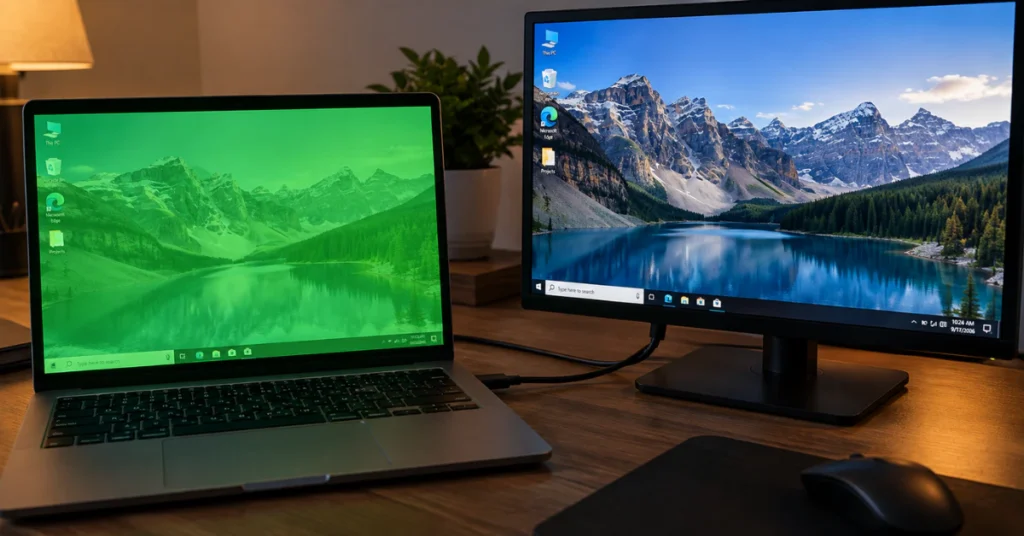
If the driver fix didn’t work, the next step is figuring out whether the problem is your GPU or your laptop’s own screen. Here’s how to test it:
- Connect your laptop to a TV or external monitor using an HDMI cable.
- Press the Windows key and P at the same time, then choose Duplicate.
- Look at both screens.
If the external display looks normal, your laptop’s own screen or its internal cable is likely the problem. If the external display also shows green, the graphics chip inside your laptop may be failing.
But there’s a catch most guides don’t mention. Sometimes the external monitor itself shows a green or pink tint that has nothing to do with your laptop. This can happen when the HDMI connection is using the wrong color setting, mixing up something called YCbCr and RGB. If you see color problems only on the external monitor, and your laptop’s own screen looks fine before you plug anything in, try checking your graphics card’s color settings before assuming the worst. This is a commonly reported issue, but it can vary depending on your specific monitor and graphics card.
Fix 4: Testing BIOS to Prove It’s Hardware
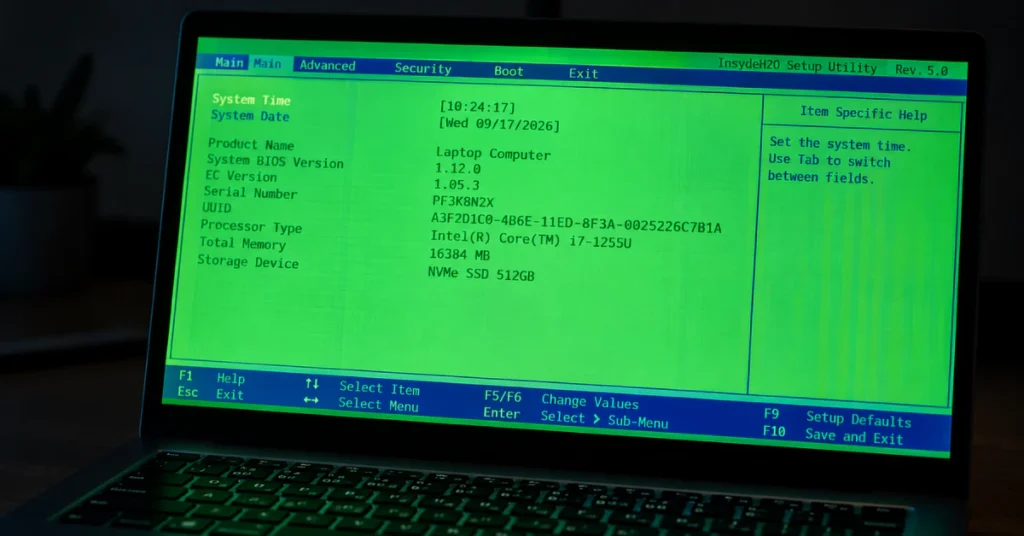
Here’s a test that gives you a clear answer. Restart your laptop and try to enter the BIOS screen, the basic setup screen that loads before Windows even starts.
Watch the screen closely as it loads. If it’s green here, you have your answer. The graphics driver hasn’t even loaded yet at this point, so a driver can’t be causing the problem. This means the screen, its cable, or the graphics chip itself is at fault.
The tricky part is that the key to enter BIOS is different depending on your laptop’s brand. Some use F10, others use F2, Del, or Esc. If you’re not sure which key your laptop uses, search your laptop’s exact model name along with “BIOS key” to find the right one.
If BIOS looks clean and normal, go back and try the driver fix above.
Brand-Specific Quirks: ASUS Power Bugs & Aging HP Laptops
Some green screen problems are tied to specific brands, and it helps to know if yours is one of them.
If you have an ASUS laptop, especially a VivoBook or ZenBook, and notice a green flicker only while it’s plugged into the charger, you’re not alone. Multiple users on ASUS’s own support forums have reported this exact pattern across different models, usually most visible during webcam use or video calls. The flicker often disappears the moment you unplug the charger and run on battery. In at least one reported case, this asus laptop green screen problem was fixed with a BIOS update rather than a driver reinstall. If this matches what you’re seeing, check ASUS’s support site for a BIOS update for your exact model before assuming the worst.
If you have an older HP laptop, age matters more than you might think. HP’s own support agents have pointed out that on aging models like the Pavilion G4, a green tint combined with scattered pixel artifacts is often a sign of a failing graphics chip, since heat and age wear these parts down over time. If your green screen hp laptop is several years old and shows these symptoms even in BIOS, hardware failure is the likely cause.
The Hardware Reality: Cables, Panels, and Repair Costs
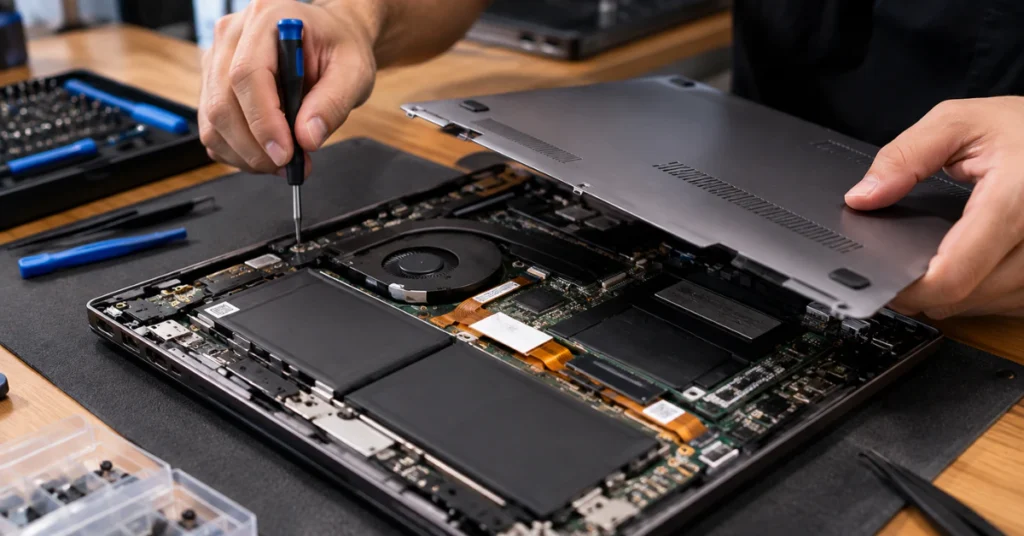
If your testing points to hardware, here’s what you need to know before doing anything else.
First, check if your laptop is still under warranty. If it is, opening the case yourself will likely void that warranty, so it’s worth contacting the manufacturer first instead of reaching for a screwdriver.
If you’re out of warranty and thinking about opening it up yourself, always turn off and unplug the laptop first. Inside the display assembly, you’ll find ribbon cables and small connectors that tear very easily. What starts as a simple cable check can turn into a much bigger and more expensive repair if a cable rips.
This same logic applies whether you have an older LCD screen or a newer OLED screen. Both use a cable connecting the screen to the rest of the laptop, and both can develop the same kinds of cable or panel problems.
Repair costs vary a lot depending on your laptop model and how easy it is to find a replacement part. As one example, computer repair shops like Dave’s Computers note that standard screen replacements often run in the range of $180 to $275 installed, though your price will depend on your specific model.
Frequently Asked Questions
Is the green screen of death fixable?
If it’s the real Green Screen of Death, meaning a crash screen on a Windows Insider Preview build, it’s fixed the same way as a normal crash screen: update drivers or switch off the Insider build. If you’re actually seeing a green tint on your desktop, follow the fixes above instead.
How do I fix my screen turning green?
Start by reinstalling your graphics driver through Device Manager. If the green shows up in BIOS too, it’s hardware, not something a driver update can solve.
How can I fix a green screen on my PC?
Same steps apply. Test with an external monitor, then reinstall your driver before assuming it’s hardware.
What does a green screen mean on a laptop?
It usually means your driver, cable, or screen is struggling to display color correctly.
Why does my PC boot up with a green screen?
If it shows up before Windows loads, it’s hardware, since no driver has loaded yet.
What causes a green screen of death?
Any normal crash cause, just shown in green because it happened on a test build of Windows.
Why does my PC screen randomly turn green?
Random flickering often points to a loose cable or a driver issue triggered by specific tasks like video playback.
Final Thoughts
A green screen looks scary, but most cases follow a clear pattern. Start simple: reinstall your driver, check if it’s only happening during video, and test in BIOS to see if it’s hardware. Each step rules something out, so you’re never guessing blindly.
If your testing points to a cable or a failing screen, don’t rush to open the laptop yourself, especially if it’s still under warranty. A cracked ribbon cable turns a cheap fix into an expensive one. When in doubt, a professional repair shop can confirm the exact cause before you spend money on the wrong part.
Whatever you’re seeing right now, there’s a good chance it’s fixable. Work through the steps in order, and you’ll know exactly where you stand.