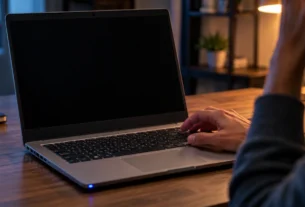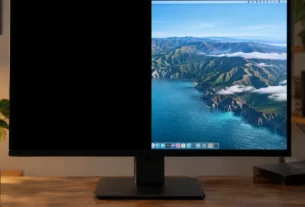
Before you do anything else, try these two shortcuts. They fix a black screen more often than you’d think.
First, press Windows + Ctrl + Shift + B at the same time. This tells your laptop to reset its graphics driver. You might hear a short beep or see the screen flicker. That’s normal. Wait a few seconds and see if your screen comes back.
Still black? Try Windows + P next. Press it once, then tap the arrow keys and press Enter. This cycles through display modes. Sometimes your laptop thinks it’s plugged into a second screen that isn’t actually there, so it sends your picture nowhere you can see it.
Both shortcuts take seconds and can’t make things worse. If neither works, don’t worry. Keep reading for the next steps, sorted by what’s happening on your screen.
Triage: Is It a Hardware or Software Problem?
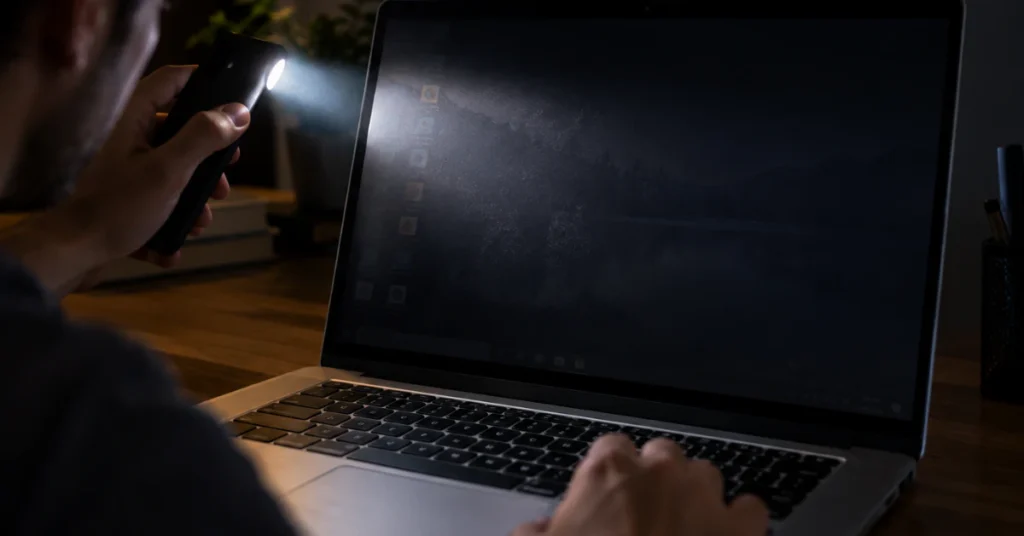
Here’s a quick test that takes less than a minute and can save you hours of guessing.
Turn off the lights in your room, or find the darkest spot you can. Then take out your phone and shine its flashlight at your laptop screen. Hold it close and aim at a steep angle, almost sideways across the glass.
Look closely. Do you see a faint, ghostly outline of your desktop, icons, or the login screen?
If yes, your laptop is actually working fine. The problem is your backlight or inverter, the part that lights up the screen from behind. This is a hardware issue, not something you can fix with software. You’ll need a repair or a replacement part.
If you see nothing at all, even with the flashlight right up against the screen, that points to a different problem. It’s likely your graphics card, display cable, or a system issue, not the backlight.
One thing to know: this test won’t work on OLED laptop screens. OLED panels light up each pixel on their own and don’t use a separate backlight, so there’s nothing extra to catch with a flashlight.
Next, try plugging in an external monitor if you have one. Connect it with an HDMI or USB-C cable and turn it on.
If the external monitor shows your screen just fine, the problem is in your laptop’s built-in display. If the external monitor stays black too, the issue is likely with your graphics system, not the screen itself.
The Laptop Won’t Turn Off (Fans Running, Screen Black)

Fans spinning. Lights on. Screen black. And no matter how long you hold the power button, nothing happens. This is scary, but it’s fixable, and you won’t break your laptop by trying these steps.
First, know this: your laptop isn’t off. It’s frozen. A truly powered-off laptop has no fan noise and no lights at all.
What you do next depends on your battery type.
If your laptop has a sealed, non-removable battery (true for most laptops made since 2020), hold the power button down for 15 to 30 seconds. This forces an internal cutoff, even though you can’t physically unplug the battery yourself.
If your laptop has a removable battery (common on older or rugged business laptops), unplug the AC adapter first. Then open the battery compartment and take the battery out. Wait a few seconds before putting it back in.
In rare cases, a laptop may still take a while to fully power down, even after these steps. If that happens, simply unplug it and let the battery drain on its own. It can take longer than you’d expect, but it will shut off.
Black Screen with a Visible Cursor (and the Windows 11 Bug)
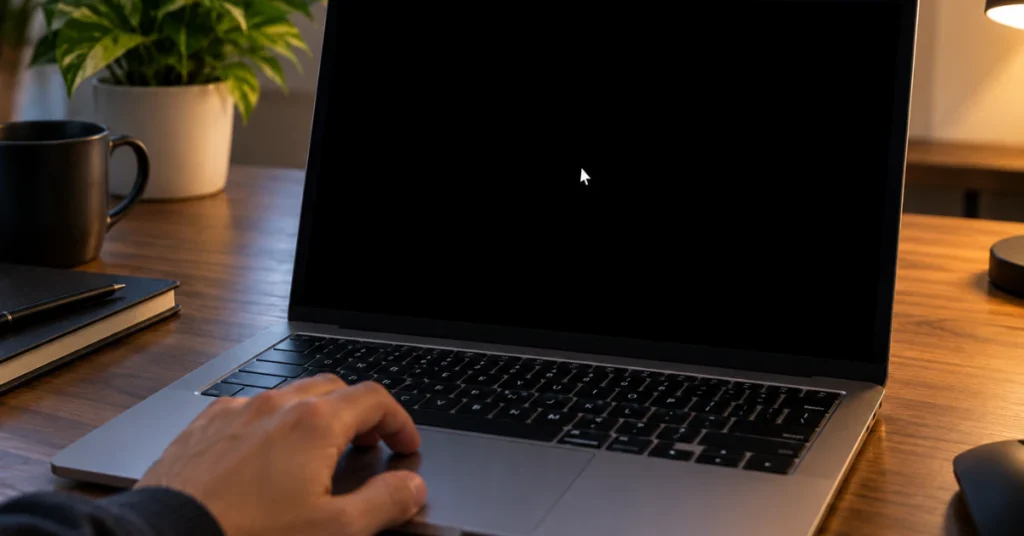
A black screen that still shows a moving mouse cursor is actually good news. It means your laptop is running fine underneath. The part of Windows that draws your desktop, icons, and taskbar just crashed or never started.
Here’s how to bring it back:
- Press Ctrl + Shift + Esc to open Task Manager.
- Click Run new task (you may need to click “More details” first if you don’t see it).
- Type explorer.exe and press Enter.
Your desktop should reappear within a few seconds.
If this keeps happening after you sign in, especially on Windows 11, you’re not imagining things. Microsoft confirmed a real bug tied to updates released in August 2026 (KB5120996 and KB5120998). It affects Windows 11 versions 24H2, 25H2, and 26H1. After signing in, the desktop session fails to load, leaving you staring at a black screen.
Microsoft says this has shown up mostly on business setups using Azure Virtual Desktop. But everyday laptop users on these same Windows versions have reported it too. A permanent fix is still in the works, so for now, the explorer.exe trick above is the official workaround straight from Microsoft.
If your laptop is set to install updates automatically, there’s a good chance this is exactly what happened to you. The good news is that it’s a known issue, not something wrong with your specific laptop, and it’s not something you caused.
Black Screen After Waking From Sleep
You close your laptop lid, come back later, open it up, and the screen stays black. The power light is on. The fans might even be running. But nothing shows up.
This usually points to a Windows feature called Fast Startup. It’s meant to help your laptop wake up quicker, but it can actually cause your laptop to get stuck between sleep and being fully awake. Instead of coming back to life, the screen just stays dark.
The fix is to turn Fast Startup off. You have two ways to do this.
Option 1: Command line
Open an elevated Command Prompt or Terminal (search for it, right click, and choose “Run as administrator”). Type this command and press Enter:
powercfg -h off
Option 2: Control Panel
Go to Control Panel, then Power Options, then click “Choose what the power buttons do.” Find the Fast Startup setting on that screen and turn it off.
Once Fast Startup is disabled, your laptop should wake up normally from sleep going forward. This one setting fixes the problem for a lot of people dealing with this exact scenario.
Black Screen After an Update or Restart

If your screen went black right after a Windows update or a restart, the most likely cause is a driver conflict. Something about the new update doesn’t agree with your graphics driver.
The fix is to boot into Safe Mode, which loads Windows with only the basics running. Here’s how:
- Force shutdown your laptop by holding the power button for 10 seconds. Do this two or three times in a row.
- On the next attempt, Windows should automatically enter Automatic Repair.
- Go to Troubleshoot, then Advanced options, then Startup Settings, and restart.
- Press F4 to boot into Safe Mode.
Once you’re in, open Device Manager, expand Display adapters, right click your graphics card, and choose Roll Back Driver. If that option isn’t available, you can instead uninstall the most recent Windows update from Settings.
If you have a gaming or creator laptop with two graphics chips, an integrated one and a separate discrete one, there’s another possible cause worth knowing about. These laptops switch between the two chips depending on what you’re doing. Sometimes during that handoff, the screen goes completely black while your sound keeps playing fine in the background. This is a graphics switching glitch, not a crash.
If this sounds like what’s happening to you, go back to the very first fix in this guide: Windows + Ctrl + Shift + B. It resets the graphics output and is especially effective for this specific handoff issue.
Brand-Specific Hardware Diagnostics (HP and Dell)
If you own an HP or Dell laptop, your computer might already be telling you exactly what’s wrong. Here’s how to listen.
HP laptops
If your screen is black right when you power on, watch the Caps Lock or Num Lock light closely. On many HP laptops, this light blinks in a pattern that works like a secret code.
- 1 blink, repeating: Points to a CPU issue.
- 3 blinks: Points to a memory (RAM) issue.
- 5 blinks: Points to a system board failure.
If you’re seeing 3 blinks, the fix often involves reseating the RAM stick inside your laptop. Before you try this: opening your laptop yourself may void your warranty. Check your warranty status first. Only attempt this if you’re comfortable doing it, and only with the laptop fully powered off and unplugged from power.
Dell laptops
Dell laptops have their own built-in way to check if the screen itself is the problem. It’s called the LCD Built-In Self-Test, or BIST for short. Running this test tells you whether the issue is your display panel or something else in the system.
Before running BIST, Dell also recommends a simple first check: make sure your brightness isn’t turned all the way down. It sounds almost too simple, but in a bright room, a dim screen can look exactly like a black one. Try pressing the increase brightness key a few times first.
If brightness isn’t the issue, running the BIST test is the next step to confirm whether your screen itself is the problem.
The “Last Resort” Software Fixes
If you’ve tried everything above and nothing has worked, there are two more software options before it’s time to call in a professional.
First, try System Restore. This rolls your laptop back to a point in time before the black screen started, without touching your personal files. You can reach it through the Windows Recovery Environment: force restart your laptop a few times until Automatic Repair appears, then go to Troubleshoot, Advanced options, and System Restore.
If that doesn’t fix it, a full Windows Reset is your last software option. This reinstalls Windows and removes apps and drivers, but keeps your personal files if you choose that option during setup.
If neither of these brings your screen back, the problem is likely hardware, not software, and it’s time to get it looked at by a repair professional.
Frequently Asked Questions
Why will my laptop turn on but the screen is black?
This usually means Windows is running, but something is stopping the picture from showing. It could be a graphics driver crash, a display mode set to an invisible second screen, or a hardware issue like a dead backlight.
How to fix a black screen of death?
Start with Windows + Ctrl + Shift + B to reset the graphics driver. If that fails, force restart your laptop and try booting into Safe Mode to roll back the display driver.
How do I get my laptop out of black mode?
Try the same fixes as any black screen: the driver reset shortcut, Windows + P to cycle display modes, or restarting Windows Explorer through Task Manager if you can see a moving cursor.
How do I restart my laptop if the screen is black?
Hold the power button for 10 to 20 seconds to force a shutdown. Wait 30 seconds, then press the power button again.
Why is my laptop stuck on the black screen?
It could be a driver conflict, a stuck Windows process, or a known Windows 11 update bug. Hardware issues like a failing backlight are also possible.
How do I unlock my laptop if the screen is black?
Use the same black screen fixes above. There’s no separate unlock process once the screen itself is working again.
What button do I press if my laptop screen is black?
Try Windows + Ctrl + Shift + B first. If nothing happens, hold the power button for 15 to 30 seconds.
How do I force my laptop to turn on?
Confirm it’s charged, then hold the power button for 15 to 30 seconds to force a reset.
How to bypass black screen on laptop?
Plug in an external monitor to get a usable display while you troubleshoot the built in screen.
Conclusion
A black screen feels alarming, but in most cases it’s not a sign your laptop is broken for good. The quick shortcuts at the top of this guide fix a surprising number of cases in under a minute. When those don’t work, matching your exact scenario, whether it’s after sleep, after an update, or a laptop that won’t turn off, gets you to the right fix much faster than guessing.
If you’ve worked through the steps here and your screen is still black, especially after the flashlight test or an external monitor check, that’s a strong sign of a hardware issue. At that point, reaching out to your laptop’s manufacturer or a repair professional is the safest next move.