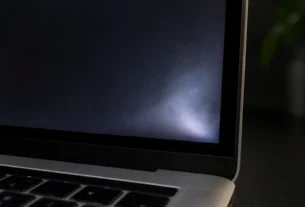
Yellow spots along the edges of a Surface Book 2 screen are usually a hardware problem, not a software bug. Heat or pressure from an aging battery behind the display is the top suspect. A UEFI test tells you which: if the spots show there, Windows is not to blame.
When yellow blotches crept into the corner of my own premium laptop screen, my first reaction was to scrub it. Nothing wiped off. It felt unfair, because a device that costs this much should not fade like old paper. Many Surface Book owners have reported the same thing, so you are not alone.
Before you try any setting, though, safety comes first. Spots like these can point to a battery that is starting to swell. Check for a bulge or gap, and power the laptop off if you see one. Then we can run the simple UEFI test together.
The Safety First Check (Crucial)
A swollen battery is the most serious cause of yellow spots, so I check for it before anything else. The Surface Book 2 has one battery behind the screen and another in the keyboard base. Either can swell.
Look for these signs:
- Glass that bulges or lifts at the seams
- A bulge on the back of the screen
- A warped frame
- A gap between the screen and the body
- A lid that will not close flat
Here is where it gets confusing, because the experts do not fully agree. Microsoft says a badly aged battery usually puffs up from carbon dioxide gas, which does not burn, and calls this not a safety concern. Even so, Microsoft tells you to stop using the device once the battery has visibly expanded past its case.
iFixit takes a stricter line. Turn it off, do not charge it, and contact Microsoft, because a swollen battery can be a fire risk. Its article covers older Surface models, but I treat the warning seriously for mine too.
I recommend following the stricter iFixit advice. Shut the laptop down, unplug the charger, and leave it off. Then open Microsoft’s battery care page and use the Surface replacement request form to work with a Surface Support Advocate.
Safety warning: Do not press on the screen, squeeze the body, or try to poke, pierce, or pry open a swollen battery. Puncturing it can cause a fire. Handle the laptop gently.
No bulge, gap, or warping? Keep reading, because the next step is the UEFI test.
The Definitive Hardware vs. Software Test (UEFI)
One quick test settles the “is it Windows or the screen” question. It uses UEFI, a small menu that loads before Windows starts. Because Windows is not running, a problem you see there cannot be caused by Windows, a driver, or an app.
Here is how I run it, using Microsoft’s own steps:
- Turn off your Surface and wait 10 seconds.
- Press and hold the volume up button.
- While still holding it, press and release the power button. The logo screen appears.
- Keep holding volume up until the UEFI screen shows, then let go.
- Look closely at the yellow spots.
Microsoft says Surface Book models of every kind use this UEFI screen, so the steps apply to your Surface Book 2. The test takes under a minute and needs no tools. You only need to look, so do not change any settings while you are in there. Snap a photo of the spots on this screen too. It is handy proof if you contact Microsoft later.
Safety warning: If the laptop feels very hot at any point, power it off and unplug the charger before you touch or move it.
If the spots show up in UEFI: This points to a hardware fault. A Microsoft Q&A moderator explained back in 2020 that yellowing visible in UEFI confirms a hardware problem, and that more troubleshooting will not fix it. In that case, skip the software steps and jump to the repair and replace options later in this guide.
If the screen looks clean in UEFI: Good news. The problem is likely software, such as a setting or driver. Move on to the next section and try those fixes.
Software Fixes for Whole-Screen Yellow Tint
These fixes help only if the whole screen looks warm or yellow. They will not remove spots or streaks along the edges. If your spots showed up in the UEFI test, skip ahead.
Try these in order:
- Night Light. Go to Start > Settings > System > Display, then select Night light. Turn it off, or test a different setting.
- Automatic brightness. On the same Display page in Windows 11, open Brightness. Clear “Change brightness automatically when lighting changes” and “Help improve battery by optimizing the content shown and brightness.” On Windows 10, the first box is under Brightness and color.
- Adaptive color. Switch it to Off. Microsoft says this setting is not on all Surface devices, so you may not see it.
- Updates. Open the Surface app, expand Help & support, and select Check for updates.
- Display drivers. In Device Manager, uninstall the Surface panel driver under Monitors, then the adapter under Display adapters, and restart. Run Windows Update afterward. Menu names vary a little between Windows 10 and 11, so follow the on-screen prompts.
A strange power mode pattern
One Surface Book 2 owner reported that the splotches appeared only in high performance mode while the charger was connected. They faded after a few minutes in Recommended mode. Yet Microsoft’s own screen page suggests Better or Best performance under Settings > System > Power & battery > Power mode.
I would not call either one a fix. The owner’s report is a single story, and Microsoft’s tip targets uneven brightness in general, not yellow edges. Treat it as an unconfirmed pattern, and watch whether heat or charging makes yours worse.
The Main Culprit: Swollen Batteries (Screen and Base)
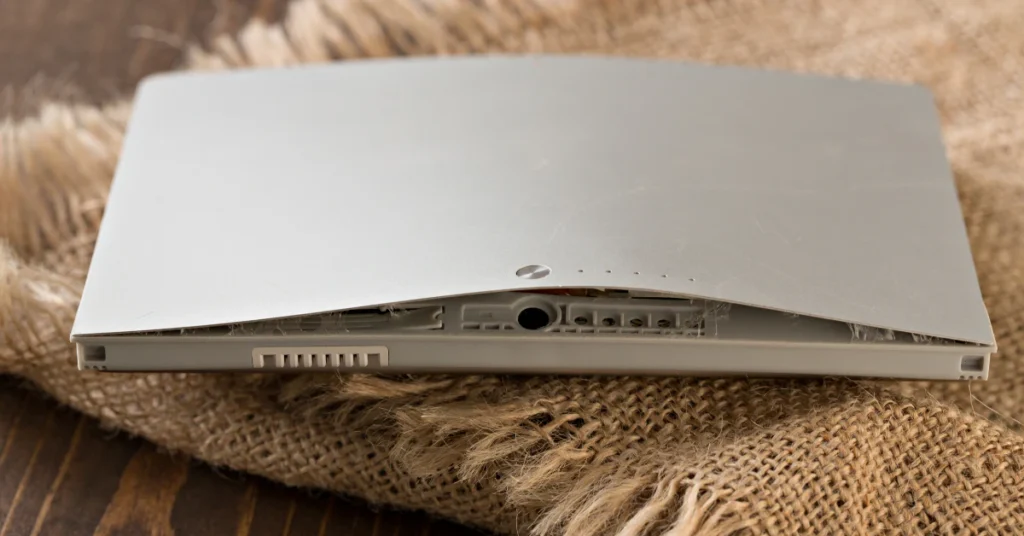
The Surface Book 2 is built differently from most laptops, and that design matters here. It has two batteries, not one. One sits behind the screen, inside the detachable part called the clipboard. The other sits in the keyboard base.
Why does that matter for yellow spots? The screen battery sits right behind the display. Lithium-ion batteries wear out with age, and an old one can puff up with gas. A thin, glued screen has almost no spare room, so the swelling pushes on the back of the display. That pressure can show up as uneven color, such as yellow patches along the edges. iFixit describes this pattern on older Surface models: discolored screen first, then bulging glass.
Engineering.com says the same warning sign has been reported on the Surface Book 2. It notes that splotches on the screen often appear before the swelling does. Microsoft has not officially named the battery as the cause of yellow spots, so I treat it as the leading suspect, not a proven fact.
Here is what many owners miss: the base can swell too. That same report quotes an IT admin who managed 60 Surface Books, a mix of first and second generation. Thirteen had swollen batteries, in both the screen and the keyboard base. That is one person’s experience, not an official failure rate. Still, it is why I check both halves for a bulge or a gap.
Now the hard part. Microsoft’s documentation for the Surface Book 2 13.5-inch says its lithium-ion batteries are not user-replaceable. If a battery needs replacing, Microsoft says it issues a replacement product. That document dates from 2018 and covers the 13.5-inch models, and I found nothing newer that changes it.
As an owner, that part stings. A battery is a part that wears out. Sealing one inside a glued, expensive screen means normal aging can turn into a full device replacement. For a laptop that costs this much, I find that tough to accept.
Look-Alike Problems vs. True Yellow Spots
A quick search for this problem turns up plenty of confident advice, and some of it is wrong. A few pages claim the spots come from a finish or coating flaw. None of them points to a Microsoft source, so I do not trust that claim.
Adhesive gets blamed too. The glue holding the screen can give way, but iFixit describes that as the result of pressure from a swelling battery, not the root cause.
Not every odd screen mark is a yellow spot either. Image retention, also called ghosting or burn-in, is a faint leftover image that lingers after the picture changes. It is not yellow, and it is not a battery sign. One Surface Book 2 15-inch owner documented it across several replacement units. That is one owner’s report, and I found no official Microsoft statement on it.
Cracked glass is another look-alike. Notebookcheck reported in 2020 that some Surface Book 2 and 3 owners saw display cracks with light use. It said Microsoft treated those as physical damage, not covered by warranty.
A simple rule helps me. Yellow patches, streaks, or a bulge point to the battery path in this guide. A lingering ghost image or a crack is a different problem
Repair, Replace, or Live With It? (Cost and Data Realities)
Money is the part that worries most people, so here is the honest picture.
Microsoft’s standard warranty lasts one year. After that, you may be able to pay for out-of-warranty service, but Microsoft says it may not be offered in every region, and prices can change. I could not confirm a current official US price for the Surface Book 2. The US price list I found showed the Surface Book 3, but I did not see a Surface Book 2 line, so ask Microsoft whether it still offers this service. Owners in forums report quotes around $599 for a swap, and prices differ by region.
Results vary a lot. One owner got a free exchange at a Microsoft store. Another, with the same problem, was quoted about $600. Neither result is a promise for you. Still, I would ask Microsoft before paying anyone else. Some forum posters also describe shipping delays and replacements that failed again, so keep your expectations realistic.
Back up your data first. Microsoft says out-of-warranty replacements use a similar refurbished device. You get a different laptop back, not your original. Copy your files to an external drive or cloud storage before you ship anything. Do this even if you only plan to visit a store. After a swap, Microsoft covers the replacement for 90 days.
Do not repair it yourself. A third-party guide for replacing the Surface Book 2 15-inch battery exists on iFixit, so I know people try it. I do not recommend it. Opening the glued screen with heat tools to pry out a swollen lithium-ion cell is dangerous, and it may void any exchange eligibility. Microsoft also says to avoid pressure or puncture on an expanded battery.
Can you just live with it? If there is no bulge or gap, some owners keep using the laptop. I would not call that safe forever. One owner reported streaks that darkened and spread to every edge over time. If you keep using it, check often for a bulge or gap. Whatever you choose, do not charge a laptop that is bulging.
How to Prevent Battery Stress (What Actually Works)

Some advice online says the fix is simply a new charger. One competitor article leans that way, and I do not buy it. Microsoft’s own guidance points to heat and long stretches at a full charge as the real battery killers.
The best tool I found is Battery Limit Mode. Microsoft says the Surface Book 2 got it in a July 9, 2020 update. Firmware version 182.2107.139.0 or later also applies it to the keyboard base battery, not just the screen. When it is on, charging stops at 50%. That slows battery aging for anyone who keeps the laptop plugged in or docked all day.
Microsoft documents the switch in the Surface UEFI menu, under Boot configuration and Advanced Options. I could not confirm the exact menu on a home Surface Book 2, so look there and check what your own screen shows.
Your laptop also supports Smart Charging. It holds the battery near 80% when the device stays plugged in for long periods or runs hot. It does not include Lifespan Saver, a newer Microsoft feature that the Surface Book 2 lacks.
A few simple habits help too:
- Keep it out of direct sun and never leave it in a hot car. Microsoft says Surface devices work best between 32°F and 95°F.
- Let the battery drop below 50% regularly instead of living on the charger.
- Keep Windows and Surface updates current so the firmware stays up to date.
None of this reverses spots you already have. It only helps slow future wear, including on a replacement unit.
FAQs
Is it safe to keep using my Surface Book 2 with yellow spots?
Only if you see no bulge, gap, or warping. Spots alone may be early battery stress, but that is unconfirmed. If the screen lifts or the lid will not close flat, stop using it, power it off, and do not charge it. Microsoft also advises stopping use once a battery has visibly expanded.
Can a software fix remove yellow spots?
Only if the spots disappear in the UEFI test. If they still show there, Windows is not the cause. Microsoft’s test logic points to hardware, and software steps will not fix that.
Will Microsoft fix it for free?
Not reliably. Owners report everything from a free exchange to a quote near $599. The standard warranty is one year, and out-of-warranty service costs money and may not be offered in every region. Any replacement is usually a refurbished unit, so back up your data first.
Can I replace the battery myself?
I do not recommend it. Microsoft says Surface Book 2 batteries are not user-replaceable. A third-party guide exists, but the screen is glued, and prying out a swollen battery can start a fire. It may also affect exchange eligibility.
Conclusion
Yellow spots on a Surface Book 2 are rarely a settings problem. Run the UEFI test first. If the spots show there, the screen or battery is the cause, and no software tweak will remove them.
Check both halves for a bulge or gap, and stop charging the laptop if you find one. Back up your files before any service, since an exchange usually brings back a different, refurbished unit. For a laptop you plan to keep using, turn on Battery Limit Mode where your menu offers it, and keep the device cool.
I know how unfair this feels on a premium machine. Still, a calm, safe next step beats guessing.