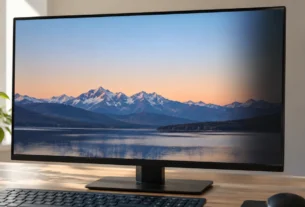
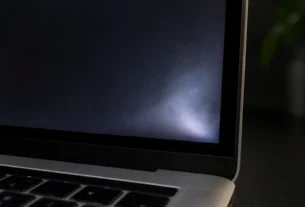
A white spot on your phone screen is usually one of two things: a software dot you can turn off in seconds, or a hardware defect that needs a real fix. The fastest way to know which one you have is a simple screenshot test, explained below.
Take a screenshot of your screen right now and look at it on another device, or zoom in on it. If the white spot is not in the screenshot, or it moved, it’s a software element like a notification dot. If the exact same spot shows up in the screenshot, frozen in place, it’s a hardware issue like a stuck pixel or pressure damage.
Don’t jump straight to a fix yet. Guessing wrong wastes time and can even make things worse. This guide walks you through diagnosing the real cause first, then moves from the safest DIY steps to knowing when it’s time for a repair.
The Diagnosis: Is It a Hardware “Spot” or a Software “Dot”?
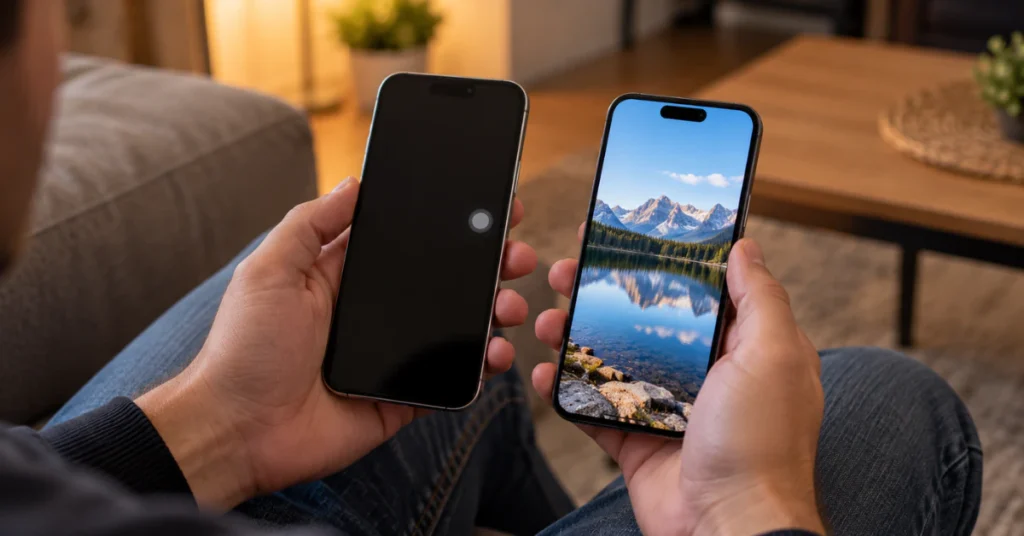
Before you touch your screen or try any fix, you need to know what you’re actually looking at. A real screen defect and a normal software icon can look almost identical at a glance, but they come from totally different places.
Here are the three software “dots” people most often mistake for screen damage.
The iOS AssistiveTouch floating dot
This is a small gray or white circle that sits on top of everything on your screen. It’s an iPhone accessibility feature, not a defect. You can drag it around with your finger, and it will not show up in a screenshot. To turn it off, go to Settings, then Accessibility, then Touch, then AssistiveTouch, and switch it off.
The Android notification overflow dot
On Samsung and many other Android phones, your status bar can only show a few notification icons at once. Once you pass that limit, the oldest one turns into a plain dot instead of an icon. This is normal and not a sign of a broken screen. It usually goes away once you clear your notifications, or you can adjust it in Settings, then Notifications, then Advanced, then Show notification icons.
The iPhone orange and green privacy dots
If you see a small orange or green dot near the top of your iPhone screen, your phone is telling you that an app is using your microphone (orange) or your camera (green). This is a built-in privacy and security feature, and Apple does not let you turn it off. It disappears on its own once the app stops using the mic or camera. You can see which app triggered it by swiping down to open Control Center.
So how do you tell these apart from a real defect? Go back to the screenshot test. A software dot will not appear in a screenshot, or it will move if you drag it. A hardware defect, like a stuck pixel or a pressure mark, stays in the exact same physical spot every time, including on your lock screen and inside screenshots, because it’s part of the glass and display layers, not something your phone is drawing on top.
If your white mark passed the screenshot test and showed up as fixed and unmoving, keep reading. The next sections cover what’s actually causing it and how to fix it safely.
For the full official steps on AssistiveTouch, see Apple’s AssistiveTouch support page.
Easy DIY Fixes: Debris, Settings, and Basic Checks
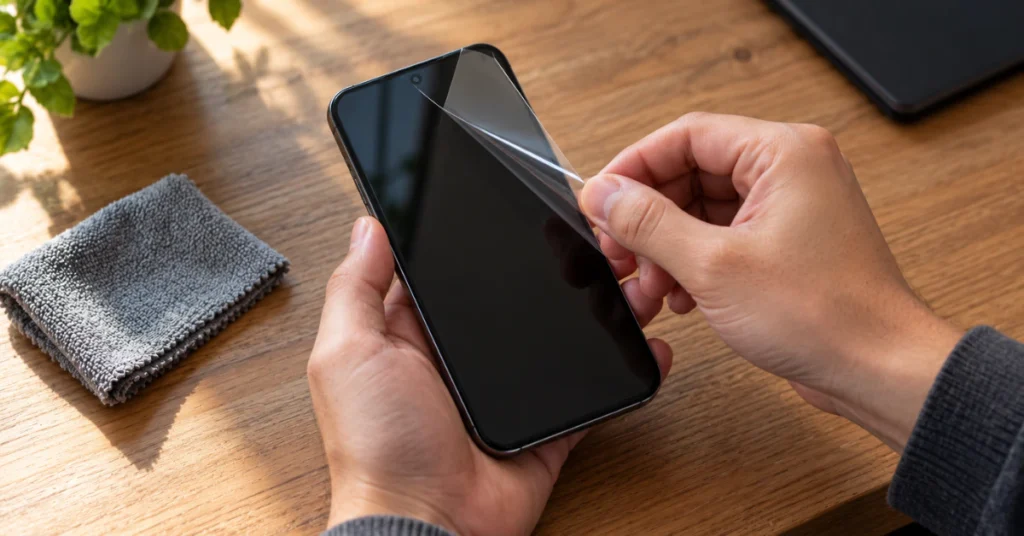
Before you worry about a cracked screen or a dying pixel, rule out the simplest causes first. These checks cost nothing and take a few minutes.
Remove your screen protector
A tiny air bubble, a speck of dust, or a scratch trapped under your screen protector can easily look like a bright white spot from certain angles. Peel off the protector carefully and check if the spot is still there. If it’s gone, your screen was never damaged, the protector was the problem.
Clean the screen itself
While the protector is off, wipe the screen gently with a soft, dry microfiber cloth. Smudges, dried liquid, or grime can catch light in a way that looks like a white mark, especially under bright lighting.
Turn off AssistiveTouch, if that’s the cause
If your screenshot test from the last section showed a dot that moves or disappears, and you’re on an iPhone, go to Settings, then Accessibility, then Touch, then AssistiveTouch, and switch it off. The dot should vanish right away.
If you’ve done all three steps and the white spot is still sitting in the exact same spot on your screen, it’s time to figure out whether you’re dealing with a pixel problem, pressure damage, or something else. That’s covered next.
Intermediate Fixes: Stuck Pixels vs. Dead Pixels
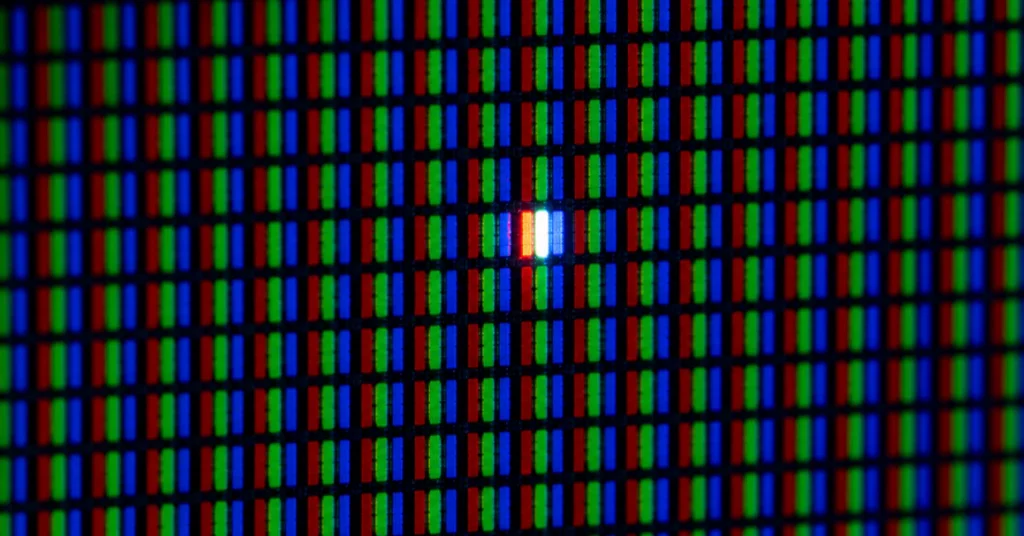
If the simple checks in the last section didn’t fix anything, your screen might have a pixel problem. This applies to phones, laptop screens, and LCD monitors alike.
Your screen is made of millions of tiny pixels, and each one is built from even smaller red, green, and blue pieces called subpixels. When all of them are off, you see black. When they’re all on, you see white. Everything in between creates the colors you normally see.
Dead pixel: A dead pixel has lost power completely. It shows up as a small black dot that never changes, no matter what’s on screen.
Stuck pixel: A stuck pixel is different. It’s still getting power, but it’s frozen showing one color, often white, red, or green. This is the type that sometimes can be fixed.
Try a pixel-cycling tool first
Software tools like JScreenFix or PixelHealer flash rapid colors over the stuck area to try to “wake up” the pixel. These work on phone, laptop, and monitor screens. Keep in mind their success is not guaranteed and results vary from screen to screen, so treat this as a low-risk experiment rather than a sure fix.
The pixel massage method, with real caveats
Some people try gently massaging the stuck pixel with a soft cloth while the screen is off, then turning it back on. If you try this, keep the pressure very light and brief.
This method is mainly aimed at LCD screens. On OLED screens, each pixel lights up on its own, and pressing on them carries more risk of permanent damage. Pressing too hard, on any screen type, can crack the display or create brand new dead pixels where you didn’t have any before.
Never try this if:
- Your screen glass is already cracked
- You’re not sure if the mark is a dead pixel (massaging will not fix a truly dead pixel)
If neither of these methods clears the spot, it’s likely not a pixel issue you can fix from home, and the cause may be something deeper in the display, which the next section covers.
Hardware Defects: Pressure Damage, Moisture, and Battery Warnings
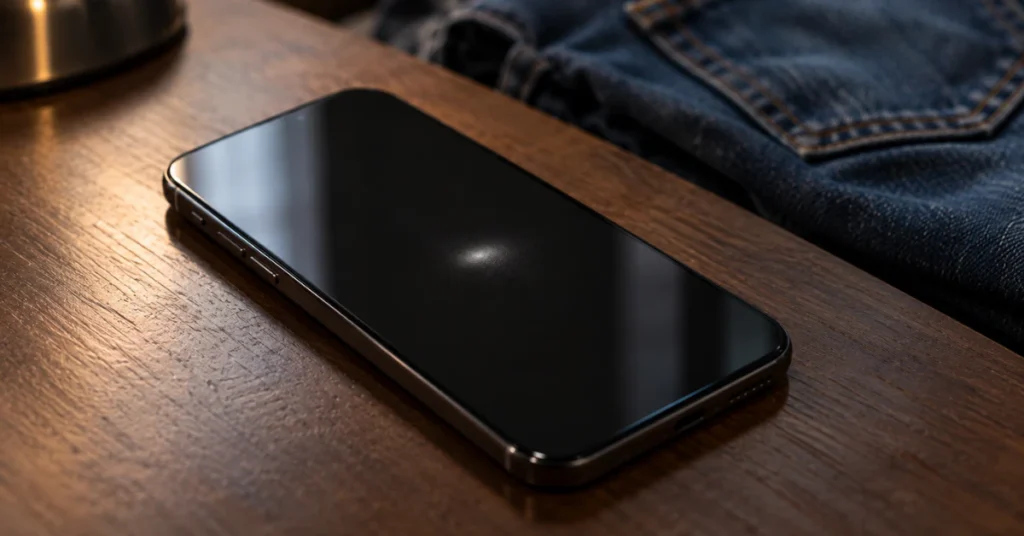
Some white spots are not software, not a simple pixel glitch, but a sign of something physically wrong inside your screen or phone. Here are the three most common physical causes, and what to do about each one.
Pressure damage
This is the single most common cause of a bright or white spot that stays in one place. Sitting on your phone, keeping it in a tight pocket, or stacking heavy things on top of it can press on the display’s inner layers hard enough to leave a permanent mark, even without cracking the glass. This kind of damage doesn’t heal on its own and usually needs a screen replacement.
Moisture damage
If your phone was near water recently, don’t reach for the rice. That old trick does not work the way people think, and Apple now officially warns against it. Small rice particles can get inside your phone and cause more damage, and rice is not actually very good at pulling out moisture.
If your phone has been wet, here’s what to actually do:
- Tap your phone gently against your hand with the charging port facing down, to get rid of any liquid inside
- Leave it in a dry spot with good airflow for at least 30 minutes
- If you still see a liquid warning, give it up to 24 hours before trying to charge again
- Don’t use a hair dryer, heater, or compressed air on it, the heat and force can cause more harm
Safety Warning: Swollen Battery
If the white spot on your screen shows up along with the screen lifting away from the frame, the back of your phone bulging outward, or your phone suddenly feeling thicker than normal, stop using it right away. This points to a swollen battery, and it’s a real safety risk, not just a cosmetic one. A swollen battery can leak, overheat, or in rare cases catch fire.
Do not try to press the bulge down, pop the back off, or remove the battery yourself. Turn the phone off if you safely can, and take it to a professional repair service as soon as possible. This is not a fix to attempt at home.
If you’ve ruled out pressure, moisture, and battery swelling, and the spot is still there, the next section covers how to tell if this needs a professional repair or a full screen replacement.
For official guidance on handling a wet iPhone, see Apple’s liquid detection support page.
What About White Spots on the Phone’s Back Panel?
If the white spots you’re seeing are on the back of your phone, not the screen, you’re dealing with a completely different issue. This has nothing to do with your display, your pixels, or anything behind the glass you look at.
According to reports from phone owners in user forums, this usually happens where the phone’s back panel meets its case. Many phone backs are made of polycarbonate or glass, and over time, friction, trapped moisture, or a reaction with the material of certain cases can leave light or white marks on the surface.
This is a cosmetic issue, not a sign that something is broken inside your phone. It won’t affect how your phone works, your screen, or your battery.
If you want to reduce it, try switching to a different case, especially if you’ve noticed the marks appearing in the exact spots where the case touches the back. Removing the case for a while and cleaning the back panel gently can also help it fade in some cases.
Repair vs. Replace: Real Costs, Warranties, and Fixes Table
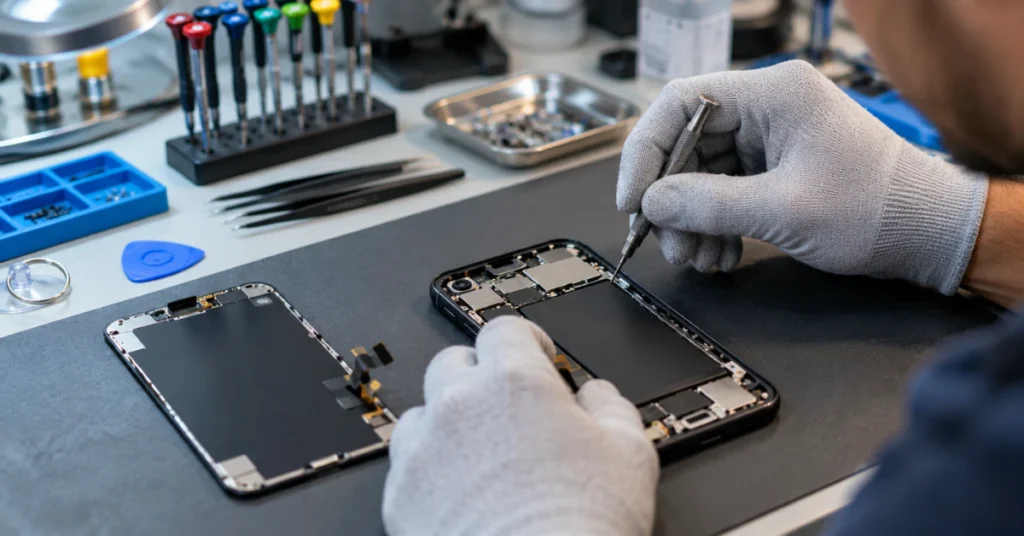
Once you know what’s causing your white spot, the next question is usually about money. Here’s a straight answer on what to expect.
Causes vs. Fixes at a Glance
| Cause | Can You Fix It Yourself? | Covered by Warranty? |
| Software dot (AssistiveTouch, notification overflow, privacy indicator) | Yes, settings change fixes it instantly | Not applicable, nothing is broken |
| Dust or bubble under screen protector | Yes, just remove the protector | Not applicable |
| Stuck pixel | Sometimes, with pixel-cycling tools or gentle massage | Depends on manufacturer’s pixel policy |
| Dead pixel | No, DIY methods do not fix dead pixels | Depends on manufacturer’s pixel policy |
| Pressure damage | No, needs professional repair | Usually not, classified as physical damage |
| Moisture damage | No, needs professional repair in most cases | Usually not, classified as liquid damage |
| Swollen battery | No, needs professional replacement | Varies, but safety comes first regardless |
The warranty reality
Here’s the part that frustrates a lot of people. If your white spot came from pressure, like sitting on your phone or a heavy object pressing on it, Samsung’s own support policy says this counts as physical damage. Physical damage is explicitly excluded from standard warranty coverage, even if you never dropped the phone or see a cracked screen. Other major manufacturers apply similarly strict rules, so don’t assume a pressure mark will be covered just because your phone is still “under warranty.”
What repairs actually cost
If you do need a repair, here’s a realistic idea of what you’re looking at in 2026.
For Samsung phones, screen replacement typically runs $70 to $350, depending on your model and whether the shop uses original or aftermarket parts.
For iPhones, Apple’s official out-of-warranty screen repair pricing runs from about $279 for base models up to $379 for Pro Max models. If you have AppleCare+, that drops to around $29 per repair.
Before booking a repair, it’s worth checking if you have any coverage through AppleCare+, Samsung Care+, or a separate phone insurance plan, since that can be the difference between a $29 fix and a $379 one.
Frequently Asked Questions
How to fix white spots on mobile screen?
Start by running the screenshot test to see if it’s software or hardware. If it’s software, like AssistiveTouch or a notification dot, change the setting and it’s gone. If it’s hardware, remove your screen protector first to rule out dust or bubbles, then try a pixel-cycling tool or gentle massage for stuck pixels. If none of that works, you’re likely looking at pressure or moisture damage, which needs a professional repair.
What are the white dots on my phone screen?
They’re either software elements, like the AssistiveTouch dot, a notification overflow dot, or the camera and mic privacy indicators, or they’re hardware defects like stuck pixels. The screenshot test tells you which one you have.
How to fix white dots on screen?
If it’s software, the fix is a quick settings change. If it’s hardware, like a stuck pixel, you can try a pixel-cycling tool or a gentle, brief massage on the screen while it’s off. Dead pixels and pressure marks usually need a professional repair instead.
How do I get rid of the white dot on my phone screen?
On iPhone, turn off AssistiveTouch in Settings, then Accessibility, then Touch. On Android, clear your notifications or adjust your notification icon settings. If it’s a real hardware defect, it needs a pixel-fixing attempt or a repair, not a settings change.
What is the little dot on my Android phone?
It’s usually the notification overflow indicator. Your status bar can only show so many notification icons at once, and once you go over that limit, the extra ones turn into a plain dot.
How do I get the white dots off my iPhone screen?
If it’s the AssistiveTouch dot, you can turn it off in Accessibility settings. If it’s the orange or green privacy dot, you can’t turn it off, it disappears on its own once the app using your camera or mic closes.
What is the white dot on my iPhone home screen?
It’s most likely AssistiveTouch, if it moves when you drag it, or the privacy indicator, if it’s near the top of the screen and colored orange or green. If it’s fixed in place and shows up in screenshots, it may be a stuck pixel instead.
How do I disable the white dot?
You can disable AssistiveTouch. You cannot disable the camera or microphone privacy indicator, since it’s a security feature. A hardware defect can’t be “disabled” either, it needs an actual fix or repair.
What are the dots on my screen?
In most cases, they’re one of three software elements (AssistiveTouch, notification overflow, or the privacy indicator) or a hardware issue like a stuck or dead pixel. The screenshot test from earlier in this guide is the fastest way to tell which one you’re dealing with.
Conclusion
A white spot on your phone screen doesn’t always mean bad news. Many times, it’s just a software dot you can turn off in seconds. When it is a real hardware issue, knowing the exact cause, whether it’s a stuck pixel, pressure damage, or moisture, helps you pick the right fix instead of wasting time or risking more damage. If the simple steps in this guide don’t clear it up, a professional repair is the safest way to get your screen back to normal.