Your Chromebook is stuck, but don’t worry. Your files are safe for now, and this is usually easy to fix.
Try a hard reset first. Hold down the Refresh key (it looks like a circular arrow) and tap the Power button at the same time. Let go of Refresh once the screen starts to restart.
This simply restarts your Chromebook’s hardware, like its keyboard and touchpad. It does not delete your files or settings.
Give it a minute to boot up. If your Chromebook is still frozen on the Chrome screen, keep reading. We will walk through the next steps together.
Which “Stuck” Screen Are You Seeing?
Not every “stuck” screen means the same thing. Take a close look at what’s actually on your screen, because it changes what you should do next.
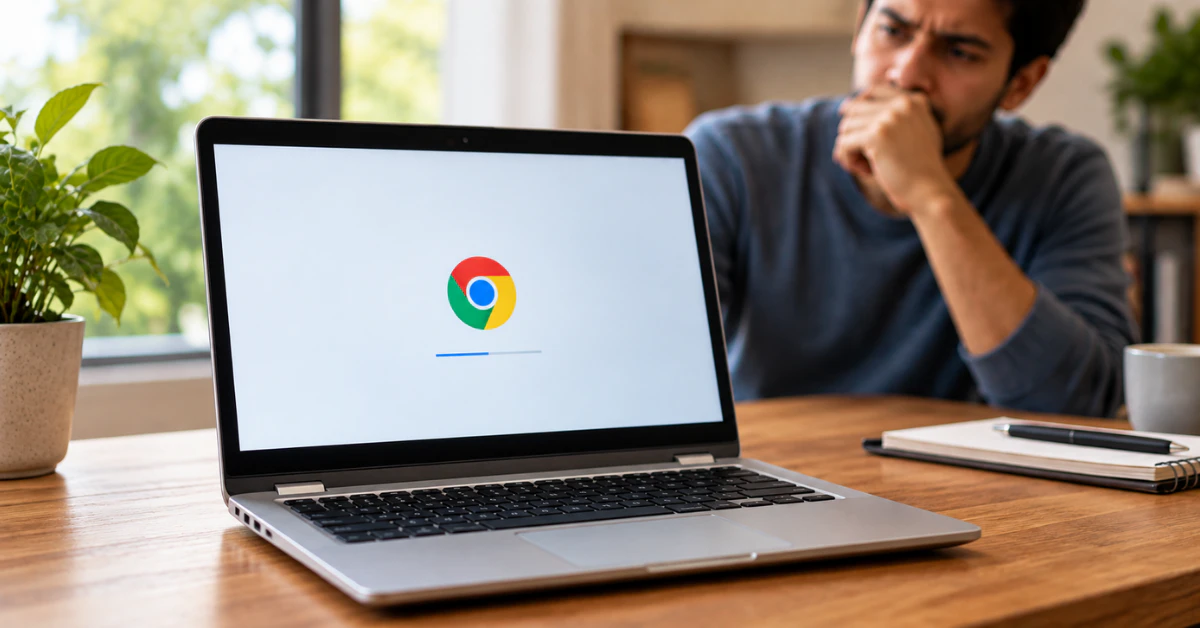
The plain Chrome logo
This is just the colorful Chrome logo sitting on a white or gray background, with no text and no spinning wheel moving. If it hasn’t changed in several minutes, your Chromebook is truly frozen. This is the classic chromebook stuck on white chrome screen problem, and a hard reset is the right first move.
“Chrome OS is missing or damaged”
This screen shows that exact message in text. It looks alarming, but it doesn’t always mean something is broken forever. In some cases, this is the expected screen you’ll see while starting a recovery, so don’t panic if it pops up right as you begin fixing things.
“Your system is repairing itself, please wait”
This one is different from the other two. Your Chromebook has a built-in safety feature that checks its own system files every time it starts up. If it finds a small problem, it tries to fix itself automatically, and this message is what shows up while that happens.
If you see this “repairing itself” message, give it more time before doing anything else. Interrupting a self-repair can sometimes cause more harm than good. The other two screens, though, usually mean you need to step in and help your Chromebook get moving again.
Troubleshooting Fixes at a Glance (From Safest to Riskiest)
Before you try anything, it helps to see the full picture. Some fixes are completely safe. Others wipe your Chromebook clean. Here’s how they stack up:
| Fix | Type | Data Loss Risk |
| Disconnect peripherals | Software/Settings | None |
| Hard reset | Software/Settings | None |
| Run Diagnostics (chrome://diagnostics) | Software | None |
| Chrome OS Recovery | Software | Total data wipe |
| Powerwash (factory reset) | Software | Total data wipe |
This is why order matters so much. We’ll always start with the safest option and only move to the next one if it doesn’t work.
Think of it like trying a gentle nudge before a full reset. A hard reset can’t delete your files, but recovery and Powerwash can erase everything stored locally on the device. Work through this list from top to bottom, and stop as soon as something fixes your screen.
Disconnect Peripherals and Wait It Out
Before you touch any buttons, unplug everything connected to your Chromebook. This means USB drives, SD cards, a mouse, and any external monitor.
A connected accessory can sometimes confuse your Chromebook while it’s trying to start up, and this alone is often the whole problem. Once everything is unplugged, give your Chromebook a moment to see if it moves past the logo on its own.
If your Chromebook recently installed an update, this waiting part matters even more. It’s normal for the logo screen to hang there for several minutes while the update finishes setting up in the background.
So before you assume the worst, just wait. Set a timer for five minutes and check back. Many stuck screens clear up on their own once the update process wraps up or a cranky accessory gets removed from the mix.
Perform a Hard Restart (No Data Loss)
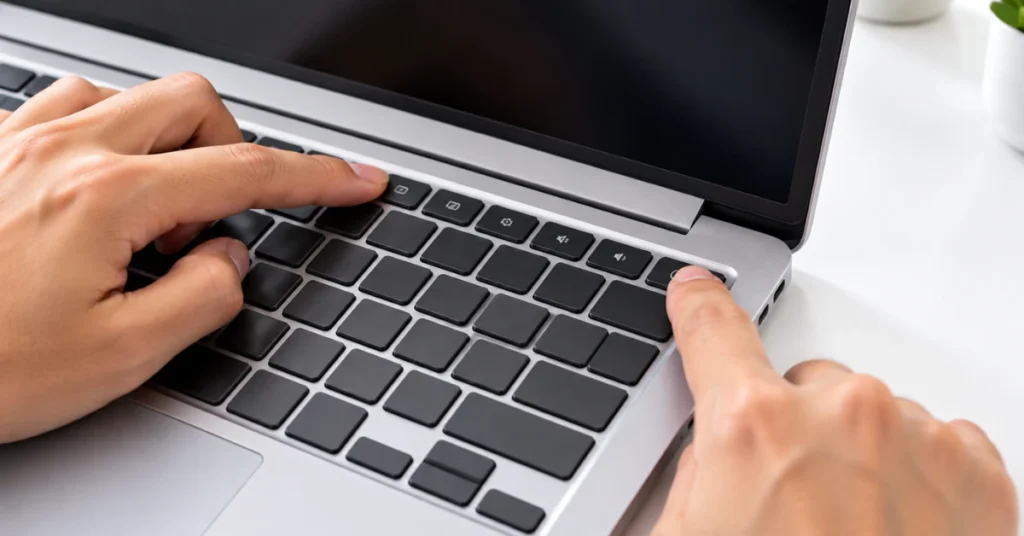
This is the fix that solves the problem for most people, and it’s completely safe for your files.
Here’s how to do it: Hold down the Refresh key and tap the Power button. Let go of Refresh once your screen goes dark and starts coming back on. This works the same way whether you have an acer chromebook stuck on chrome screen, an asus chromebook stuck on chrome screen, or an hp chromebook stuck on chrome screen. Standard Chromebook laptops from these brands all use this same key combo, according to Google’s own hard reset instructions.
But a few device types work differently, so check below if the steps above don’t apply to you.
If you have a Chromebox or Chromebase instead of a laptop:
Acer Chromebox, Asus Chromebox, and LG Chromebase models don’t use the Refresh key method at all. For these, you’ll need to turn the device off, then turn it back on to complete the reset.
If you have an older Samsung Series 5 Chromebook:
This model also skips the Refresh key combo. Instead, it uses a different reset process tied to its hardware, not a keyboard shortcut.
If you have a Chromebook tablet:
Press and hold both the Volume Up and Power buttons together for at least 10 seconds, then let go.
No matter which method applies to your device, none of these steps erase anything. Your photos, documents, and settings stay exactly where they are. This step just restarts the hardware itself, the same way restarting a stuck phone works.
Run ChromeOS Diagnostics (Pre-Wipe Triage)
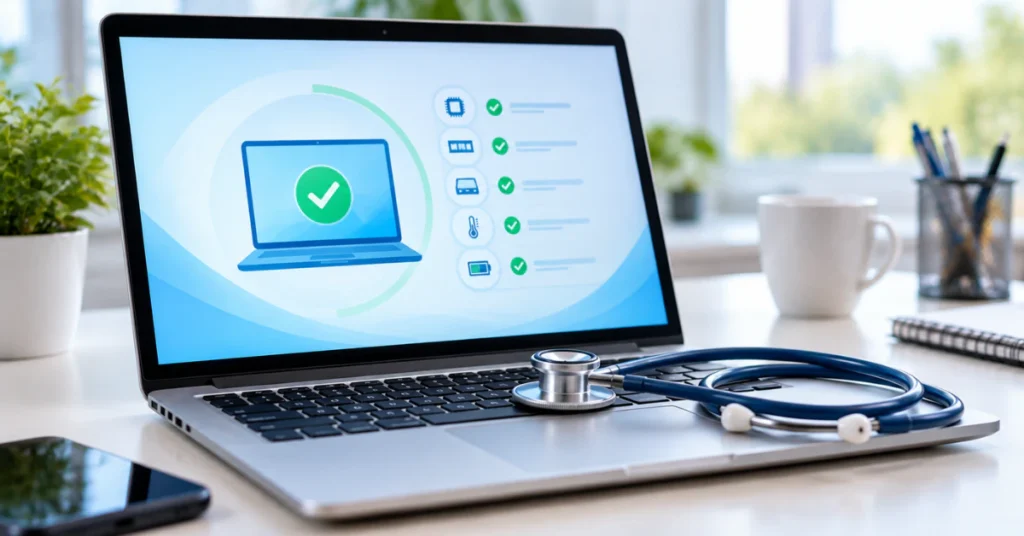
If your Chromebook is up and running again but still acting glitchy, don’t jump straight to a reset. Check under the hood first.
Chromebooks come with a built-in tool called Diagnostics that checks your battery, CPU, memory, and Wi-Fi for real problems. You can open it by typing chrome://diagnostics into your address bar, or by going to Settings > About Chrome OS > Diagnostics.
Think of this step as a quick health checkup. It tells you whether your Chromebook’s hardware is actually working the way it should.
This matters more than it might seem. If the Diagnostics tool shows your memory or CPU is failing, no software fix is going to solve your frozen screen problem. You could run through every reset in this guide and still end up right back here, because the issue isn’t in the software at all.
So run this test before moving on to recovery or Powerwash. It only takes a few minutes, and it can save you from wiping your whole device for nothing.
STOP: Are You Using a School or Work Chromebook?

Warning: If your Chromebook belongs to a school or workplace, stop here before trying the next steps.
This matters a lot if you have a lenovo chromebook stuck on chrome os screen or a dell chromebook stuck on chrome os screen, since these brands are common in school fleets.
Managed Chromebooks run under rules set by an IT administrator, not by you. Powerwash and some recovery options are often blocked completely on these devices, so trying them may not work anyway, and they can sometimes trigger extra lockouts instead of fixing anything.
If your school or work Chromebook is stuck in a loop where it keeps restarting over and over, this is often caused by a policy conflict rather than a simple glitch. Certain Dell models, including the Chromebook 3120, CC11260, and CC14260, are known to show this exact pattern when enrollment settings clash with the device’s boot mode.
This isn’t something you can fix at home. The real fix has to come from an IT administrator who can unenroll the device. Reach out to your school’s or company’s tech support team and explain what you’re seeing. You haven’t broken anything, and this is a known, fixable issue on their end.
Chrome OS Recovery (Warning: Data Loss)
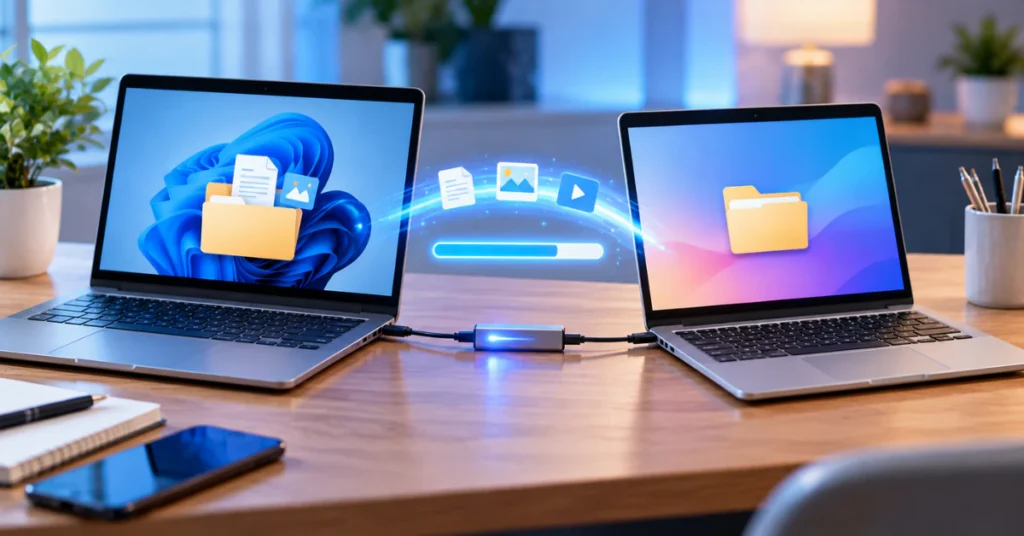
Warning: This step permanently erases everything on your Chromebook’s hard drive, including any files saved locally. Only continue if the steps above didn’t work and you understand your local files will be gone.
If you reached this point, your Chromebook needs a deeper fix. Chrome OS Recovery reinstalls your operating system from scratch, clearing out whatever corrupted files were causing the freeze.
Here’s how to start:
- Turn off your Chromebook completely.
- Press and hold Esc + Refresh, then press Power. Let go of Power once the screen changes.
- On some models, you’ll instead hold Esc + Maximize, then press Power. Check your specific model if the first combo doesn’t bring up a recovery screen.
- You should now see a recovery message on your screen.
You’ll need a second, working computer to finish this process. On that other computer, open Chrome and install the Chromebook Recovery Utility from the Chrome Web Store. Open the extension and follow its on-screen steps to create recovery media on a USB drive or SD card.
Once that’s ready, insert it into your stuck Chromebook and follow the prompts that appear. The Recovery Utility will reinstall ChromeOS fresh, which clears out whatever was blocking your device from starting up normally.
This process takes a little time, so don’t unplug anything or close the lid while it’s running. Full step-by-step details are also available on Google’s official recovery page, in case your screen looks a bit different from what’s described here.
Powerwash / Factory Reset (Last Resort)
Warning: Powerwash permanently erases all local user data, including your files, settings, and apps. Make sure you’ve backed up anything important to Google Drive before continuing.
If you can reach the sign-in screen but it keeps freezing there, a Powerwash resets your Chromebook back to its factory state. This is the last software fix to try before looking into a repair.
Here’s how to do it:
- Make sure you’re signed out and sitting at the login screen.
- Press and hold Ctrl + Alt + Shift + R at the same time.
- A reset screen will pop up. Select Powerwash, then Continue.
- Follow the on-screen steps to set up your Chromebook again.
This wipes everything stored locally on the device, so only use it after Steps 1 through 4 haven’t worked.
One more thing to remember: as covered earlier, this shortcut won’t work on school or work managed Chromebooks. Those devices block Powerwash by design, so if you’re dealing with a managed device, your fix has to come from an IT administrator instead.
Still Stuck? Hardware Failure vs. Device Age
If nothing so far has worked, it helps to step back and ask two questions: what does your screen actually look like, and how old is your Chromebook?
Check what your screen is doing
A Chromebook that shows the Chrome logo, even if it’s frozen there, is alive. The screen lighting up at all means it’s getting power and trying to boot into ChromeOS. This points to a software lockup, which is exactly what the steps above are built to fix.
A completely black screen is a different story. If nothing shows up at all, not even a logo, but you can see a charging light on the device, you’re likely dealing with a power-related issue rather than a software freeze. This needs its own separate troubleshooting path, not another reset attempt.
Check your Chromebook’s age
Every Chromebook model has an Auto Update Expiration date, often shortened to AUE. This is the point when Google stops sending that model software and security updates.
Chromebooks released in 2021 or later are eligible for up to 10 years of updates. Older models may need you to manually turn on extended updates once their first support window runs out, and some older devices simply won’t get any more fixes at all.
If your Chromebook is past its AUE date, it can still turn on and work. But bugs like this stuck screen become harder to fix for good, since Google is no longer sending out patches for that model.
Frequently Asked Questions
How do I unfreeze my Chrome screen?
Hold down the Refresh key and tap Power at the same time, then let go of Refresh once the screen restarts. This hard reset fixes most frozen screens without deleting any files.
How do you get your screen back to normal on a Chromebook?
If the screen looks zoomed in, zoomed out, or rotated the wrong way rather than frozen, try the display shortcuts covered below first. If it’s truly frozen and not responding, a hard reset is the right move.
What does Ctrl+Alt+Z do on a Chromebook?
This isn’t a troubleshooting shortcut at all. It turns ChromeVox, the built in screen reader, on or off. If your Chromebook suddenly starts reading the screen out loud, you likely pressed this by accident, and pressing it again turns it off.
How do I unfreeze my Chromebook?
Start with a hard reset: hold Refresh and tap Power. If that doesn’t work, work through the Chrome OS Diagnostics and recovery steps in this guide, in order.
How do I force restart a Chromebook?
Hold Refresh and tap Power, releasing Refresh once it starts up. Chromebook tablets use a different combo: hold Volume Up and Power together for at least 10 seconds.
My Chromebook is hanging. What can I do to fix this?
Unplug any connected accessories first, then try a hard reset. If it’s still hanging after that, move on to running Diagnostics and, if needed, Recovery.
Why is my Chromebook stuck on the Chrome screen?
This usually happens because of an interrupted update, a corrupted system file, or a connected accessory causing a conflict. On school or work devices, it can also be caused by an enrollment policy conflict.
What does Ctrl+Shift+0 do on Chromebooks?
It resets your screen’s zoom level back to the default setting. This is a display shortcut, not a fix for a frozen or stuck screen.
What is the lifespan of a Chromebook?
It depends on the model’s Auto Update Expiration date. Devices from 2021 or later can get up to 10 years of updates, while older models may need updates turned on manually or may stop receiving them altogether.
Conclusion
A frozen Chrome screen feels scary in the moment, especially when your files or a school device are on the line. But in most cases, this is a simple fix. Start with a hard reset, work through the steps in order, and only move to recovery or Powerwash if you truly need to.
Your Chromebook is built to recover from this. Take it one step at a time, and you’ll likely be back up and running within minutes.