“Ghosting” on a Surface Pro 4 actually means one of two different problems. It could be phantom touches, where the screen clicks or taps on its own. Or it could be a visual scramble, where the image shakes, doubles, or looks fuzzy. These two problems need different fixes.
Here’s the fastest way to tell which one you have. Shut down your Surface Pro 4. Hold the volume up button, then tap the power button once. If you still see the glitch on the Surface logo screen, that’s a hardware problem, not a software one.
Keep in mind that Microsoft stopped releasing new drivers for this device back in 2021. So a software fix can only do so much.
What Kind of “Ghosting” Do You Actually Have?

People use the word “ghosting” to describe two totally different problems on the Surface Pro 4. If you fix the wrong one, nothing will change. So let’s sort out which one you’re dealing with.
Phantom touch (also called ghost touch)
This is a touch problem, not an image problem. Your screen looks fine, but it acts like someone is tapping, clicking, or dragging on it when nobody is touching it. You might see a small circle appear on its own. Menus might open by themselves. Your cursor might jump around or click things you didn’t choose.
This happens because the touch sensor layer, called the digitizer, is sending bad signals to Windows. It is not about what you see on the screen. It’s about what the screen thinks you’re doing to it.
Visual scramble
Microsoft has an official name for this one. They call it a “scramble.” Here’s exactly what it looks like:
- The image on the screen shifts very fast, either sideways or up and down
- The picture looks fuzzy or blurry
- You might see parts of the image duplicated, like two pictures laid on top of each other
- Sometimes the duplicate parts look frozen in place while the rest of the screen moves
Touching the screen can sometimes make this better for a few seconds. That’s a known clue Microsoft points to when identifying a scramble.
This is different from basic screen flickering, where the whole screen just dims and brightens or blinks. A scramble is specifically about the image shifting and doubling, not just flashing on and off.
Why this matters
If you have phantom touch, the fix usually starts with your touch driver settings. If you have a visual scramble, that’s a hardware issue inside the screen itself, and driver tweaks won’t fix it.
Before you try anything else, figure out which type you have. Watch your screen closely for a minute. Is it the image that’s broken, or is it your touch input acting on its own? That answer decides which steps you should try next.
The UEFI Test (Proving Hardware vs. Software)
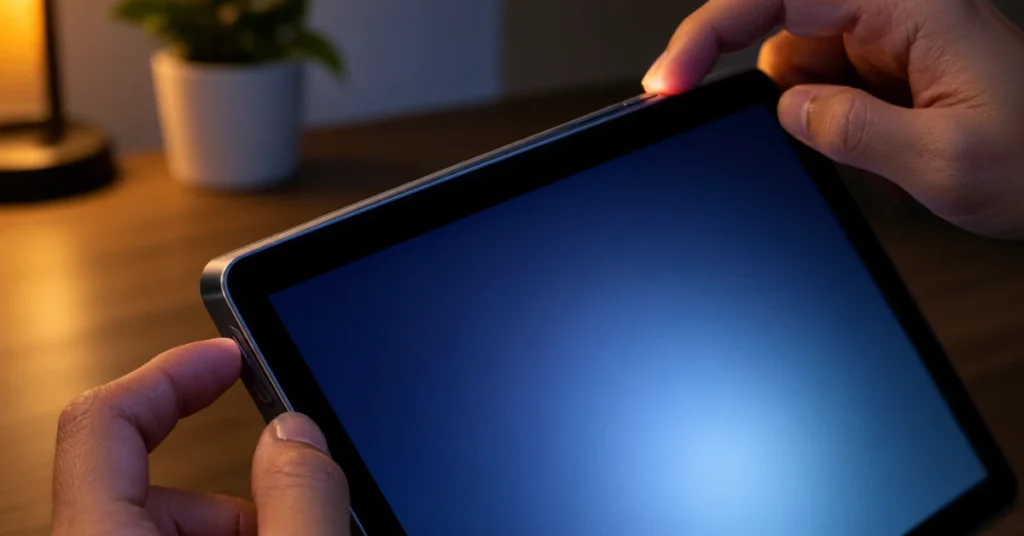
This test is the single most useful thing you can do before trying anything else. It tells you, with real proof, whether your screen problem is hardware or software.
Here’s why it works. UEFI is a basic control screen that loads before Windows even starts. Think of it like the device waking up and stretching before it does anything else. No drivers are running yet. No apps are open. Nothing from Windows is loaded at all.
If your screen still glitches on this bare, driver-free screen, then Windows isn’t the problem. The hardware itself is broken.
How to run the test
- Turn off your Surface Pro 4 completely.
- Press and hold the volume up button.
- While still holding it, tap the power button once.
- Keep holding volume up until you see the Surface logo.
- Watch the screen closely from this point on.
What the results mean
- You see the scramble, doubling, or shaking on this screen. This confirms a hardware problem. No software fix, driver update, or reset will solve it.
- The screen looks normal here, but glitches once Windows loads. This points to a software or driver issue, which you have a real chance of fixing yourself.
This single test saves you from wasting hours reinstalling drivers on a screen that was never going to be fixed by software in the first place. It also saves you from giving up too early on a problem that software actually can solve.
This is the exact method Microsoft support uses to confirm a scramble before approving any repair or replacement, according to their official Surface Pro 4 screen support page.
Software Fixes (For Phantom Touches & Driver Conflicts)

If your screen looked normal during the UEFI test but acts up once Windows loads, you’re in luck. This is a software problem, and you have a real shot at fixing it yourself.
Step 1: Check for updates, but know the limits
Open your Settings and check for Windows updates. This should always be your first move. But here’s something important to know. Microsoft officially stopped releasing new drivers and firmware for the Surface Pro 4 on November 13, 2021. That support window is closed for good.
So checking for updates is still worth doing. You might be missing an older update that never installed properly. But don’t expect a brand new fix to appear. None is coming. If an update doesn’t solve your problem, that’s expected, not a sign you did something wrong.
Step 2: Turn off the touch driver causing phantom input
This next step fixes phantom touches for a lot of users. It also clears up visual glitches that are actually caused by touch input, not the screen itself.
Here’s what’s going on. Many people assume their display is broken when really, the touch sensor is sending bad signals that make the screen behave oddly. Turning off that driver often solves both problems at once.
- Right-click the Start button and open Device Manager.
- Find and expand Human Interface Devices.
- Look for HID-compliant touch screen.
- Right-click it and select Uninstall.
- Restart your Surface Pro 4.
Your screen will no longer respond to touch after this. But if phantom taps or touch-related flickering stop too, you’ve found your cause.
A warning about Windows 11
If you’re running Windows 11 on this device and seeing flickering, there’s something you need to know. The Surface Pro 4 is not officially supported on Windows 11. It uses a 6th generation Intel processor and does not meet the TPM security requirement that Windows 11 needs.
That means if Windows 11 is installed on your device, it got there through a forced or manual install, not an official upgrade. Microsoft never built proper drivers for this hardware and software pairing.
This matters because mismatched, unsupported drivers are a common cause of screen glitching. If you installed Windows 11 on your Surface Pro 4 and the flickering started around that time, the unsupported install itself may be the actual cause. Going back to Windows 10 could be the real fix here, not another round of driver tweaks.
You can confirm your device’s official compatibility status on Microsoft’s Surface touchscreen support page.
Hardware Fixes: Battery Swelling and Screen Replacement
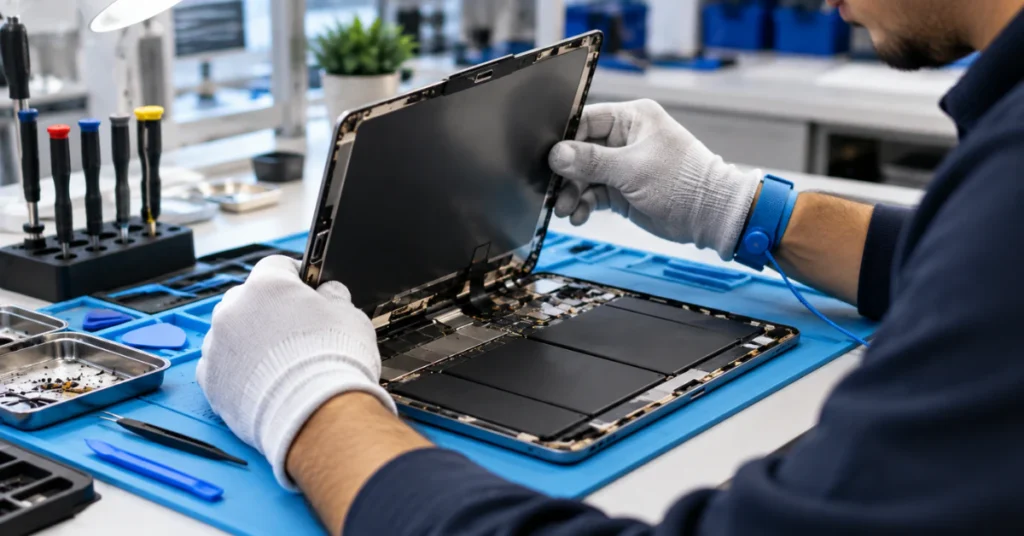
If your screen passed the software fixes and still glitches, you’re dealing with a physical hardware problem. This section covers what to check and what to leave alone.
Yellowish spots or screen bowing is usually not burn in
True screen burn in, the kind you see on some OLED TVs, happens when a fixed image gets permanently etched into the pixels over time. The Surface Pro 4 does not use that kind of screen. It has an LCD panel, which works differently and can’t develop that same permanent burn in effect.
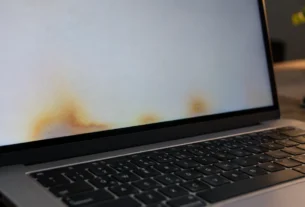
So if you’re seeing yellowish spots, discoloration, or a screen that looks like it’s bulging outward, something else is going on. In many reported cases, the cause is a swollen lithium-ion battery pushing against the back of the display from the inside.
Safety Warning: Stop immediately if your screen is bulging
If you notice your screen bowing outward, lifting at the edges, or separating from the body of the device, this is a serious safety risk. A swollen battery can puncture, catch fire, or leak if it’s pressed, bent, or punctured.
Do not press on the screen to test it. Do not try to flatten it back down. Do not attempt any DIY fix yourself. Power down the device, keep it away from flammable materials, and contact a professional repair service or Microsoft support right away.
Screen and digitizer replacement
If your UEFI test confirmed a true hardware scramble, and battery swelling isn’t the cause, a full screen or digitizer replacement may be the only lasting fix.
This is where you need to think carefully before diving in.
Safety Warning: Read this before attempting a DIY screen replacement
Opening a Surface Pro 4 is not like opening a laptop with screws on the back. The screen is glued into the frame, so removing it safely requires heat tools to soften the adhesive. This process brings real risk. You could easily puncture or damage the battery sitting just underneath the screen, which creates the same fire and chemical burn risk described above. Opening the device will also void any remaining Microsoft warranty.
This doesn’t mean DIY repair is impossible. Some people do successfully replace their own screens. But it’s a genuinely risky job, not a weekend craft project. If you’re not comfortable working around a lithium-ion battery with heat tools, this is a job better left to a professional repair service.
Weighing your options
| Repair Option | Difficulty | Risk Level | Result if Successful |
| DIY screen replacement | Moderate to hard | High, due to battery proximity | Permanent fix |
| Professional repair | Handled by a technician | Low for you | Permanent fix |
Given that the Surface Pro 4 is now 11 years old, and Microsoft’s official driver and repair support ended back in 2021, it’s worth honestly asking yourself whether a repair is worth the cost and risk compared to the age of the device.
The “Flickergate” Replacement Program (2026 Status)
If you’ve searched around for a fix, you may have come across stories about Microsoft replacing Surface Pro 4 devices for free. This was real, and it’s worth understanding exactly what it covered and whether it still applies to you.
Microsoft did offer a free replacement for devices showing the “scramble” defect. This offer did not change or affect your standard warranty. It was a separate program on top of it.
Here’s the catch. That free replacement window only lasted for 3 years from your original purchase date. Not 3 years from today. Three years from the day you bought the device.
The Surface Pro 4 launched in October 2015 and was discontinued around 2017. Even if you bought one on the very last day it was sold, that 3 year window closed years ago.
So if you’re reading this in 2026, your device is almost certainly outside that free replacement window, no matter when your flickering or scramble actually started.
This is worth knowing before you spend time calling Microsoft support hoping for a free fix. You can still reach out to confirm your specific situation, but save yourself the frustration of expecting a free replacement. For most owners at this point, repair or replacement will be at your own cost.
You can check your device’s current warranty and support status directly through Microsoft’s device support page.
Frequently Asked Questions
My Microsoft Surface Pro 4 screen is shaking. How can I fix this?
Shut down your device, hold the volume up button, and tap the power button once. If the shaking shows up on the Surface logo screen, that confirms a hardware problem. The free “scramble” replacement program only covered devices for 3 years after purchase, and that window closed long ago for every Surface Pro 4. At this point, your best path is a paid repair or a replacement device.
Is the Surface Pro 4 still good?
It can still handle light tasks like browsing, emails, or writing documents. But Microsoft stopped releasing drivers and firmware updates for this device in November 2021. It’s also not officially supported on Windows 11. For anything beyond basic daily use, it’s an aging device running on frozen software support.
What is the average lifespan of a Surface Pro?
Microsoft doesn’t publish a general lifespan number. What’s actually documented is the official support window, which runs about 6 years from the release date for driver and firmware updates. The Surface Pro 4 launched in October 2015, so its official support lifecycle has already closed.
Why is my screen suddenly glitching?
Sudden glitching after a Windows update often points to a driver conflict, since new updates can clash with older, unsupported hardware. Sudden glitching with no update involved is more likely a hardware cause, like a loose display cable or a failing screen. The UEFI test described earlier is the fastest way to tell which one you’re dealing with.
Is screen flickering a virus?
No. There’s no verified connection between screen flickering and malware on the Surface Pro 4. This is a known issue tied to either touch driver conflicts or a hardware defect, not anything related to viruses or malicious software.
How to get a screen to stop glitching?
Start by installing any pending Windows updates. Then run the UEFI test by shutting down, holding volume up, and tapping power once. If the glitch appears before Windows even loads, it’s hardware and needs repair. If it only shows up once Windows starts, it’s a software issue you may be able to fix yourself.
How to fix LCD screen glitching?
This depends on your specific device, since fixes vary by brand and model. In general, reseating the display cable and checking your graphics drivers are common first steps. Testing the screen in your device’s BIOS or UEFI setup screen, before Windows loads, is a reliable way to tell whether the problem is hardware or software.
What could be causing my laptop screen to flicker and show lines?
On a Surface Pro 4 specifically, this matches Microsoft’s official “scramble” defect, which causes the image to shift, double, or show overlapping lines. It can also point to a damaged or loose display ribbon cable inside the device. The UEFI test will confirm whether this is coming from the hardware itself.
How do I fix screen flickering in Windows 11?
If you’re seeing this on a Surface Pro 4, there’s an important detail to know first. This device is not officially supported on Windows 11, since it uses a 6th generation Intel processor and doesn’t meet the required TPM security standard. If Windows 11 is installed, it likely got there through a forced, unsupported install, and mismatched drivers from that install are a common cause of flickering. Moving back to Windows 10 may solve the problem faster than any driver fix.
Conclusion
Screen ghosting on a Surface Pro 4 isn’t one single problem. It’s either phantom touches acting up, or the display itself showing a true hardware scramble. The UEFI test is the fastest way to know which one you’re facing, and it takes less than a minute to run.
If it turns out to be software, the fixes in this guide are worth trying yourself. If it’s hardware, especially if you notice any bulging or swelling, safety comes first. At 11 years old and well past its official support window, this device deserves an honest look at whether repair still makes sense for you.