
Your MacBook screen looks pale, washed out, or almost white? Start by checking True Tone and Night Shift in System Settings, since those are the most common causes of macbook screen white tint. If turning them off doesn’t help, restart into Safe Mode to rule out a software conflict before assuming the display itself is damaged.
Most people panic the moment their screen loses its normal color. But a white tint isn’t always bad news. Sometimes it’s just a setting quietly running in the background, changing how your display looks throughout the day. Other times, it’s something deeper. This guide walks through both possibilities, one step at a time, so you know exactly what you’re dealing with before spending a dollar on repairs.
MacBook White Tint vs. White Screen: Diagnosing the Problem
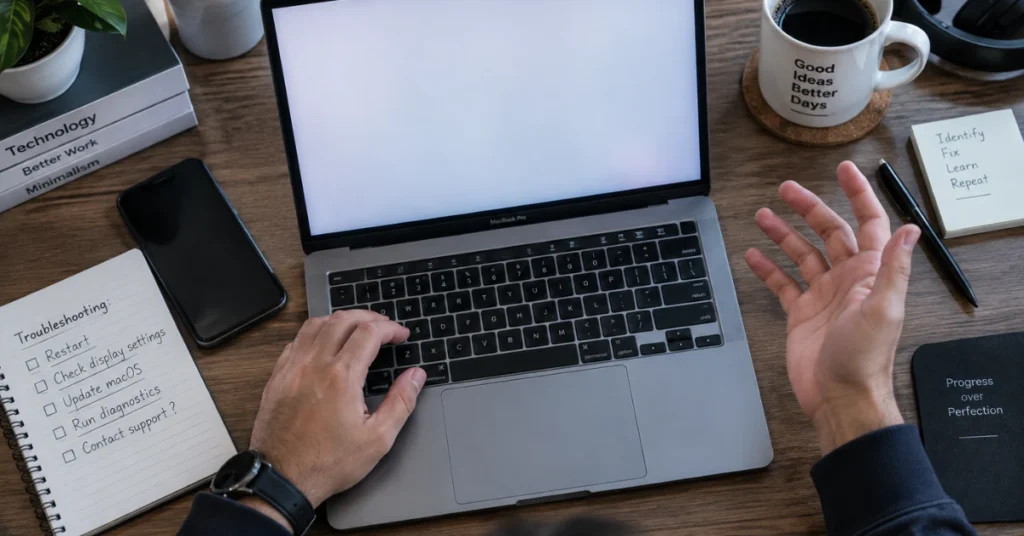
Not every “white screen” problem is the same problem. Some are quick five-minute fixes. Others need a technician. The trick is figuring out which one you actually have.
Below is a simple breakdown of the three most common versions of this issue, and what usually causes each one.
| Symptom | Likely Cause | Fix Difficulty |
| Washed out white tint (Software) | True Tone, Night Shift, or a Color Profile change | Easy, few minutes |
| Stuck on White Screen (Boot issue) | Software conflict or corrupted startup process | Moderate, Safe Mode usually clears it |
| Fading to white (Hardware) | Damaged LCD panel, worsens when hinge moves | Needs a technician |
If your screen just looks pale or dull but everything else works fine, you’re likely dealing with a software setting. If the Mac won’t get past a blank white screen at startup, that’s a boot issue. And if the screen fades to white specifically when you tilt or adjust the lid, that’s usually a sign of internal panel damage, not something a setting can fix.
Knowing which category you’re in saves you time. It also stops you from restarting your Mac five times when the real fix is just one toggle away in System Settings.
How to Fix a MacBook Screen White Tint (Software Settings)
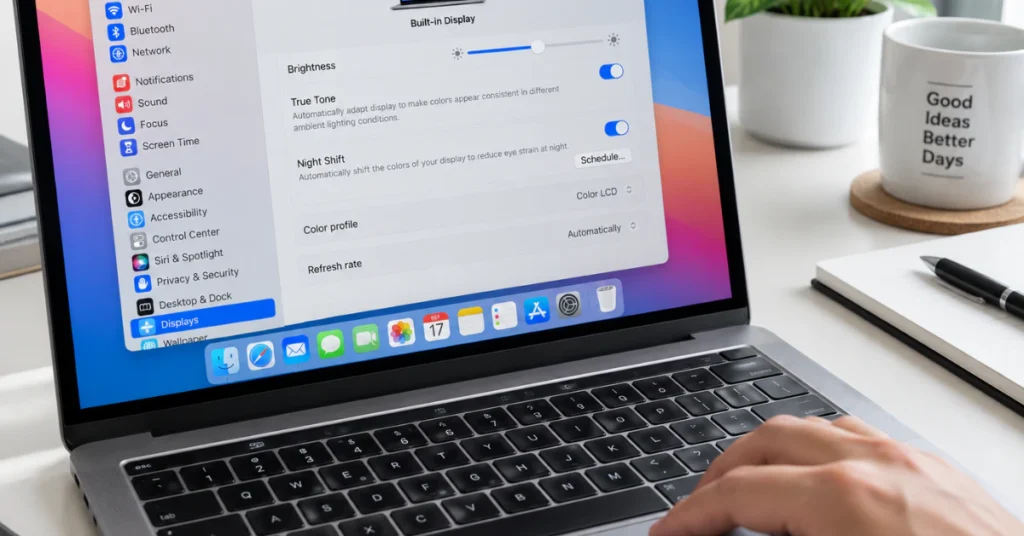
Most white tint problems come from a setting, not a broken screen. Your Mac has a few built-in features that quietly change color and contrast throughout the day. When one of them gets stuck or set too strong, your display can look pale, washed out, or almost white.
Here’s how to check each one.
Turn Off True Tone
True Tone adjusts your screen’s colors based on the lighting around you. It’s meant to make white look “natural,” but it can also make your screen look dull or too warm.
- Open System Settings
- Click Displays
- Turn off the True Tone toggle
- Watch if the screen snaps back to normal white
Check Night Shift
Night Shift shifts your colors toward warm tones on a schedule. If it’s stuck on during the day, your screen can look faded or tinted.
- Go to System Settings > Displays > Night Shift
- Turn off “Scheduled”
- Drag the manual color temperature slider back to normal
Reset Your Color Profile
Sometimes a Color Profile gets changed by accident, or an app installs its own profile without asking. This can wash out your entire screen.
- Open System Settings > Displays
- Click the Color Profile dropdown
- Select the default profile made for your Mac model, usually labeled “Color LCD”
Apple explains these display options in more detail on their official display settings support page, which is worth a look if you want to see every option side by side.
Look at Accessibility Filters
This one gets missed a lot. Accessibility has contrast and color filter settings that can make your screen look pale or overly bright, almost like a layer of fog on top of your display.
- Open System Settings > Accessibility > Display
- Turn off “Reduce Transparency”
- Check “Color Filters” and make sure it’s switched off
- Look at “Contrast” and slide it back to normal if it was pushed up
If your screen looks normal after checking these four things, you’re done. No repair needed, no technician, just a setting that needed a nudge back to default. But if the tint is still there after all this, it’s time to rule out a deeper software conflict, which we’ll cover next.
How to Fix a MacBook Stuck on a White Screen on Startup
A blank white screen that won’t go away is a different animal than a tinted display. This is often called the white screen of death mac users dread, and it usually means something got stuck during startup rather than a color setting acting up.
Here’s how to work through it, step by step.
Step 1: Disconnect Everything
Before touching any settings, unplug all your accessories.
- Remove USB drives, external monitors, printers, and docks
- Restart your Mac with nothing plugged in
- If it boots normally, one of those accessories was likely the problem
A faulty cable or a conflicting external display can confuse your Mac during startup, causing it to freeze on a white screen.
Step 2: Try Safe Mode
Safe Mode strips your Mac down to the basics. It skips extra software and login items, which helps you figure out if something you installed is causing the freeze.
- Shut the Mac down completely
- Turn it on and immediately press and hold the power button until you see startup options
- Choose your startup disk, then hold Shift and click “Continue in Safe Mode”
If your Mac starts fine in Safe Mode, something running in the background at normal startup is the culprit.
Step 3: Run Disk Utility First Aid
If Safe Mode doesn’t help, your next stop is macOS Recovery.
- Shut down your Mac
- Turn it on and hold the power button until “Loading startup options” appears
- Choose Options, then Continue
- Open Disk Utility and select your main drive
- Click First Aid and let it scan for errors
This checks your startup disk for damage that could be blocking your Mac from loading past that white screen.
Step 4: Reset NVRAM (Intel Macs Only)
This step matters only if you have an older Intel-based Mac.
- Shut down completely
- Turn it on and immediately hold Option, Command, P, and R together
- Hold for about 20 seconds, then release
If you own an Apple Silicon Mac (M1, M2, M3, or M4), you can skip this step entirely. These newer chips manage that same reset process automatically every time you restart, so there’s no manual key combo needed. Apple explains the full process, including which Macs need it, on their official NVRAM reset support page.
If you’ve gone through all four steps and your Mac still won’t get past the white screen, the issue may be deeper than software. That’s when it’s worth considering whether the display itself, not the startup process, is actually the problem.
Hardware Truth: Why Your MacBook Screen is Fading to White
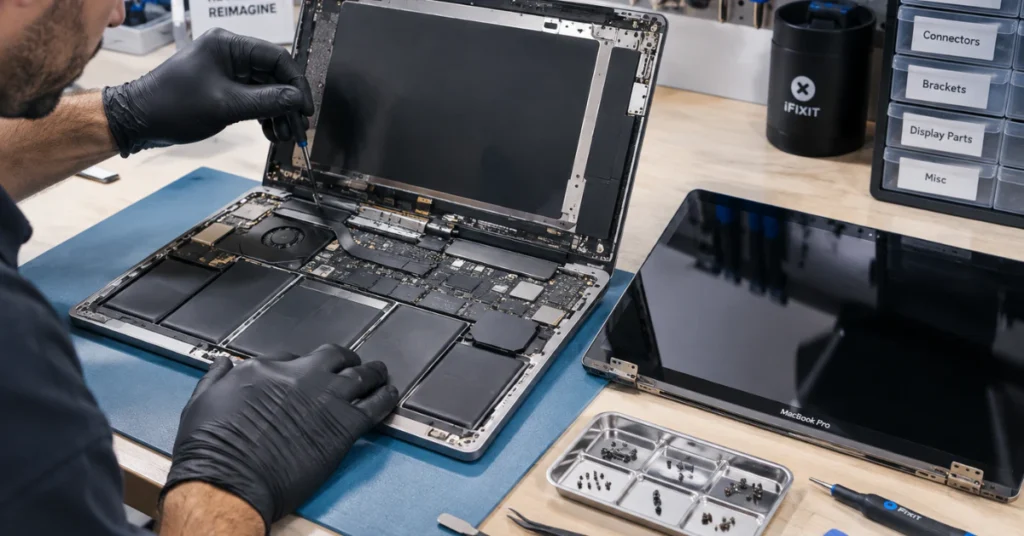
I’ve opened enough MacBooks to tell you something most repair shops won’t. If your screen fades to white or flickers when you move the lid, it’s rarely a “quick cable fix” anymore.
Years ago, this was different. On pre-2012 MacBooks, a loose LVDS cable really was a common cause of a fading or flickering screen. Jiggle the hinge, the connection would loosen, and the display would act up. A cheap cable swap often solved it.
Modern Retina MacBooks don’t work that way. They use something called an eDP interface instead of the old LVDS setup. It’s a more stable connection, built into a design that doesn’t loosen the same way older cables did.
So when your screen fades to white as you open or close the lid on a newer Mac, that’s not a loose wire acting up. That’s almost always the LCD panel itself failing internally. The panel’s own circuitry is breaking down, not the cable feeding into it.
This matters because some shops will still tell you it’s “just a cable” and charge you for a fix that won’t last. You might get a few good days out of it, then the fading comes right back. That’s not a fix. That’s a delay.
The honest answer, as frustrating as it is, is a full screen assembly replacement. Not just the glass, not just a cable, the entire display unit. It’s more expensive than a cable swap, but it’s the only fix that actually holds. If a shop offers you a cheaper cable-only repair for this exact symptom on a Retina Mac, that’s your sign to get a second opinion.
Frequently Asked Questions
Why is my MacBook screen turning white?
Most of the time, it’s a setting, not damage. True Tone, Night Shift, a changed Color Profile, or an Accessibility filter can all make your screen look pale or washed out. If the white only shows up when you move the lid, that points to a hardware issue instead.
Is the white screen of death fixable?
Often, yes. Disconnecting accessories, booting into Safe Mode, and running Disk Utility First Aid clear up most cases. If none of those work and the screen still won’t load past white, the display or logic board may need a professional look.
What are the signs of a MacBook failure?
Watch for repeated freezing, a screen that fades or flickers when you adjust the hinge, unexpected shutdowns, or a display that won’t respond to any software fix. When these show up together, it usually points to hardware rather than a setting.
What do dead pixels look like on a Mac?
They usually show up as a tiny dot that stays one color, black, white, or bright green, no matter what’s on your screen. They don’t move and they don’t change when you switch apps or wallpapers.
Does Apple replace dead pixels?
Apple doesn’t fix a single pixel on its own. If a pixel issue qualifies for service, they replace the entire display assembly. Whether it’s covered for free depends on your warranty status or whether you have AppleCare+.
What is the life expectancy of a MacBook Air?
Most MacBook Airs run well for 5 to 7 years with normal daily use. Battery health and software updates tend to slow things down before the hardware itself gives out.
Wrapping Up
A white tint doesn’t always mean bad news. Most cases trace back to a setting like True Tone or a Color Profile, both easy to fix in minutes. If your screen fades to white when you move the lid, that’s your cue to stop troubleshooting and get it checked by someone who can inspect the actual panel.
If it turns out to be hardware, you can book a repair through Apple Support and get a straight answer instead of guessing. Either way, you don’t have to live with a screen that doesn’t look right.