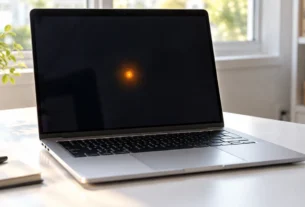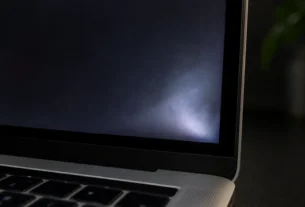
A bright or white spot on your iPad screen can be worrying, especially if it shows up out of nowhere. The good news is you can often tell what’s going on in under a minute.
A bright spot on an iPad screen is usually a hardware problem, not a software glitch. It often comes from pressure on the display or a backlight layer that has started to separate inside the screen. This is different from a random software bug, and it will not fix itself with a tap or a swipe.
Here is the fastest way to check. Take a screenshot of the screen while the spot is showing. Then look at that screenshot on another device, like your phone. If the spot shows up in the screenshot too, it is a software issue. If the spot is not in the screenshot, it is a hardware issue sitting on the physical display.
We will walk through both paths below, step by step.
Is It a Defect? Software vs. Hardware vs. Dirty Screen Effect

Not every mark on a screen means something is broken. Before you worry about a repair, it helps to know there are three different things this could be.
Software glitch. This is a display error caused by an app or a system hiccup. It is not on the actual glass. It usually goes away after a restart or does not show up in a screenshot.
Dirty Screen Effect (DSE). This is a normal trait of many LCD screens. It shows up as faint, uneven shading, often near the edges or corners of the display. It is not damage. Many iPad owners notice it for the first time and think their screen is failing, when it has actually looked that way since the day they bought it. DSE is most visible on plain gray or white backgrounds, especially while scrolling.
Hardware defect. This is a real problem inside the screen. It might be pressure damage, a backlight layer that has shifted, or a dead pixel. Unlike DSE, it usually shows up as a clearer, more defined bright or white patch, and it can get bigger over time.
Here is a simple way to tell them apart:
| Feature | Software Glitch | Dirty Screen Effect (DSE) | Hardware Defect |
| Shows up in a screenshot? | Yes | No | No |
| Shape | Random, changes | Faint, cloudy, uneven shading | Defined spot or patch |
| Location | Anywhere | Usually edges or corners | Can be anywhere, often fixed in one spot |
| Changes over time | No, fixable by restart | No, stays the same | Can grow or get brighter |
| Cause | App or system error | Normal LCD panel trait | Pressure, drop, or backlight separation |
The fastest way to sort this out is still the screenshot test. Take a screenshot, then check it on another device. If the spot appears there too, it is software. If it does not appear, and the shape looks faint and cloudy rather than sharp, you may just be seeing DSE, which is nothing to worry about. If it looks like a clear, solid patch that stays put, it is more likely a hardware issue worth watching closely.
Step-by-Step Easiest (and Safest) Fixes

Before you assume the worst, try these steps in order. They are safe, free, and take just a few minutes.
Step 1: Restart Your iPad
A simple restart clears out small software problems that can look like display issues. The steps are different depending on your iPad model.
If your iPad has Face ID (no Home button):
- Press and hold either volume button and the top button at the same time.
- Wait for the power off slider to appear, then drag it.
- Wait 30 seconds for the iPad to turn off.
- Press and hold the top button again until you see the Apple logo.
If your iPad has a Home button:
- Press and hold the top button until the power off slider appears.
- Drag the slider and wait 30 seconds for the iPad to turn off.
- Press and hold the top button again until the Apple logo shows up.
You can find full details on Apple’s restart support page.
Step 2: Remove the Case and Screen Protector
Take off any case and screen protector, then look at the spot again. A tight case or a bent screen protector can press on the screen and create a bright patch that looks like damage but is really just pressure from outside.
Step 3: Check Your Parts and Service History
This step is easy to skip, but it can explain a lot. If your iPad’s screen was ever replaced by someone other than Apple, that could be the reason for the uneven brightness.
Here is how to check:
- Open Settings.
- Tap General.
- Tap About.
- Look for the Parts and Service History section.
If it shows a non-Apple part was used, that explains a lot. Apple has stated that non-genuine display parts can cause the screen to not be uniformly bright, and can lower the maximum brightness the screen can reach.
A Warning About DIY “Fixes” You May See Online
You might come across advice online suggesting you use a suction cup to lift the screen, or gently massage the spot with light pressure to push it back into place.
Do not try these. These methods are not endorsed by Apple. They carry a high risk of cracking the glass or making the damage worse, and they can void any warranty or AppleCare+ coverage you still have. If the steps above did not fix the spot, the safest next move is professional service, not a DIY trick from a forum post.
The Hardware Reality: What Actually Causes Bright Spots?
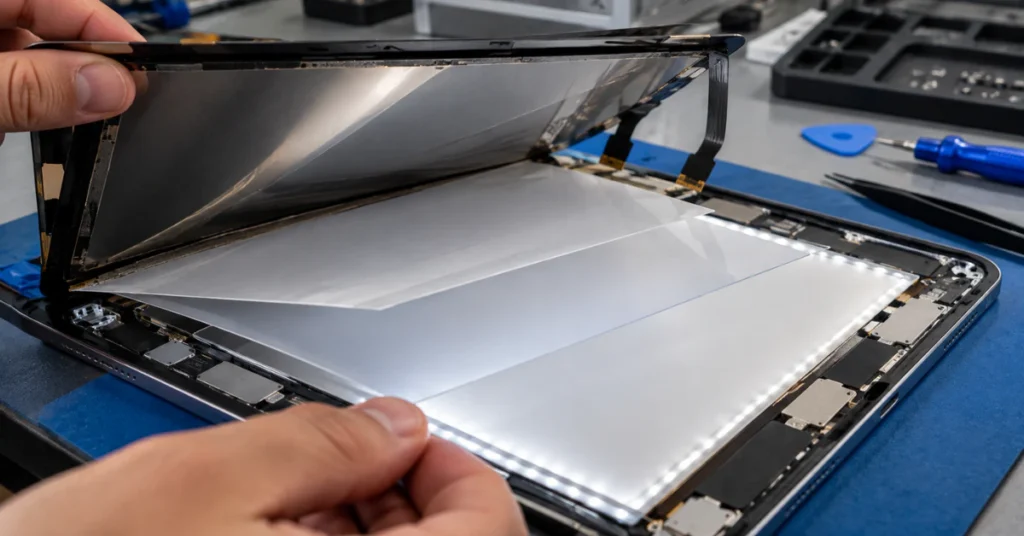
If the steps above did not fix the problem, you are likely dealing with a real hardware issue. Here is what is actually going on inside the screen.
Apple’s own troubleshooting guidance groups display problems into a few clear categories: rub marks on the display, particles or debris trapped under the glass, and pixel anomalies. Each of these looks a little different, but they all point to something physical happening inside or on the screen, not a software bug.
LCD Screens vs. OLED Screens
The cause depends heavily on what kind of screen your iPad has.
LCD screens (used in many iPad Air and older iPad Pro models) work by shining a backlight through several layers to create the picture you see. If one of those layers gets pushed, bent, or starts to separate, light can leak through unevenly. This creates a bright or white patch. This is often called backlight separation.
OLED screens (used in newer iPad Pro models) do not use a backlight at all. Each pixel makes its own light. So a white dot on an OLED screen is usually a different problem: a single pixel that is stuck on or has failed. There is no backlight to separate, so the cause is more likely tied to that one pixel itself.
This matters because a fix that makes sense for an LCD screen does not apply the same way to an OLED screen.
The iPad Pro 10.5 and iPad Air 3 Pattern
If you search “white spots on ipad screen reddit” or look through Apple’s own user forums, you will notice something interesting. A large number of iPad Pro 10.5 and iPad Air 3 owners report a bright patch in almost the exact same spot: about 1 to 2 inches above the Home button.
Long-time moderators on Apple’s own support community have pointed out that this location lines up with where the logic board holds the connectors for the display and the touchscreen controller. Their theory is that heat or pressure from these connectors, over time, may contribute to the mark.
It is important to be clear here: this explanation comes from experienced community members, not from an official statement by Apple. Apple has not publicly confirmed a specific design cause for this pattern. Still, the fact that so many owners of these two specific models report the same spot in the same location is worth knowing, especially if you own one of these devices and are trying to figure out if what you are seeing is common.
Safety Warning: Watch for Battery Swelling
Before you assume this is just a display issue, check one more thing.
If the screen looks like it is lifting away from the body, appears bent, or the iPad feels unusually hot, stop using it and stop charging it right away. This can be a sign of a swelling battery, which is a fire and injury risk. This is not something to wait on or troubleshoot yourself. Set the device aside and contact Apple Support or an authorized service provider as soon as possible.
The iPad Pro 10.5 Recall Myth and the Trade-In Reality
If you have searched for “ipad pro 10.5 white spot recall,” you may be hoping Apple has a fix-it-for-free program running. Here is the honest answer.
There is no recall for this. Apple does not currently list, and has never listed, an official Service Program covering white or bright spots on any iPad model, including the Pro 10.5.
The closest thing that ever existed was the iPad Air (3rd generation) Service Program for a “Blank Screen Issue.” That program covered a completely different problem: a screen that would flicker briefly, then go permanently black. It only applied to units made between March 2019 and October 2019, and it is not the same defect as a bright or white patch that stays visible on the screen. If you have seen this program mentioned online, it is easy to see how the details got mixed up, but it does not cover the issue this article is about.
The Trade-In Trap
Here is something worth knowing before you trade in your device. In many reported cases, a bright spot like this gets looked at during an in-store checkup and is called “fault-free,” meaning it is not treated as a problem that needs fixing.
But when that same iPad gets assessed for a trade-in, the mark is often reclassified as damage. This can significantly lower the trade-in value you get offered, even though nothing was ever officially wrong with the device before. If you are planning to trade in an iPad with this kind of spot, it is worth getting a trade-in quote early, so you are not surprised later.
Diagnostics, AppleCare+, and Repair Options

Once you’ve ruled out software issues and pressure damage, it’s time to look at repair. Here’s how to figure out your options and what they’ll cost.
Check Your Warranty and AppleCare+ Status
Before anything else, find out what coverage you have. Go to Settings, tap General, then tap AppleCare & Warranty. This will show you whether your iPad is still under Apple’s standard warranty or an AppleCare+ plan, and what that coverage includes.
Try Apple’s Diagnostic Tool, But Know Its Limits
Apple offers a self-service diagnostic called “Display Pixel Anomalies.” It runs a series of colors and patterns on the screen to help spot pixel problems.
Here’s the catch. This tool only works on newer iPad models: iPad Air (M2 and later), iPad Pro (M4 and later), iPad (A16), and iPad mini (A17 Pro). If you own an iPad Pro 10.5, an older iPad Air, or another earlier model, this tool simply is not available to you. So if you searched for this tool and could not find it on your device, that is likely why. It is not something you are doing wrong.
What Repair Will Actually Cost You
This part depends heavily on your coverage:
- With AppleCare+: A qualifying screen repair is reduced to a flat service fee, which is much lower than paying out of pocket.
- Without AppleCare+ (out of warranty): You’ll pay the full out-of-warranty repair fee, which is higher and varies by iPad model.
Exact prices change over time and differ by model, so rather than relying on a number that might be outdated, check Apple’s own iPad repair and service page for current pricing before you commit.
Back Up Before You Go
Whatever you decide, back up your iPad through iCloud before sending it in for service or bringing it to a store. This protects your photos, documents, and settings in case anything needs to be wiped during the repair process.
Frequently Asked Questions
Why is there a bright spot on my iPad screen?
It’s usually a hardware issue, not a software one. Pressure from a case, a drop, or a backlight layer that has started to separate inside the screen are the most common reasons. A quick screenshot test can tell you if it’s software (it shows up in the screenshot) or hardware (it doesn’t).
Where is Spotlight on my iPad?
Spotlight is the search feature on your iPad. You can open it by swiping down from the middle of your Home Screen. This has nothing to do with screen defects or bright spots. It’s a completely separate feature.
Why do I have a white dot on my iPad screen?
A small, sharp white dot usually points to a single pixel problem, either a stuck pixel or, on OLED screens, a failed diode. This is different from a larger, hazy white patch, which is more often linked to backlight separation on LCD screens.
What causes white spots on the screen?
The most common verified causes are: pressure from a case or drop, backlight layer separation on LCD screens, dead or stuck pixels, a non-genuine display part from a past repair, and in rare cases, a swelling battery pushing against the screen from behind.
What could be causing a white spot on my iPhone screen?
The same general causes apply to iPhone. Since current iPhones use OLED screens, a white spot there is more likely a pixel issue than a backlight problem.
How to fix white spots on screen?
Start with a restart, then remove your case and screen protector, then check your Parts and Service History. If the spot remains, book a repair through Apple or an authorized provider. Avoid suction-cup or pressure “fixes” you find online. They aren’t Apple-endorsed and can crack the glass or void your warranty.
Final Thoughts
A bright or white spot on your iPad screen is unsettling, but it’s rarely a mystery once you know what to check. Start simple: a restart and a screenshot test will quickly tell you whether you’re dealing with software or something physical. If it’s hardware, remember that normal LCD shading (DSE) is not the same as real damage, and that no current Apple recall covers this issue. Check your warranty, back up your data, and lean on official Apple support channels rather than risky DIY tricks. That’s the safest path to getting your screen back to normal.