A dark, unresponsive laptop screen feels like bad news. Take a breath first. In most cases, your Acer laptop is not broken.
“Screen not working” usually means one of two very different problems, and the fix depends on which one you have.
Path 1: Black screen. The laptop is on (you hear the fan, see a light) but nothing shows up on the display.
Path 2: Touch screen not responding. You can see everything fine, but tapping or swiping does nothing.
These often come from simple causes like a stuck sleep mode, a leftover electrical charge in the system, or a driver that got confused after a Windows update. None of that means your screen is dead.
Below, we walk through both paths step by step, starting with the safest and easiest fixes first.
Identify Your Symptom: Display vs. Touch Issues
Before you try any fix, look closely at what your screen is actually doing. If your Acer screen goes black but still on, that’s different from a screen that stays lit but ignores your finger. Matching the right fix to the right symptom saves you time.
| Symptom | Likely Cause | Safe First Fix |
| Screen is fully black, but you can see a faint glow if you shine a light on it | The backlight or graphics output has failed to turn on | Test with an external monitor |
| Screen is black with no glow at all, but the fan is running | The laptop may be stuck between sleep and wake | Try a hard restart |
| My acer laptop screen is black with cursor showing on it | Windows has partly loaded, but the desktop failed to appear | Try the graphics driver reset shortcut |
| Screen shows everything normally, but taps and swipes do nothing | The touch driver has stopped responding | Check Device Manager for the touch screen entry |
Once you find your row, jump to the matching section below. There’s no need to work through every step in order if your symptom points you somewhere specific.
The Quick Graphics Reset
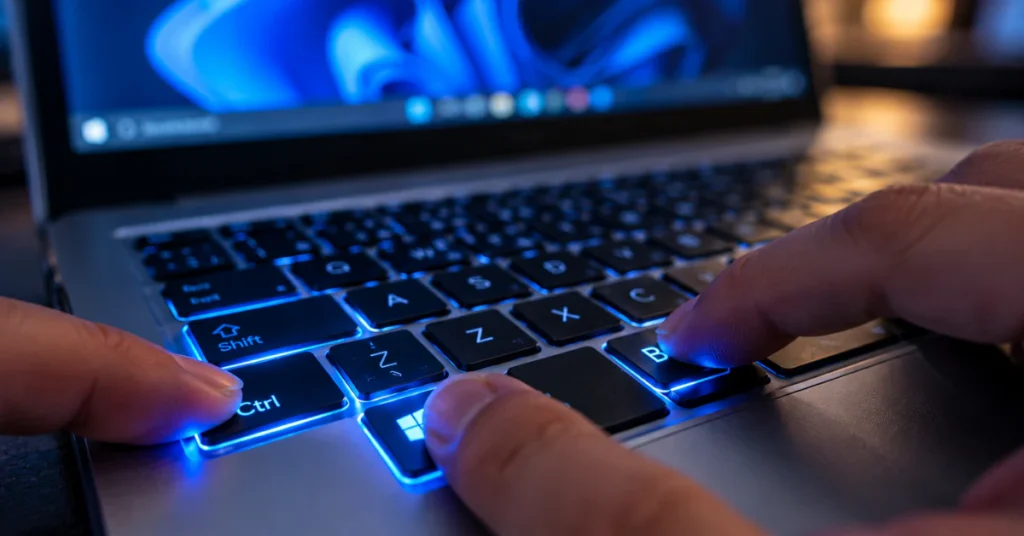
Here’s a fix most people never learn, and it takes about three seconds. Press these four keys at the same time:
Ctrl + Windows + Shift + B
This is a real, built-in Windows shortcut. It does one job only: it restarts the graphics driver. It does not restart your whole computer.
That difference matters a lot. Your open programs stay open. Any documents you haven’t saved stay exactly as they were. You are not rebooting anything, just giving the part of Windows that controls your screen a quick nudge.
Think of it like this. Sometimes the graphics driver gets stuck, kind of like a radio station losing signal for a second. This shortcut forces it to reconnect, without touching anything else running on your laptop.
Here’s how you’ll know it worked:
- The screen may flicker or briefly go black.
- You might hear a short beep.
- Then your desktop should come back, hopefully with the display working normally again.
If nothing happens at all, that’s useful information too. It likely means the problem isn’t the graphics driver itself, so you’ll need to move on to the next step.
This trick works whether you have a black screen with the fan running, a screen that’s frozen, or a display that looks glitchy. Since it carries zero risk to your files, it’s always worth trying before anything more involved.
Clear Static and Reset Power (The Pinhole Method)
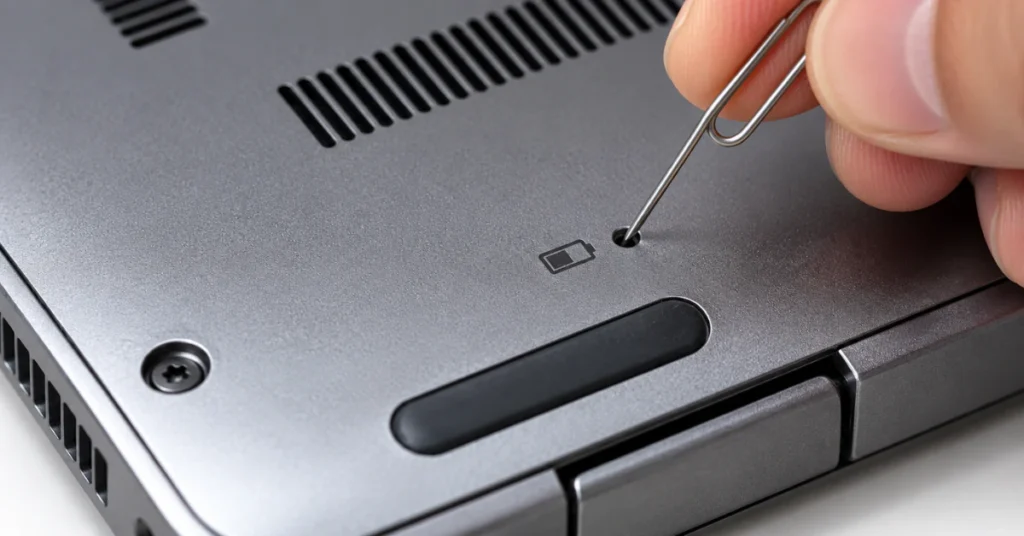
Sometimes a laptop gets stuck in a strange in-between state. The power light is on, maybe even that blue light on but screen is black windows 11 users often describe, and yet nothing happens when you press any key. This is often called a static power lockout. It sounds scary, but it’s usually just a small electrical charge trapped in the system, confusing the power controls.
Start with the manual power drain. Here’s how:
- Unplug the charger completely.
- If your laptop has a removable battery, take it out.
- Hold down the power button for 30 to 60 seconds, even though the laptop is already off.
- Wait a few seconds, then plug the charger back in and try turning it on.
This drains any leftover charge sitting in the system, which can be exactly what’s causing the lockout when why is my acer laptop not turning on but the power light is on is the situation you’re facing.
If that doesn’t work, many Acer laptops made from around 2018 onward have a small pinhole on the bottom of the case. Look for a tiny hole next to a battery symbol.
Important: only press this pinhole if you see the battery symbol printed right next to it. Laptops have other small holes too, like a microphone hole, and pressing the wrong one won’t help and could feel alarming. Confirm the symbol first.
This pinhole resets something called the Embedded Controller, the small chip that manages your battery and power flow. This is different from a BIOS reset, which we’ll cover separately. Use a straightened paperclip, press gently for about 10 to 15 seconds, then try powering on normally.
Test with an External Monitor
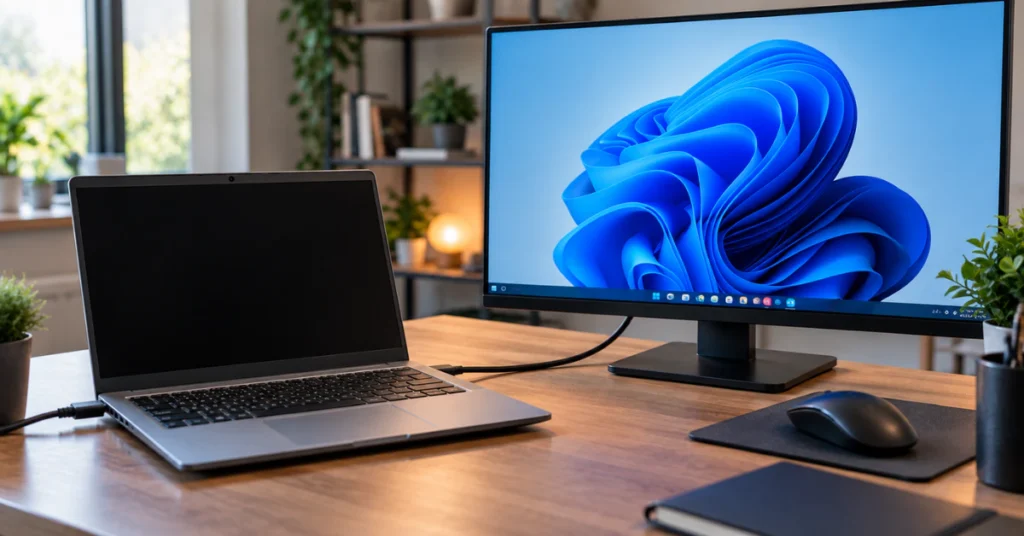
This next step won’t fix your screen, but it will tell you something very important. It helps answer the question everyone with acer display not working really wants answered: is this a cheap fix or an expensive one?
Here’s what to do:
- Find an HDMI cable and a TV or monitor.
- Plug one end into your laptop and the other into the external screen.
- Turn on the external monitor or TV first.
- Then turn on your laptop.
- Give it a minute to load.
Now watch closely, because what happens next tells you a lot.
If the external screen shows your Windows desktop just fine, that’s actually good news. It means your laptop’s brain, the motherboard, is working normally. The problem is likely limited to the built-in screen itself, like a loose display cable or a broken panel. This is usually a smaller, cheaper repair.
If the external screen also stays black, the problem is probably not the screen at all. It’s more likely something deeper, like the graphics system or a software issue affecting the whole computer, not just the display.
This one test can save you from paying for the wrong repair. Many people replace a screen that was never actually broken, when the real problem was somewhere else entirely. Knowing which side of that line you’re on changes everything about what to try next.
Troubleshooting an Unresponsive Touch Screen
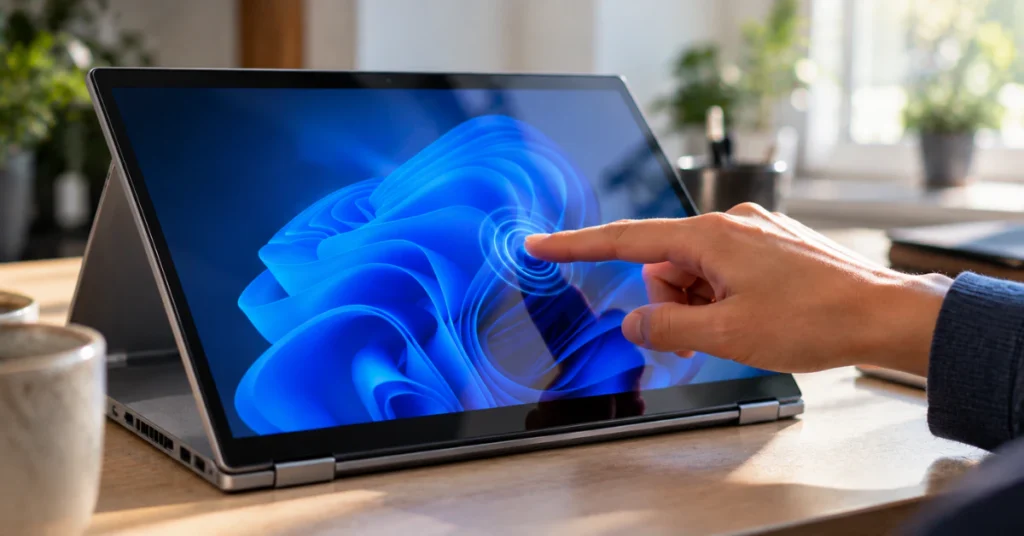
If your Acer screen looks perfectly normal but ignores every tap and swipe, this section is for you. The good news is there’s a simple test that tells you almost everything you need to know before you touch a single setting.
Test touch inside the BIOS screen
Restart your laptop. As soon as it starts booting, tap the F2 key repeatedly until you see the BIOS setup screen. This is a basic control panel that loads before Windows even starts.
Once you’re there, try tapping the screen.
If touch works here, that’s a huge clue. It means your screen’s touch hardware is fine. The problem is happening somewhere inside Windows, not inside the glass. Restart normally and move to the next step below.
If touch does not work even here, the issue is more likely a hardware problem with the screen itself, and you may need a repair.
Fix the Windows touch driver
A very common cause of touch suddenly failing is a Windows Update that quietly breaks the touch driver. This happens more often than you’d think, and it’s rarely something you did wrong.
Here’s how to check and fix it:
- Right-click the Start button.
- Select Device Manager.
- Look for a section called Human Interface Devices and click to expand it.
- Find the entry named HID-compliant touch screen.
If you see it listed with a small down arrow or the word “disabled,” right-click it and choose Enable.
If it’s already enabled but still not working, right-click it and choose Update driver, then let Windows search automatically.
If that doesn’t help either, right-click it one more time and choose Uninstall device. Don’t worry, this sounds bigger than it is. Restart your laptop, and Windows will automatically reinstall the driver fresh, which often clears whatever went wrong.
For more detail on this exact process, Microsoft’s official support page walks through each step: What to try if a touchscreen doesn’t work in Windows.
Boot into Safe Mode (The Right Way)
You may have read somewhere that pressing F8 during startup gets you into Safe Mode. Even some official Acer support pages still say this. Unfortunately, it doesn’t reliably work anymore.
Windows 10 and Windows 11 start up so fast that there’s no longer a real window of time to catch F8 before the operating system takes over. This isn’t your fault, and it isn’t a sign you did something wrong. The advice is just outdated for how modern laptops boot.
Here’s the method that actually works.
If your laptop still turns on and shows a login screen:
- Click the Power icon on the login screen.
- Hold down the Shift key on your keyboard.
- While still holding Shift, click Restart.
- Your laptop will now boot into a special recovery screen instead of Windows.
If your laptop won’t even reach a login screen:
You can force the same recovery screen using the power button alone.
- Turn the laptop on.
- As soon as you see the Windows logo, hold the power button until it shuts off completely.
- Do this two more times.
- On the fourth attempt, Windows should automatically open the recovery screen instead of trying to load normally.
This works because Windows is designed to notice repeated failed startups and offer help on its own.
Once you’re in the recovery screen, look for options like Troubleshoot, then Advanced Options, then Startup Settings. From there, you can choose Safe Mode, which loads Windows with only the basic drivers running. This is often enough to undo whatever driver or update caused your screen trouble in the first place.
BIOS Resets and Hardware Checks
This step should be your last try, and it’s important to understand the risk before you touch anything.
Warning: Resetting your BIOS to default settings can sometimes change how your storage drive talks to Windows, a setting usually called AHCI or RAID mode. If that setting flips, Windows may fail to start at all afterward. This doesn’t happen every time, but it happens often enough that you should only try this if you’ve already tried everything above.
If you decide to move forward, here’s the method used on many Acer laptops:
- Turn on the laptop.
- Immediately tap F2 repeatedly until the BIOS screen appears.
- Press F9 to load the default settings.
- Press Enter to confirm.
- Press F10 to save your changes and exit.
A second, firmer warning: Do not open your laptop’s case to check the RAM or internal cables yourself. Opening an Acer consumer laptop chassis to inspect these parts risks damaging sensitive components through static electricity, even from your own body, and it will likely void your warranty. If the steps above haven’t fixed your screen, this points to a hardware problem that needs a trained repair technician, not a home fix.
Frequently Asked Questions
Why is my Acer laptop turning on but no display?
This usually means the computer itself is fine, but the graphics driver or screen output has an issue. Try the Ctrl + Windows + Shift + B shortcut first. If that doesn’t help, test with an external monitor to see if the problem is your built-in screen or something deeper.
How to reset an Acer laptop with a black screen?
Start with a manual power drain: unplug the charger, hold the power button for 30 to 60 seconds, then reconnect and try again. This clears leftover electrical charge without touching any of your files or settings.
Why is my laptop turning on but no screen display?
This is often a stuck power state or a graphics driver glitch, not a broken laptop. Lights and fan noise mean the system is running. Work through the safe steps in order, starting with the graphics reset shortcut, before assuming it’s hardware.
Why isn’t my touch screen working on my Acer laptop?
Check Device Manager under Human Interface Devices for “HID-compliant touch screen.” If it’s disabled, enable it. If it’s already enabled, try updating or reinstalling the driver, since this is the most common fix for touch failures.
Why is my laptop suddenly not touch screen?
A recent Windows Update is the most likely cause. Updates can quietly break the touch driver without warning. Reinstalling the HID-compliant touch screen driver in Device Manager usually resolves this, since it forces Windows to reload a fresh copy.
How to unfreeze an Acer screen?
Try Ctrl + Shift + Esc to open Task Manager. If it responds, your system isn’t fully frozen, and you can restart from there. If nothing happens at all, a hard restart is your safest next step.
Conclusion
A dark or unresponsive screen feels like an emergency, but as you’ve seen, most of these problems have a calm, safe fix. Whether you’re dealing with a black screen or a touch panel that won’t respond, the steps above are designed to solve the issue without spending money or risking your data.
Start simple, work through the steps in order, and only consider a repair if you’ve ruled out software causes first. In most cases, your Acer laptop just needed a reset, not a replacement.