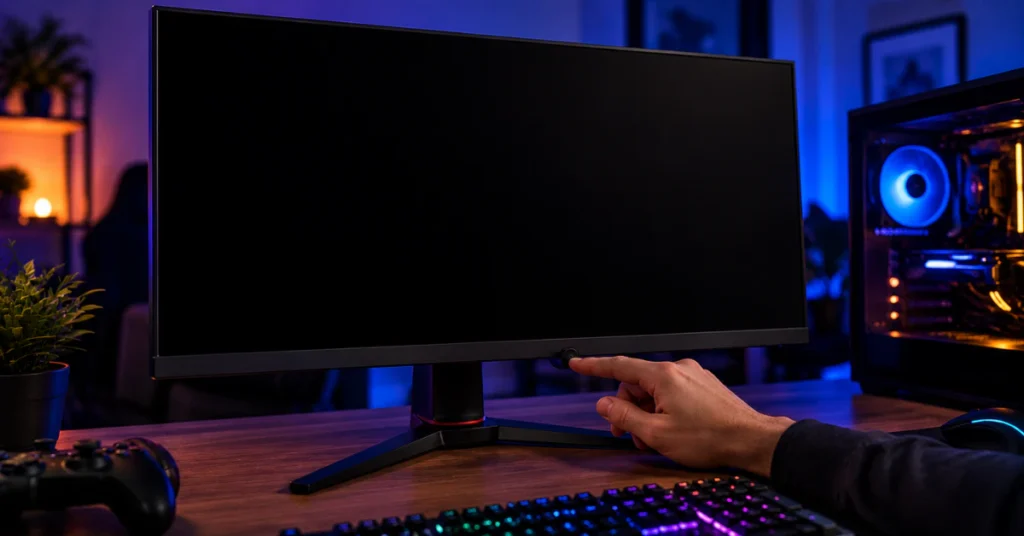
Your LG UltraGear monitor is most likely not working for one of three reasons: the wrong input is selected, the video cable is loose or doesn’t match your setup, or your PC has stopped responding. Start here: press the joystick or button under your monitor to open the menu, go to Input, and pick the exact port you’re using, like HDMI 1 or DisplayPort. This fixes the problem for many users right away.
If that didn’t do it, don’t worry. A blank or frozen screen feels scary, but it’s rarely a sign your monitor is broken. Most of the time, the fix is simple once you know where to look.
This guide walks you through every step in order, starting with the fastest checks and moving to deeper fixes. You’ll also learn how to tell the difference between a monitor that isn’t detected at all and one that’s just not getting a signal, since those two problems need different solutions.
Figure Out Which Problem You Have
Before you start troubleshooting, figure out which of two problems you’re dealing with. They look similar but need different fixes.
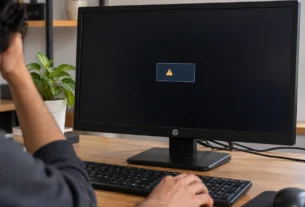
“No Signal” means your monitor is working fine. It’s turned on and waiting for a picture, but nothing is coming through. Your computer may or may not know the monitor is there.
“Not Detected” is different. This means your computer doesn’t even see the monitor exists. It won’t show up in your display settings at all.
If your screen keeps flashing “No Signal” and then “entering power saving mode,” don’t panic. This loop almost always means your graphics card isn’t sending out a picture right now. It does not mean your monitor is broken. The monitor is just doing its job: watching for a signal, finding none, and powering down to save energy until one shows up.
Knowing which bucket you’re in saves you time. The steps below are grouped so you can jump straight to the ones that match your symptom.
The Quick Hardware Checks
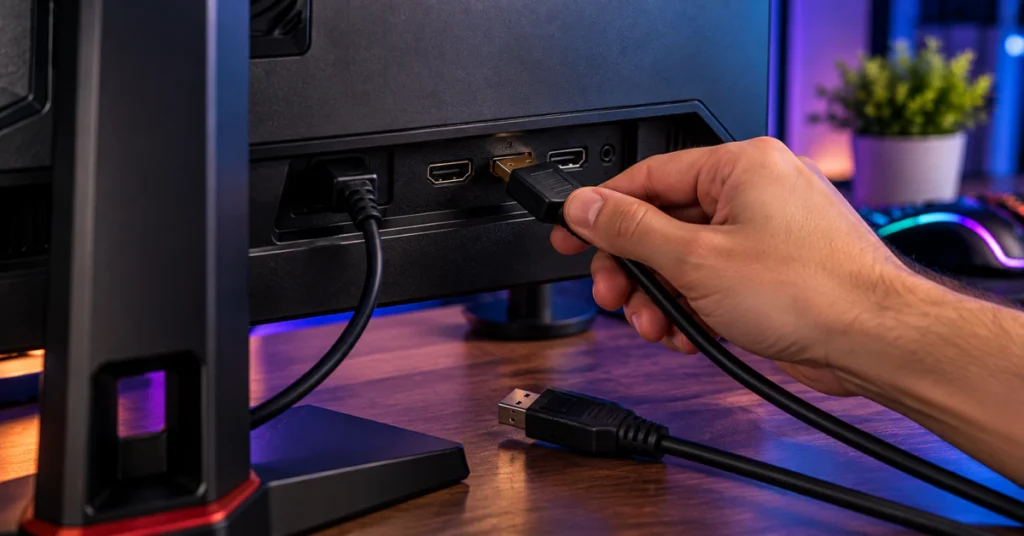
Start with the simple stuff. These checks take two minutes and fix the problem more often than you’d think.
Check the cable at both ends. Unplug your video cable from the monitor and your computer, then plug it back in firmly. A cable that looks connected can still be sitting loose.
Use the right port if you have a graphics card. If your PC has a dedicated graphics card, your cable needs to plug into that card, not the motherboard. Plugging into the wrong spot is one of the most common reasons an LG UltraGear monitor shows no picture at all.
Think about your cable’s age and specs. If you’re running a high refresh rate or 4K, an older or cheaper HDMI cable might not keep up, even if it still connects fine. Mismatched cable specs can cause signal trouble that looks like a bigger problem than it is. Try a different cable if you have one.
Don’t look for a remote control. LG UltraGear monitors don’t come with one. All the settings, including input selection, live behind the joystick or button underneath the screen. If you’re hunting for a remote because something online mentioned one, that advice was likely written for an LG TV, not your monitor.
Use the joystick to open the menu. Press it once to bring up the main menu, then move it to reach Input, Settings, or Picture options.
Software, Drivers, and OS Glitches
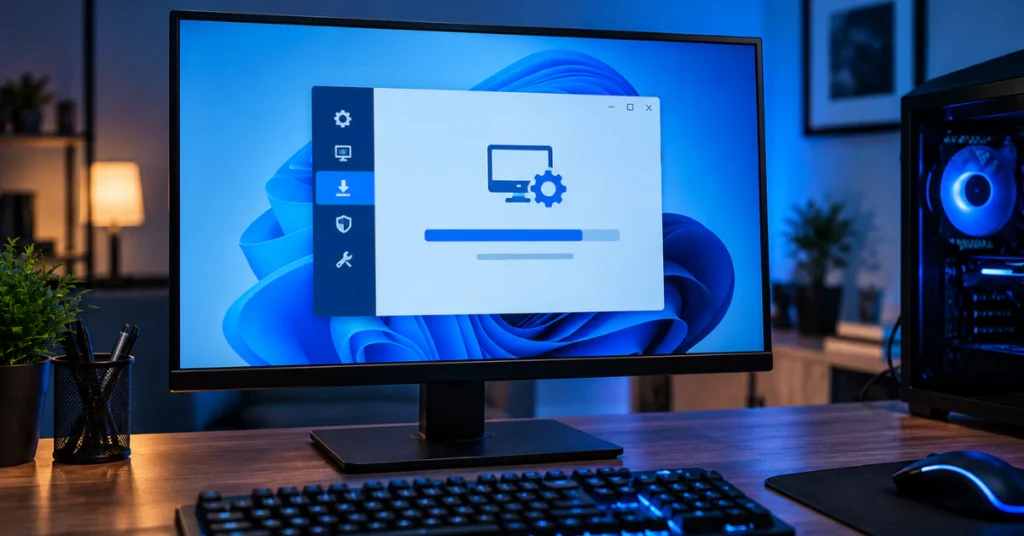
If the hardware checks didn’t help, the problem might be on your computer’s side, not the monitor’s.
Check if your PC is actually frozen. Tap the Num Lock key on your keyboard a few times and watch for the indicator light to turn on and off. If nothing happens, your computer has likely frozen, not your monitor. Press and hold the power button to force a shutdown, then turn it back on. One thing to know first: forcing a shutdown can cause you to lose any unsaved work, so only do this if you’re sure the PC isn’t just thinking.
Did you recently update to Windows 11 24H2? A number of users have reported that this update causes external monitors to stop being detected, even with no changes to cables or hardware. This isn’t an official bug confirmed by Microsoft, but it’s been widely reported by people in online tech communities. If your monitor worked fine before a recent Windows update and stopped right after, this could be why. Updating your graphics driver to the newest version, or rolling it back to the one you had before the update, has helped some users get their screen back.
Did your screen go black right after turning on HDR? This is a separate, known issue. Some users report that switching on HDR in Windows causes the monitor to lose signal completely, sometimes right away. If this happened to you, try turning HDR back off from your Windows display settings. If you can’t see anything to click, rolling back your graphics driver and restarting often restores the picture so you can try again more carefully.
Advanced Workarounds and Known GPU Bugs
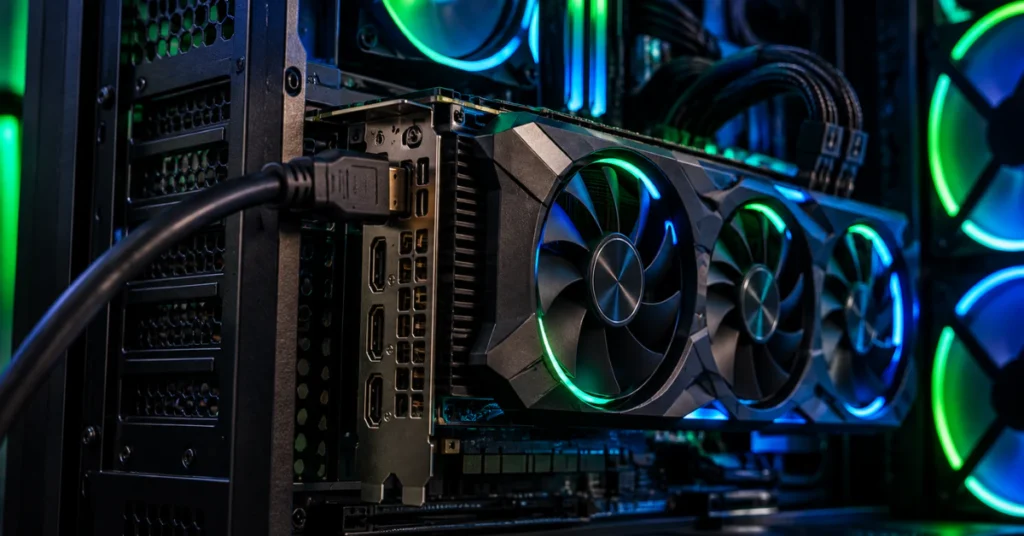
If you’ve tried everything above and your screen is still blank, the problem might be tied to your specific graphics card. These fixes are more technical, but they’re worth trying before you assume your monitor is faulty.
Using an Intel Arc graphics card? Intel has confirmed a real bug where an LG monitor connected over HDMI shows “no signal” after a reboot or cold boot, and the computer may not even start up properly. This was confirmed to affect the LG 20M39H model and similar setups. The fix is official: update your Intel graphics driver to version 31.0.101.4887 or newer. You can check your current driver version in Device Manager and update it from there.
Using an Nvidia graphics card and seeing “out of range” errors? Some Nvidia users have found a workaround for this exact problem over HDMI. In your Nvidia driver settings, you can manually cap the HDMI compatibility version to 1.4 instead of letting it run at a higher version. This has helped people get a picture back on their LG UltraGear monitor.
A heads up before you try it: this is not an official fix from LG or Nvidia. It’s something users have shared after it worked for them, so treat it as a workaround, not a guaranteed solution. It also comes with a trade off. Capping the HDMI version this way will limit your refresh rate to 120Hz, even if your monitor can normally go higher.
Secondary Hardware Issues: Audio, USB, and Controls
What if your picture looks fine but sound or USB is giving you trouble? These issues are separate from display problems and have their own fixes.
Check if your monitor even has speakers. Not every LG UltraGear model has built-in speakers. Before you assume your volume is broken, look up your exact model’s specs on LG’s site to confirm. If your monitor doesn’t have speakers, no amount of troubleshooting will produce sound, and you’ll need to connect external speakers or headphones instead.
If you have speakers but no sound, check your cable connection first, then click the speaker icon in the bottom right of your Windows taskbar. Make sure your LG monitor is selected as the playback device. If you’re using headphones through the jack on the back of the monitor, Windows needs to be pointed to that output too, so check the same menu.
Having trouble charging your laptop over USB-C? This depends heavily on your exact setup. LG’s Power Delivery (PD) charging feature needs a cable rated for the right wattage, matched to both your monitor and your laptop. LG states plainly that it cannot guarantee every laptop will charge or even display properly over USB-C, since laptops vary so much in what they accept.
Still looking for a remote? As covered earlier, LG UltraGear monitors don’t include one. Every control, including volume, lives on the joystick or button under the screen.
Frequently Asked Questions
Why is my LG UltraGear monitor not working?
Three causes explain most cases. The wrong input is selected, the cable is loose or doesn’t match your setup, or your computer has frozen and isn’t sending a signal. Start by checking the input through the joystick menu, then check the cable.
Why is my monitor suddenly not detected?
If nothing physically changed, a recent Windows or graphics driver update is the likely cause. Windows 11 24H2 has been widely reported to cause this exact problem for some users, and updating or rolling back your GPU driver can often fix it.
Why is my UltraGear monitor saying no signal?
This means the monitor itself is working fine. It’s on and waiting, but your computer isn’t sending it a picture. Check your input selection, your cable, and whether your PC has frozen.
My LG monitor isn’t working with HDMI. What can I do to fix this?
Reseat the HDMI cable firmly at both ends, and if you have a dedicated graphics card, make sure the cable plugs into that card, not the motherboard. Try a different HDMI cable if the issue continues, especially if your current one is older.
Why is my LG monitor not detected?
This is different from “No Signal.” It means your computer doesn’t see the monitor exists at all, not even in Device Manager. Check your cable connection and GPU port first, then update your display driver through Device Manager.
Why is my monitor connected but no HDMI signal, or not displaying anything, or not detected at all through HDMI?
These all point to the same group of causes. First, make sure the cable is fully seated at both ends. Second, confirm the monitor’s input is set to the matching HDMI port. Third, check whether your cable can handle your resolution and refresh rate, since an older cable can fail silently even while staying plugged in. Working through these three checks in order solves the large majority of HDMI connection problems.
When to Call in the Pros
If you’ve worked through every step above and your screen still isn’t cooperating, it’s probably not something you can fix at home. That’s okay. Some issues point to a real hardware problem that needs a professional look.
Reach out to LG Support or request a warranty repair through their site.
One important warning: never open your monitor’s casing yourself. None of the real fixes require taking it apart. Opening it risks electrical shock and will void your warranty immediately. Let LG’s technicians handle anything beyond what’s covered here.