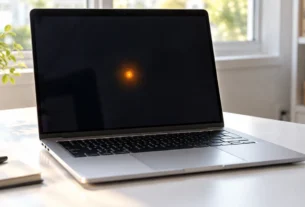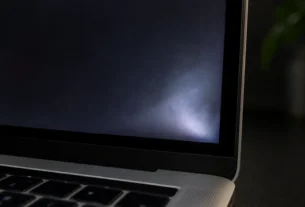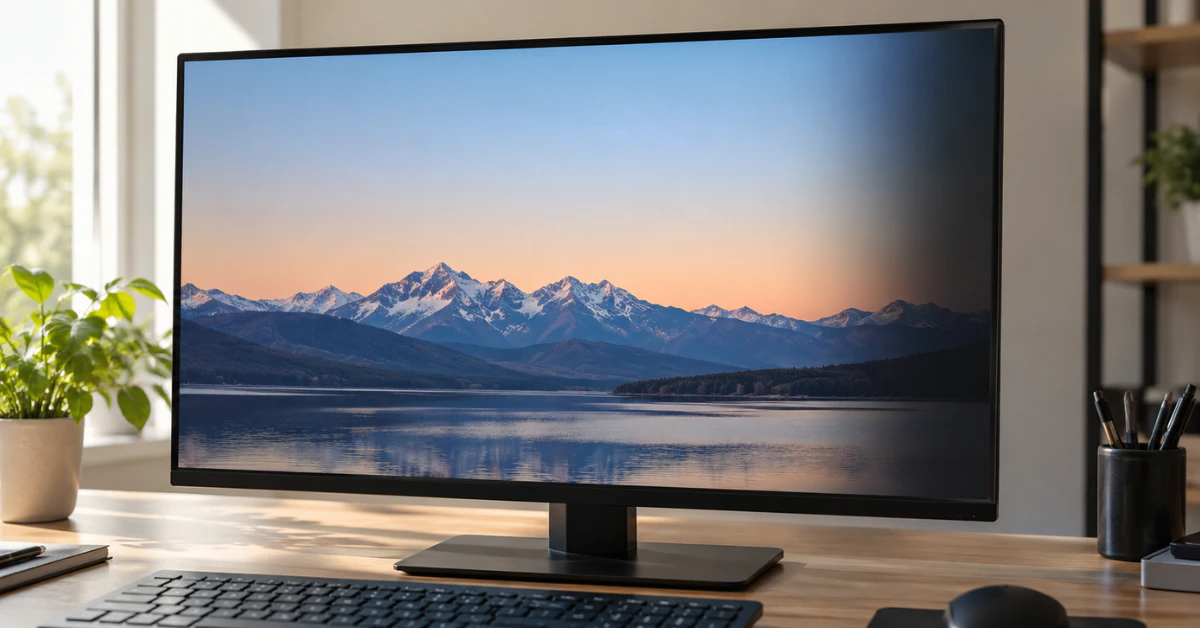
Most of the time, a shadow on your monitor comes from a loose or cheap video cable (old VGA cords are the worst offender) or a docking station sitting between your PC and the screen. According to ViewSonic’s own support team, unplugging everything and connecting the monitor straight to your computer fixes it in most cases. Try that before anything else.
Before you spend money on a new monitor, run this quick check. One frustrated user online replaced their entire monitor because of a shadow next to their images, only to have the exact same shadow show up again a week later. The real problem was never the screen. It was the cable.
Look at your shadow and pick the path that matches:
- It follows your mouse or moving windows. This is likely ghosting. Skip ahead to the Monitor Ghosting (OSD Settings) section.
- It sits still no matter what’s on screen, including a black shadow on monitor screen or shadows to the right that never move. Check your cables first, then head to Burn-In & Hardware Diagnosis.
- It changes when you gently press the bezel. Go straight to the Physical Tap Test & Laptop Hinge section.
Check Your Cables, Ports, and Docking Stations
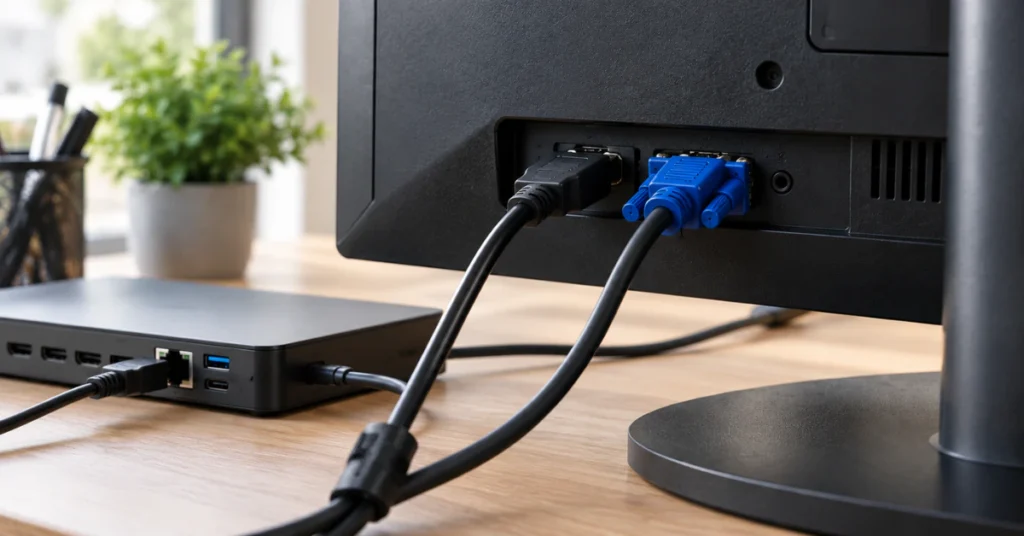
How to Fix a Shadow on a Monitor: Start With Your Cables and Adapters
Before touching any settings, strip your setup down to the basics. Unplug any docking station, KVM switch, or video splitter sitting between your computer and your monitor. Plug the monitor straight into the PC instead. This one step solves a surprising number of shadow problems, according to ViewSonic’s own troubleshooting guide.
Bypass Docking Stations, KVM Switches, and Splitters
These extra boxes are convenient, but they add another place for the signal to weaken or glitch. If your shadow clears up once you go direct, you’ve found your answer. No repair needed.
Swap Out Old VGA or Unshielded Cables
A loose or cheap VGA cable is the single biggest cause of a shadow that sits off to one side of your image. Switch to a clean HDMI or DisplayPort cable and push it in firmly on both ends. If your cable run is longer than 3 meters (about 10 feet), use a certified, shielded cable made for long distances, or the signal can drop and cause the same shadow effect.
One more check from Sony’s support team: plug your monitor’s power cord straight into a wall outlet, not a crowded power strip or surge protector. Also move magnets, speakers, or other electrical gear away from the screen. Both can cause interference that looks like a shadow.
Refresh Your Signal and Update Windows & GPU Drivers
Refresh the Display Signal and Fix Software Redraw Bugs
If your cables check out fine, the problem might be coming from your PC’s software, not the monitor at all. This step rules that out before you touch any hardware settings.
Cycle Input Sources and Update Graphics Drivers
Start by pressing the INPUT button on your monitor and cycling through the sources, even if you’re only using one. This forces the monitor to grab a fresh signal and can clear a stuck frame that looks like a shadow. If the shadow comes back right after your PC wakes from sleep or standby, that’s a clue the problem sits deeper than a simple glitch.
Next, update your graphics card driver to the latest version. If the shadow started right after a recent driver update, try rolling back to the older version instead. Either direction can fix display artifacts caused by buggy driver code.
Check for the Windows 11 Partial Screen Redraw Bug
If you’re on Windows 11, there’s a known software bug worth ruling out. Microsoft confirmed that after certain 2025 updates, some apps and browsers would only redraw part of the screen while scrolling, especially when another full-screen app was running in the background. This can look a lot like a ghostly shadow trailing your content. Microsoft included a fix for this in a later October 2025 update, so make sure Windows is fully up to date.
Fix Monitor Ghosting and Motion Shadows in Your OSD Menu
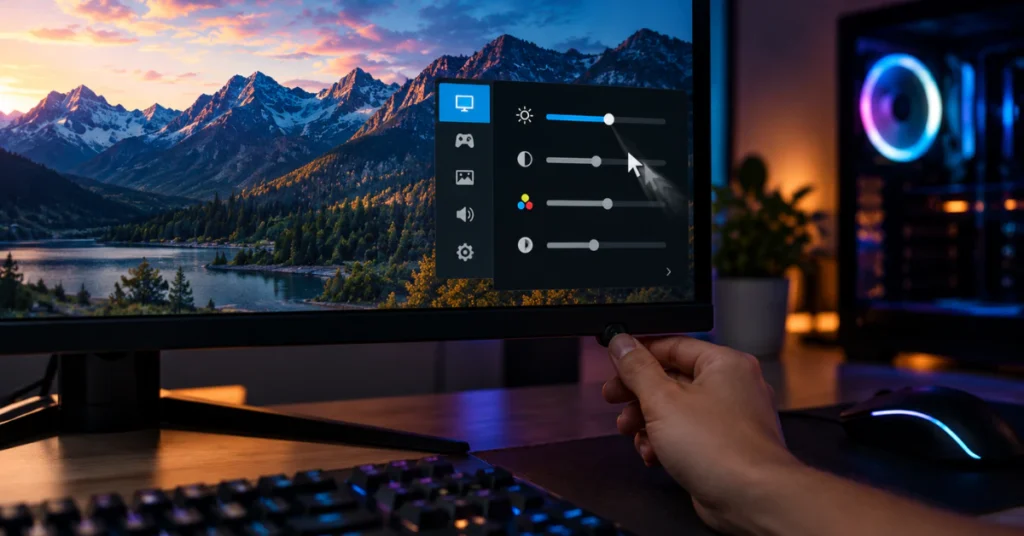
Fix Monitor Ghosting: Adjust Overdrive, Response Time, and Factory Reset
If your shadow only shows up trailing behind moving objects, like your mouse or fast motion in a game, you’re dealing with ghosting, not a broken screen. HP explains that ghosting happens when a monitor’s pixels change color too slowly to keep up with motion. It shows up most on VA panels, less on IPS or TN panels. The good news is that ghosting causes no permanent damage. It’s fixable.
Brand-by-Brand Cheat Sheet: Where to Find Overdrive Settings
Every monitor brand hides this setting under a different name. Here’s where to look:
| Brand | Setting Name | Menu Location |
| Acer | OD | Main display menu |
| AOC | Overdrive | Game Setting |
| Asus | Trace Free | Image → OverClocking |
| BenQ | AMA | Picture |
| Dell | Response Time | Display menu |
| HP | OverDrive | Image Control |
| LG | Response Time | Main display menu |
A quick note: these labels can shift depending on your exact model and firmware version, so treat this as a starting point, not a guarantee.
Watch Out for “Inverse Ghosting” (Overshoot)
Turning this setting up too high can backfire. Instead of a dark trailing shadow, you’ll see a bright or colored halo following motion instead. This is called inverse ghosting. If you see it, just dial the setting back down one notch until it clears.
If none of this helps, try a full factory reset through your monitor’s OSD menu, sometimes called Memory Recall, per ViewSonic’s guidance.
Safety & Warranty Warning: Never Touch the Hidden Factory Service Menu
Stick to the normal on-screen menu settings only, things like turning Uniformity Compensation off or setting Response Time to Normal. Do not go into your monitor’s hidden internal Factory Service Menu (FSM) to change these settings. Dell’s own support team confirms that editing the FSM voids your warranty. This warning applies before you touch anything beyond the standard OSD menu.
When “Ghosting” Isn’t Broken: Phantom Array Effect vs. OLED Burn-In
Still Seeing Trails or Static Shadows? Check for Perceptual Effects and OLED Burn-In
Sometimes you can try every setting in the book and the trailing effect just won’t go away. Before you assume your monitor is broken, there are two more possibilities worth ruling out.
The “Phantom Array Effect” on High-Refresh Gaming Monitors
If you’re a gamer and you see objects multiply or blur every time you move your view, even after switching monitors, GPUs, and drivers, you might be looking at something called the phantom array effect. Display experts at BlurBusters explain that this happens because of how your eyes naturally track motion on screen. It’s not a flaw in your monitor. It shows up across many different setups because it’s tied to human vision, not hardware. Since it’s not a hardware defect, there’s no OSD setting that fixes it. The only real ways to reduce it are using a much higher refresh rate and frame rate, or adding a bit of motion blur back in.
Static Shadows: OLED Burn-In vs. LCD Image Retention
If your shadow stays in one exact spot no matter what’s on screen, the cause depends heavily on your panel type. True burn-in, where an image gets permanently marked into the screen, is an OLED-specific risk from leaving the same image up for a long time. Samsung’s own OLED monitors include a fix for this called Pixel Refresh, found under Settings, then General & Privacy, then Panel Care.
Standard LCD and LED monitors work differently. They can suffer from temporary image retention, but they do not get true, permanent burn-in the way OLED panels can.
Diagnose Physical Hardware Faults (The “Tap Test” & Pressure Marks)
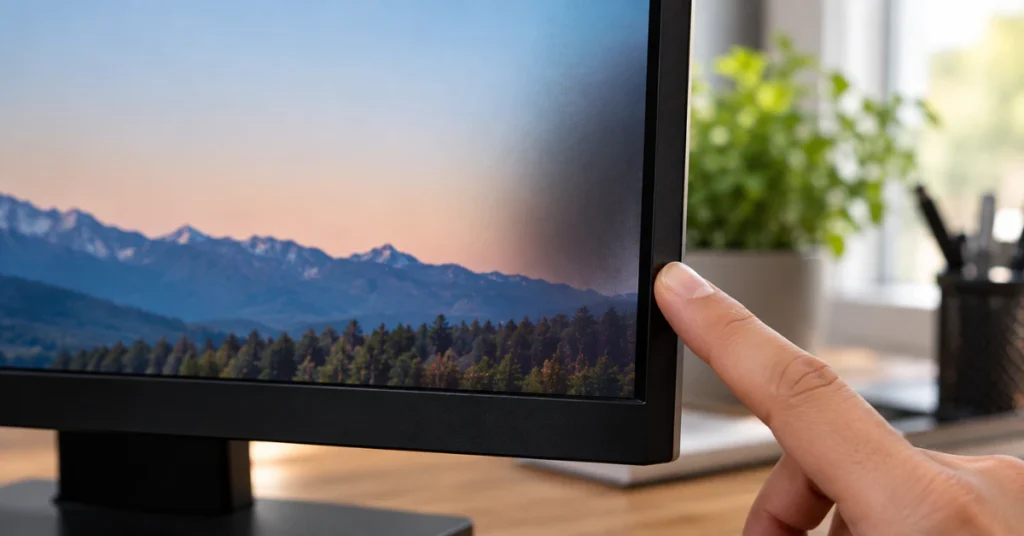
Physical Screen Diagnosis: The Bezel “Tap Test” and Screen Pressure Marks
If nothing in your settings menu has fixed the shadow, it’s time for a hands-on test. This one costs nothing and takes seconds.
Run the Bezel “Tap Test” to Spot Loose Internal Connections
Gently press on the plastic bezel around your screen, try a corner, or if you have a laptop, slowly flex the lid back and forth. Watch the shadow closely as you do this. If it shifts, flickers, or clears up, that’s a real signal. Reports from HP’s community forum, Tom’s Guide, and iFixit all point to the same cause: a loose internal display or backlight cable, or a fault in the panel itself. This isn’t something a setting can fix. It points to a hardware issue inside the device.
Did Pressing the Screen Cause Permanent Damage? (Ripple vs. LCD Bruising)
Don’t panic if a light touch causes a small ripple, kind of like touching the surface of water. HP’s own support team confirms that brief, gentle finger pressure like this does not shorten your screen’s lifespan or cause lasting harm. The real danger is heavy or sustained pressure, like something pressing on a closed laptop lid for hours. That kind of force can leave a permanent dark, bruise-like mark that needs a screen replacement.
How to Fix a Shadow on a Laptop Screen (Hinge & Flex Cable Guide)
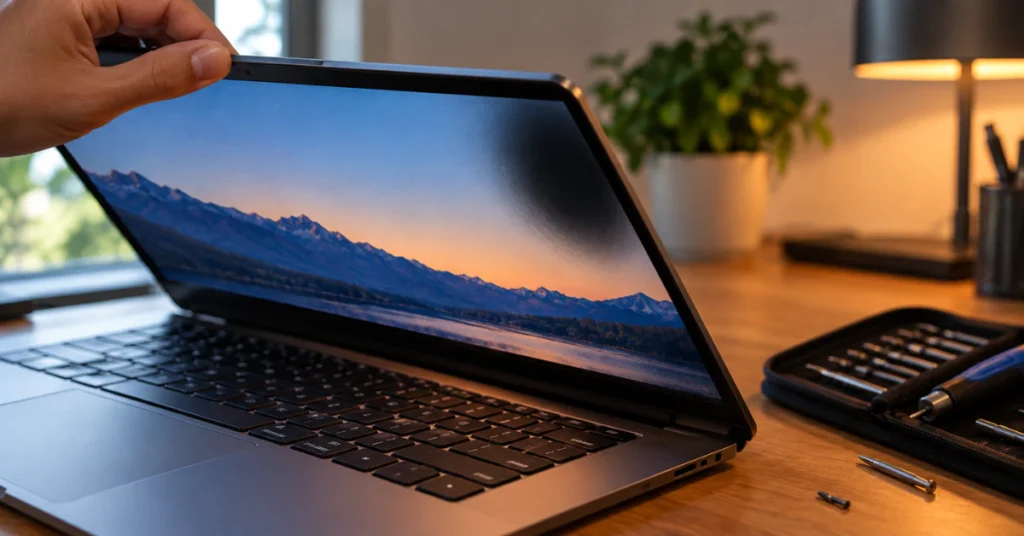
How to Fix a Shadow on a Laptop Screen: The Hinge Cable Problem
Laptops fail differently than desktop monitors, and this matters if the tap test in the last step pointed to a hardware issue. A laptop’s screen cable, sometimes called an LVDS or eDP cable, runs through the hinge itself. Every time you open and close the lid, that cable flexes a tiny bit. Over years of use, it can pull tight, fray, or work its way loose. This is exactly why a laptop shadow often only shows up at certain lid angles and disappears at others.
Safety, Static, and Warranty Warning Before Opening Your Laptop
Before you go any further, know this: opening your laptop’s case can void your manufacturer’s warranty. It also carries a real risk of static discharge damaging the motherboard, so you’d need to unplug the power, disconnect the battery, and wait for any leftover charge in the backlight circuit to drain before touching anything inside. Disassembly steps are different for every laptop model. If your laptop is still under warranty, take it to an authorized repair center instead of opening it yourself. If it’s out of warranty and you want to try it, look up your exact model’s service manual first. Don’t guess.
Why Laptop Shadows Appear at Certain Lid Angles (and How to Prevent Wear)
Going forward, open your laptop lid by lifting from the center, not from one corner. This puts less twisting stress on the hinge and the cable running through it, which helps prevent this kind of wear from happening again.
Frequently Asked Questions
What are the signs of a failing computer monitor?
Watch for shadowing or double images caused by signal loss, dark patches that stay put no matter what’s on screen, flickering, and trailing that follows moving objects. These signs point to either a signal problem or a real hardware fault.
What could be causing shadowing on my monitor?
In order of how common they are: a loose or cheap VGA cable, a docking station or KVM switch in the signal path, an outdated graphics driver, a misconfigured Overdrive setting, or an internal hardware fault in the backlight or cable.
Why is there a dark shadow on my screen?
A shadow that never moves usually points to hardware, not a setting. Use the bezel tap test to check for a loose internal cable. On an OLED screen, it may be burn-in, which Samsung’s support page explains how to treat with Pixel Refresh.
How can I fix ghosting on my monitor?
Look for your monitor’s Overdrive or Response Time setting in the OSD menu. This controls how fast your panel’s pixels change color. Adjusting it up or down, one step at a time, often clears up trailing images behind motion.
What does ghosting look like on a monitor?
It looks like a faint, ghost-like trail of pixels following a moving object, common during games or fast scrolling. Don’t confuse this with the phantom array effect, which is your eyes tracking motion, not a broken monitor.
How do I get rid of a ghost display?
Run through this checklist: connect the monitor directly to your PC, cycle the input source, check for the Windows 11 KB5067036 update if you’re seeing partial screen redraws, and run a factory reset in the OSD menu.
Does overheating cause monitor shadows?
Not directly. Heat can shut a monitor down or wear out parts over many years, but no manufacturer evidence shows that overheating causes a screen shadow to suddenly appear.
Wrapping Up
A shadow on your screen looks scary, but it’s rarely as bad as it seems. Start with the cheapest, easiest fixes first: check your cables, skip the dock, and cycle your input. From there, work through your OSD settings before you ever think about opening anything up.
Most shadows trace back to a loose cable, an outdated driver, or a setting like Overdrive that just needs a small tweak. Real hardware faults exist too, but the bezel tap test and the lid-angle check will tell you clearly if that’s what you’re dealing with.
Whatever you find, you don’t need to be a technician to solve this. Work through these steps in order, and you’ll know exactly what’s wrong with your screen, and what to do about it, before you spend a dollar on a repair or a replacement.